Adding Resilio Job folders to a DFS Namespace
This guide covers setting up Enterprise Hybrid Work jobs so that the Job folders can be accessed through a DFS Namespace. This allows you to pool Resilio job folders along with other network shares under a single DFS Namespace.
Prerequisites
- Active Directory domain environment.
- DFS Namespaces role service installed on the namespace server.
- Administrative permissions for DFS Management.
Add users and set up job folders
When creating an Enterprise Hybrid Work job, specify the end user Agent job folder as a direct path to a virtual network share that Resilio will create.
-
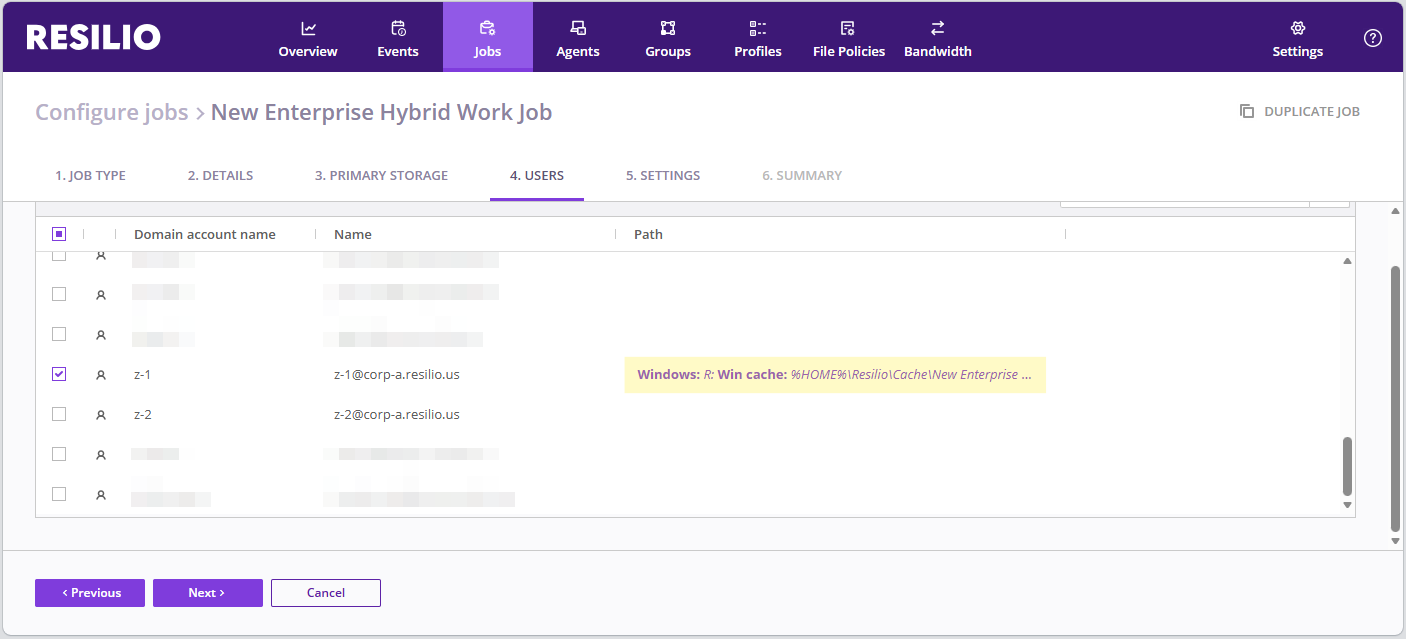
On the USERS tab, select a user or a domain group, then click its predetermined folder path to change it.
-
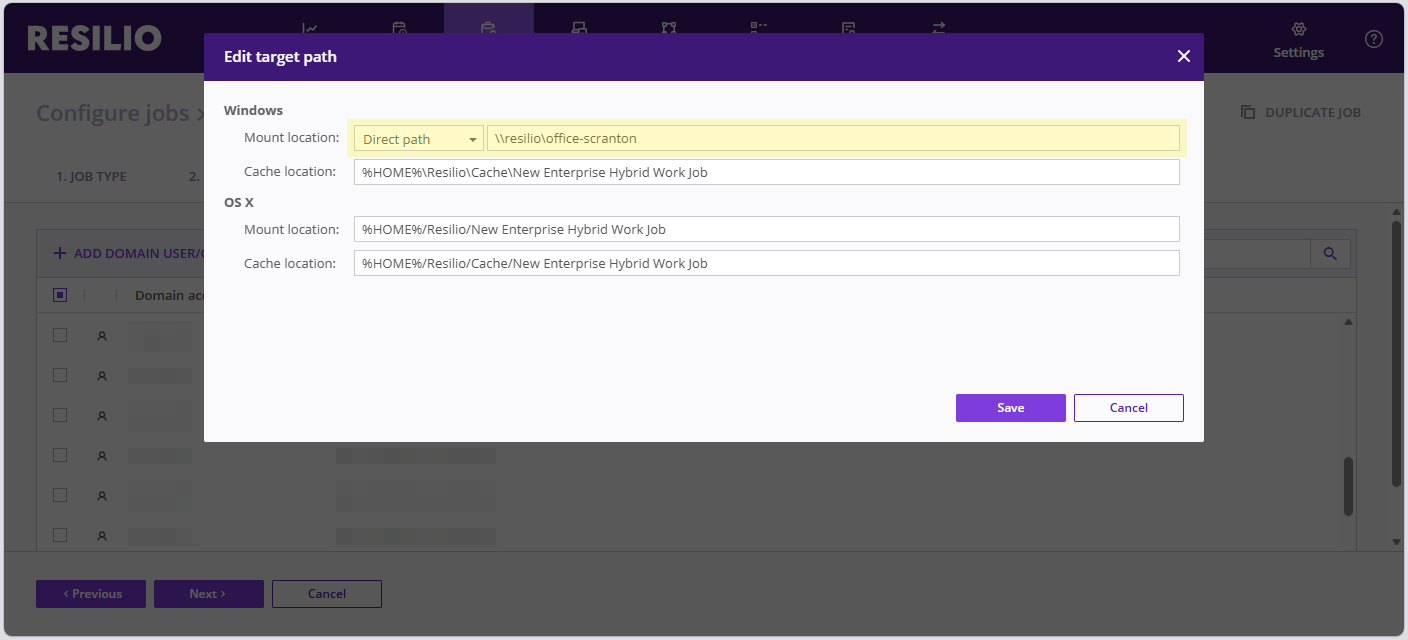
From the Mount location drop-down list, select
Direct path. -
Enter the job folder path, which must start with
\\resilio\followed by a folder name (for example,\\resilio\office-scranton).Virtual network folder
Once the job is created, Resilio creates a virtual network share on end users Agent hosts that points to the specified Job folder path.
Add Resilio Job folders to a DFS Namespace
Add virtual network share folders to a DFS namespace to access Resilio Job folders from a single location.
To add a DFS target folder to a namespace:
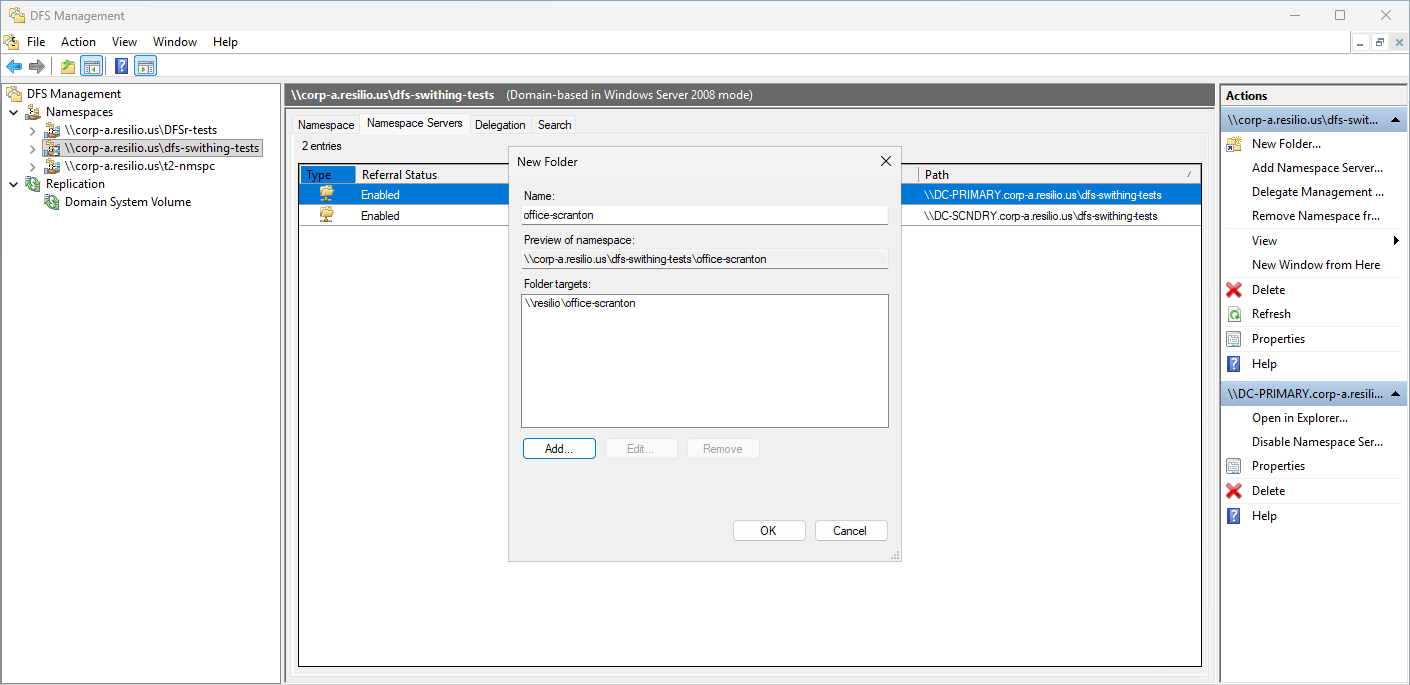
- On your namespace server, open DFS Management and expand Namespaces.
- Right-click the namespace and select New Folder.
- Enter a folder name (for example,
office-scranton). - Under Folder Targets, click Add....
-
Enter the same folder path as the job folder path specified in the Enterprise Hybrid Work job (for example,
\\resilio\office-scranton), then click OK.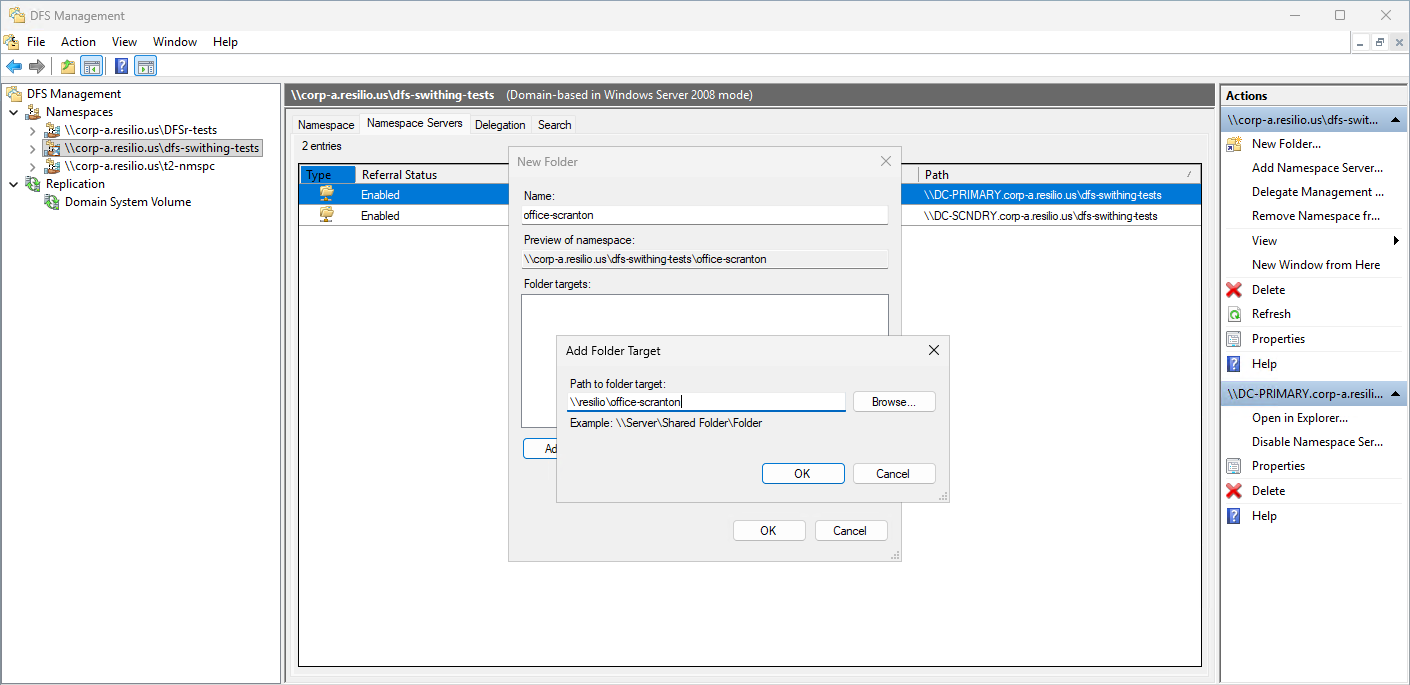
Tip
This can also be a folder inside the job folder (for example,
\\resilio\office-scranton\documents). -
Click Yes to acknowledge the warning about the DFS Management not being able to validate the target folder.
-
Click OK to create the DFS folder.