Filename Conflicts
Overview
Resilio Active Everywhere is a cross-platform solution that works with different file systems, each having its own rules for filenames, character sets, metadata, storage management, and other aspects. When syncing a file, the Resilio Agent instructs the local file system to write the given file to a given location. This is where you might encounter file conflicts in the directories:
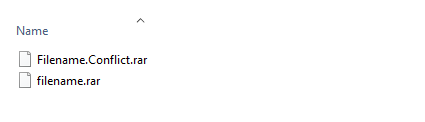
These appear when two files are trying to be synced into one: the local file system already has such a file, but the remote file system considers them to be two different files.
Letter-case conflict
The most common example is the letter-case conflict. File systems can be case-sensitive, which differentiates between letter case, and case-insensitive, which does not. The former, mainly on Linux, considers Filename and filename to be two different files. The latter, mainly used on macOS and Windows, considers these the same file.
If the "Resolve filename system conflicts" parameter is enabled in the Agent Profile, the Agents will create a .Conflict file and report the corresponding message in the events log.

When adding a case-insensitive file system to a mesh, it will create filename.Conflict if two files with the same name are attempting to be written to it.
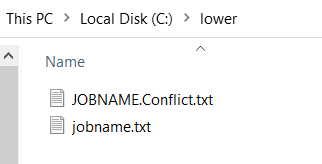
All of this applies not only to files, but also to folder names — folders may also have conflicting names. The files inside, provided they themselves are not conflicting, will remain untouched.
Other known causes for creating a Conflict are:
- Composed/decomposed UTF symbols (names with umlauts or accents are at risk).
- Filename contains a symbol prohibited by the file system. On Windows, these are replaced with an underscore ( _ ).
- Files/folders located in linked junctions.
Composed/decomposed UTF symbols explained
Windows and Linux can store file names in composed and decomposed forms, whereas Mac can store files only in decomposed form. For example, consider two files: "composéd.txt" created on Linux or Windows and "decomposéd.txt" created on Mac:

To the human eye, "é" looks the same in both files. But in the file system, those symbols are actually different:

How to handle the conflict?
-
Do not delete the conflicting files. This will cause the "correct" file to be deleted from remote Agents:

-
Do not rename conflicting files and folders, and do not simply remove
.Conflictfrom their names.
The root cause of the conflict will still remain, and renaming will only create more conflicts — the renamed file will also be conflicting, and you will end up withfilename.Conflict.Conflict.Conflict.
How to get rid of file conflicts?
The surest way is to prevent them from appearing in the first place. But once they are there, follow these steps:
- Find the "healthy" file among the conflicted ones (on the Agent that has read/write access in the job).
- Move it out of the folder — not just copy, but move. Wait until its counterpart is moved from the folder on other Agents.
- Delete all the conflicting remnants from all Agents.
- Make sure that the conflicting factor is also eliminated, then put the healthy file back in the directory.