Notifications
Overview
The Management Console can send email and webhook notifications when a specific system event occurs. To enable notifications, set up email server or define webhook destinations, then configure your subscriptions.
Set up email server
Sending email notifications require an SMTP server. To configure an SMTP server:
- Select Settings > General.
- In the SMTP Configuration section, click Configure.
-
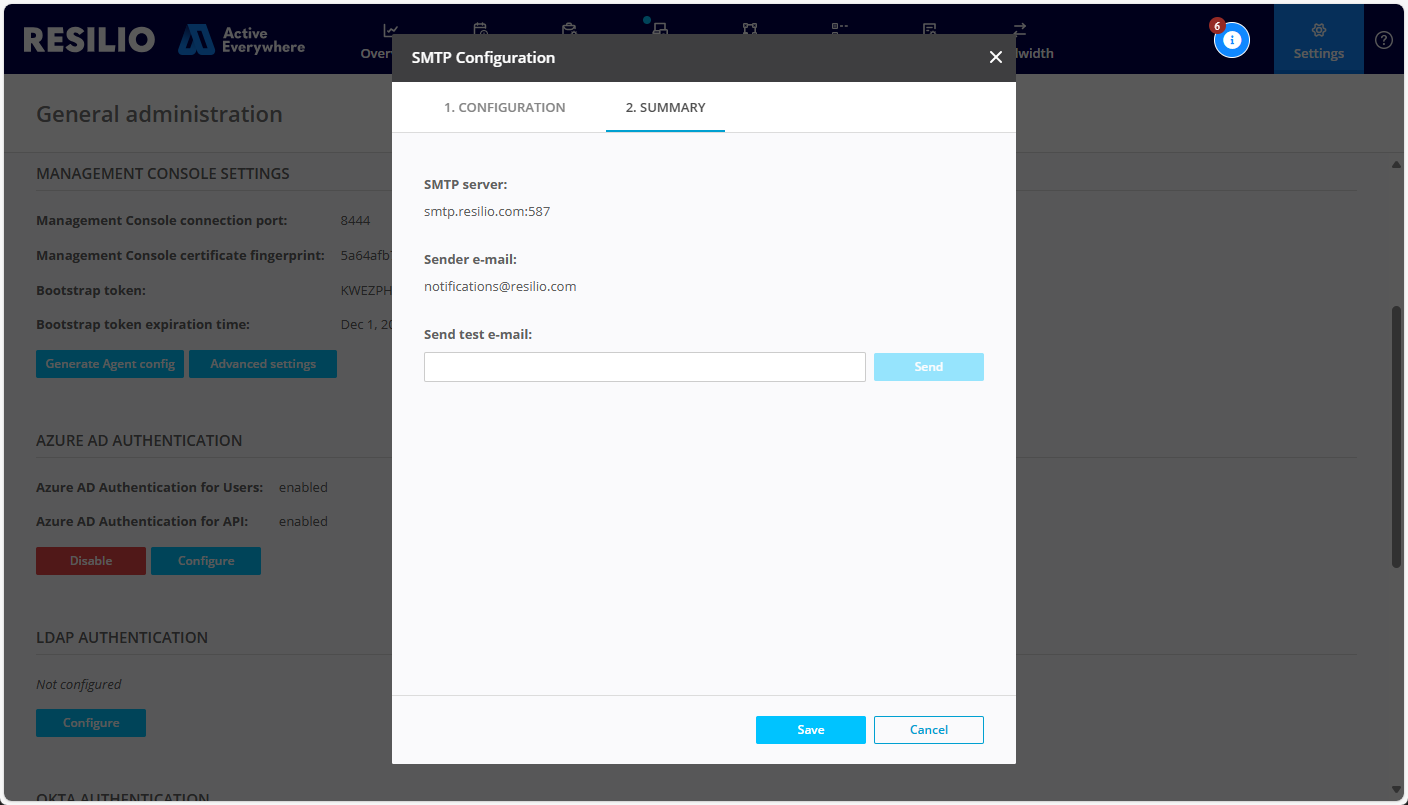
Provide email server configuration parameters:
- SMTP server hostname - SMTP server's IP address or hostname.
- Port - SMTP service's port number.
- Encryption method - Encryption method used for connecting to your SMTP server.
-
Use anonymous SMTP server - Select if the SMTP server does not require authentication.
Note
We recommend setting up email notifications using an SMTP server that requires authentication.
-
Sender e-mail - Notification sender's email address.
- Username - SMTP server account username.
- Password - SMTP server account password.

-
Click Next.
- (Optional) Enter an email address and click Send to send a test notification email.
- Click Save.
Tip
- Email notifications often include links to the Management Console. Make sure to configure the Management Console address parameter in the Management Console's Advanced settings. Use a DNS hostname for convenient access to the Management Console from external networks, make sure to include
https:\\and the port number:8443in the URL string. - Add a custom trusted CA certificate to validate self-signed certificates.
Set up webhook destinations
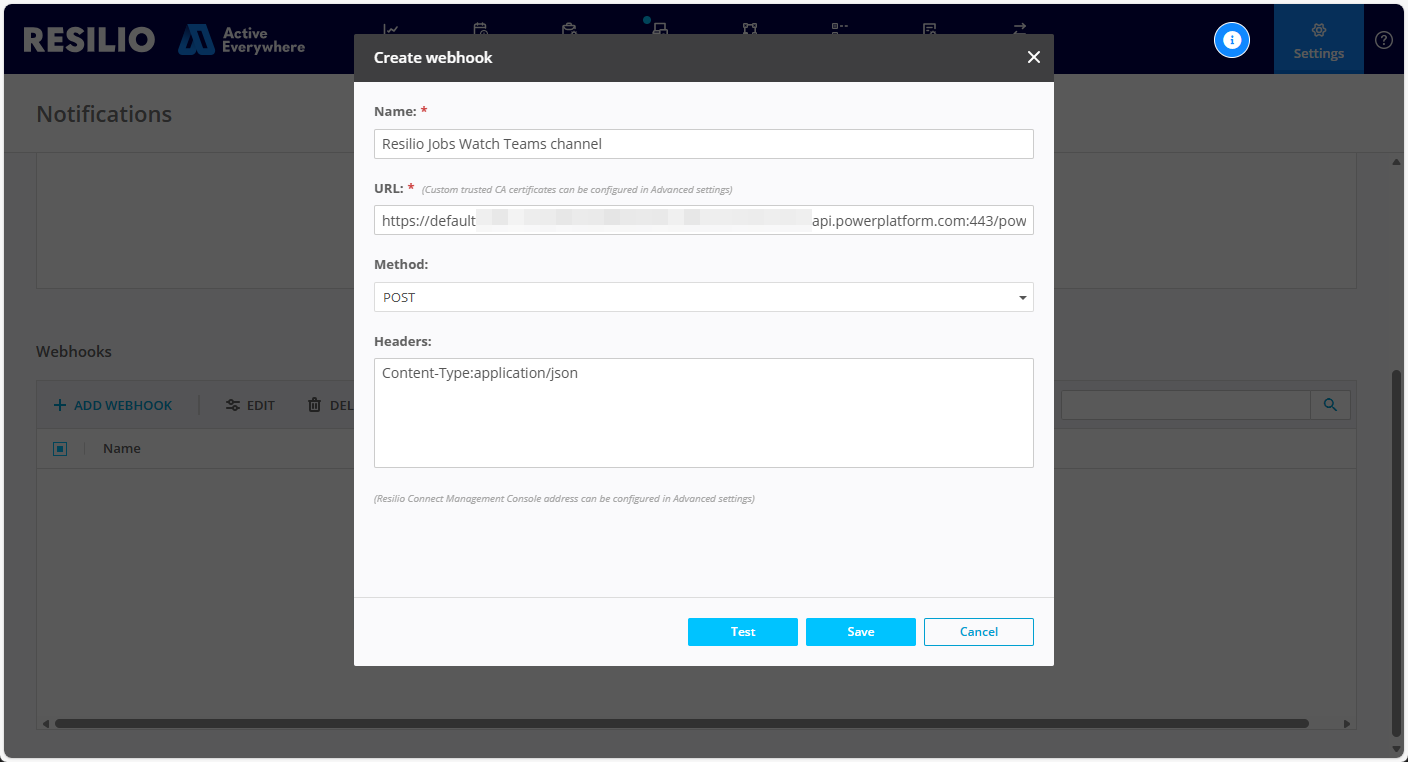
To add a webhook destination:
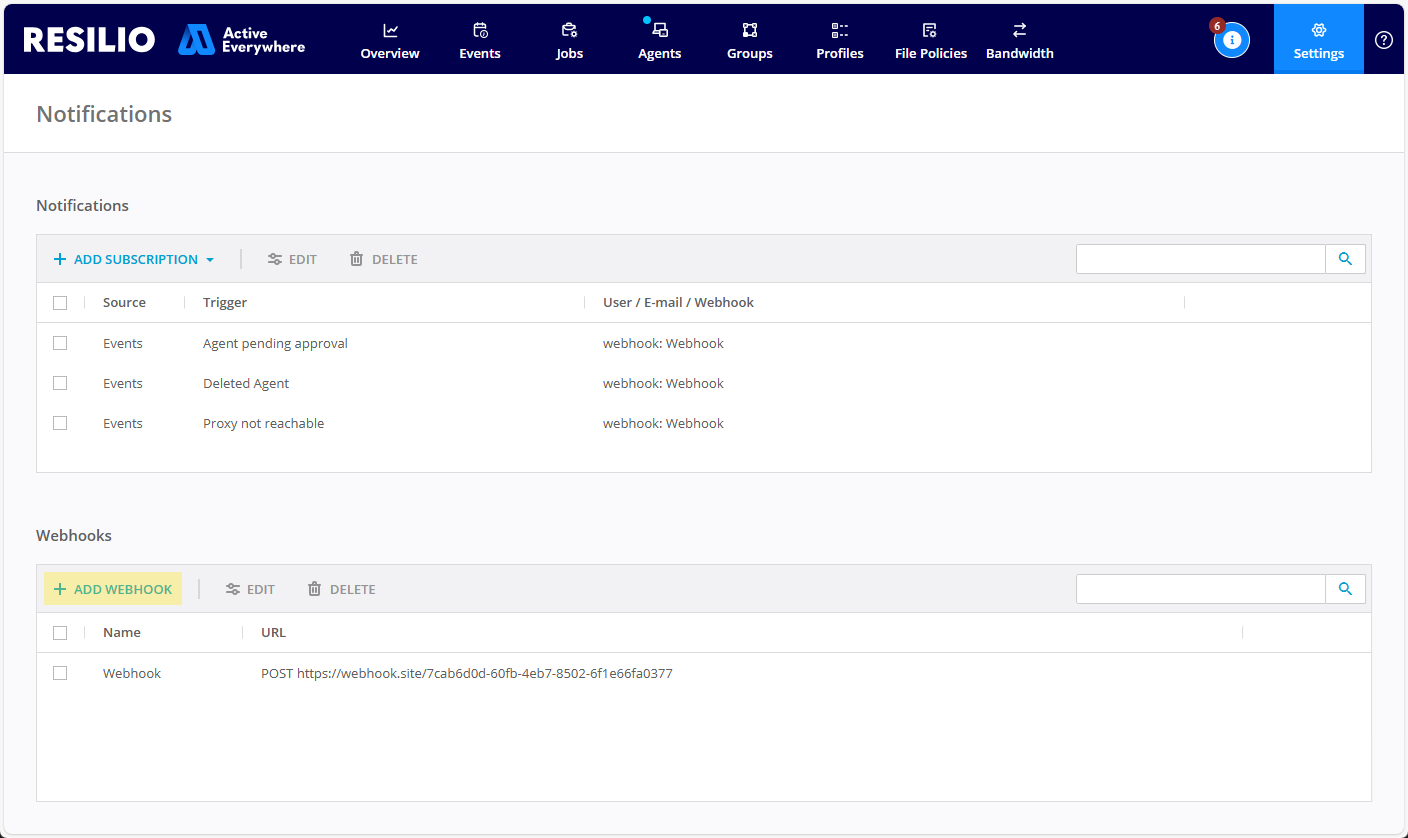
- Select Settings > Notifications.
-
In the Webhooks section, click + ADD WEBHOOK.
-
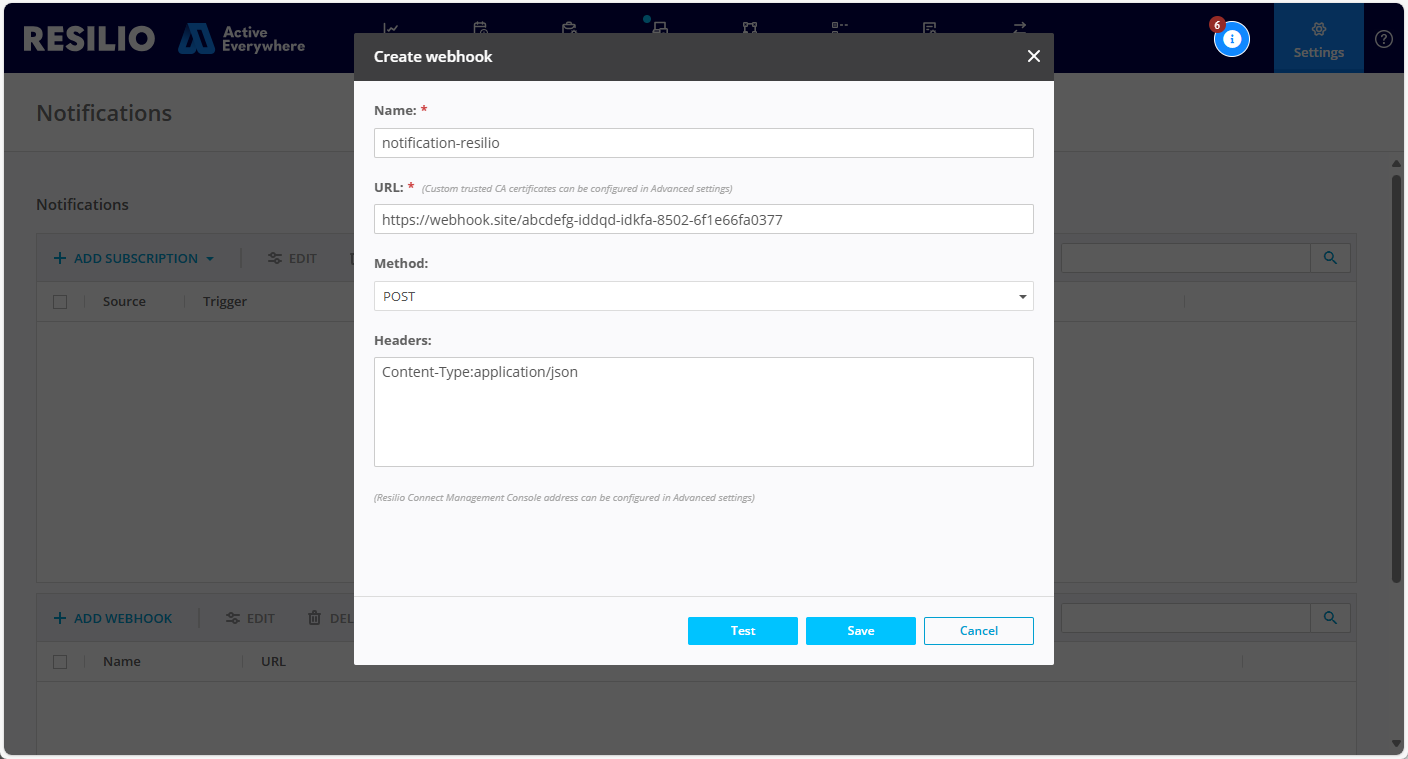
Provide webhook destination parameters:
- Name - A descriptive name for your webhook destination.
-
URL - Webhook destination URL.
Note
If webhook destination whitelisting is enabled in the Management Console's Advanced Settings, make sure the URL you provide is on the list of authorized webhook destinations.
-
Method - HTTP method.
- Headers - HTTP headers.
-
(Optional) Click Test to send a test event to the provided URL.
-
Click Save.
Note
If the webhook destination does not respond to the Management Console within two minutes, the Management Console will re-send the notification.
Webhooks proxy
If your webhook destination is not directly accessible from the Management Console, you can set up a proxy to route notifications. To do it, create mchost.conf file in the storage folder\mchost\ directory (for example, C:\ProgramData\Resilio\Connect Server\mchost\mchost.conf) and specify the proxy configuration using the following template:
"WebHook": {
  "Proxy": {
    "Address": "https://my-webhooks-proxy.net:8443",
    "Username": "",
    "Password": "",
    "BypassList": [],
    "BypassProxyOnLocal": false,
    "IsEnabled": true
  }
}
| Parameter | Description |
|---|---|
Address |
Absolute URL of the proxy server. Example: https://my-webhooks-proxy.net:8443 |
Username |
Optional proxy server username. Note: Leave both Username and Password empty if no authentication is required. |
Password |
Optional proxy server password. |
BypassList |
List of addresses that should bypass the proxy. Note: Define list items as regular expressions. For example, ^https?://10\\.0\\.0\\.\\d{1,3}(:\\d+)?(/|$). If proxy is enabled (IsEnabled: true), the BypassList must be a non-null value. Use an empty array ([]) for no bypass addresses. |
BypassProxyOnLocal |
Whether to bypass the proxy for local addresses. |
IsEnabled |
Whether the proxy is enabled. |
Configure notifications
Add a notification subscription to be notified of a specific event via email or webhooks.
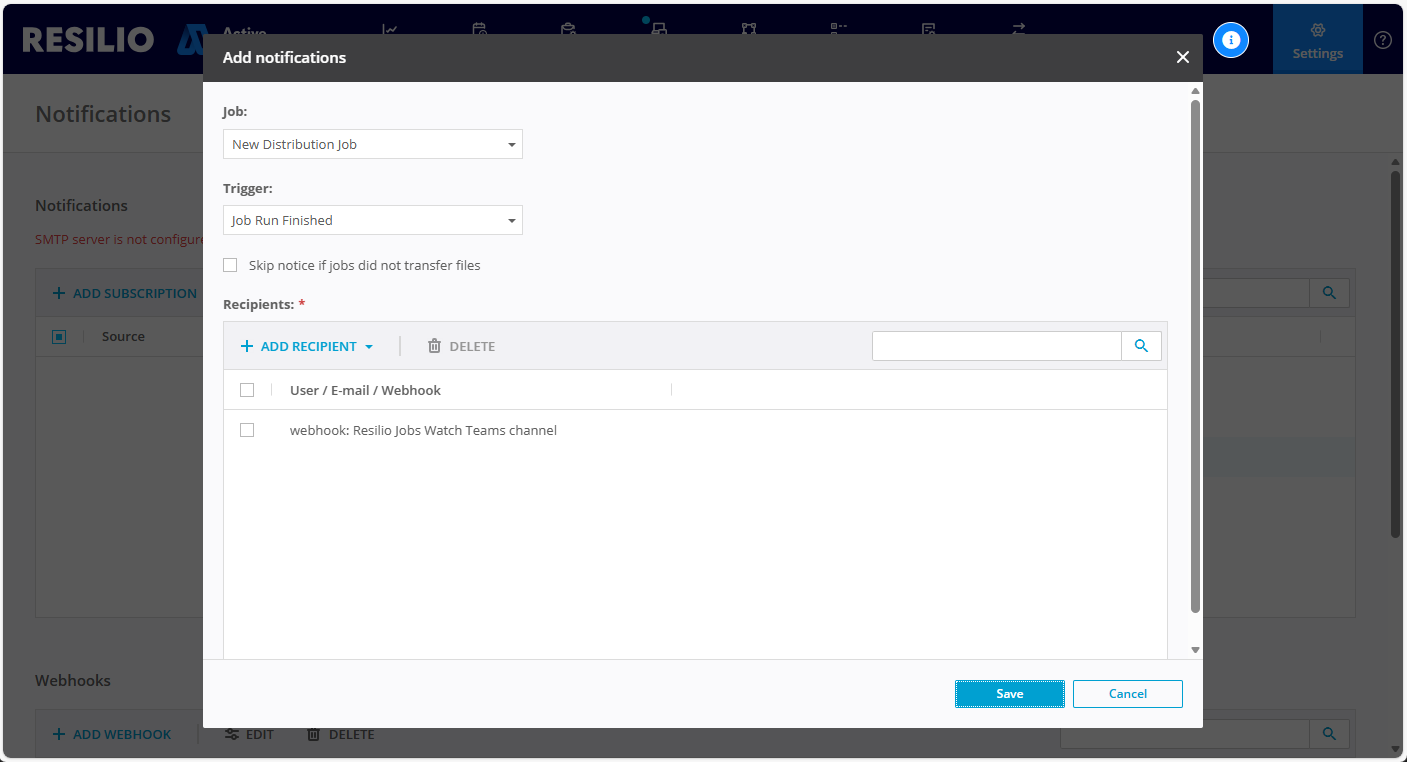
To add a notification subscription:
- Select Settings > Notifications.
-
In the Notifications section, click + ADD SUBSCRIPTION and select event category:
- Add job subscription - Notifications for all or a select Job, triggered by a Job run status.
- Add event subscription - Agents, Proxy and Tracker - related events notifications.
- Add overview subscription - An overall system status report.
-
Provide parameters specific to the selected subscription type.
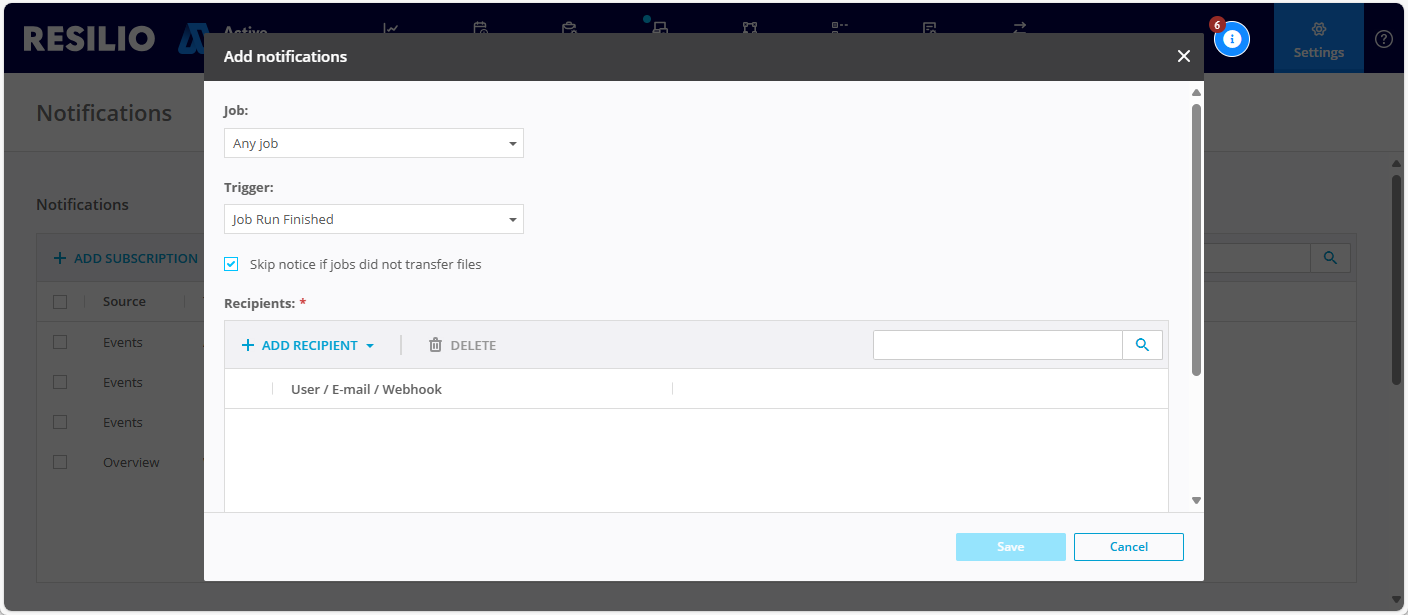
Add job subscription
- From the Job drop-down list, select a specific job to receive notifications concerning a given Job or choose Any job to receive notifications for all Jobs.
-
From the Trigger drop-down list, select an event that triggers notification.
- Job run finished - All online Agents completed the transfer and executed their post-transmissions scripts. There are no Agents with the failed status. For Synchronization, Hybrid Work and File Caching Jobs, a notification is send each time a new or updated files are synchronized across all participating agents. Optionally, select Skip notice if jobs did not transfer files to disable notifications for empty Job runs. Note that this trigger will also send a notification if the Job run was aborted manually or if it times out after a time period defined by the Automatically stop job after parameter in the Job profile.
- Job run finished (with errors only) - The job has completed but some of the participating Agents have the failed status and/or have reported an error. This trigger isn't available for Hybrid Work and File Caching Jobs.
- Job run not complete - Sends a notification if a Job (or a Job run) didn't reach Finished or Synced status within the configured time period. It's useful when you know the approximate time required for Job completion to be notified about it taking more than expected. Available for all job types.
-
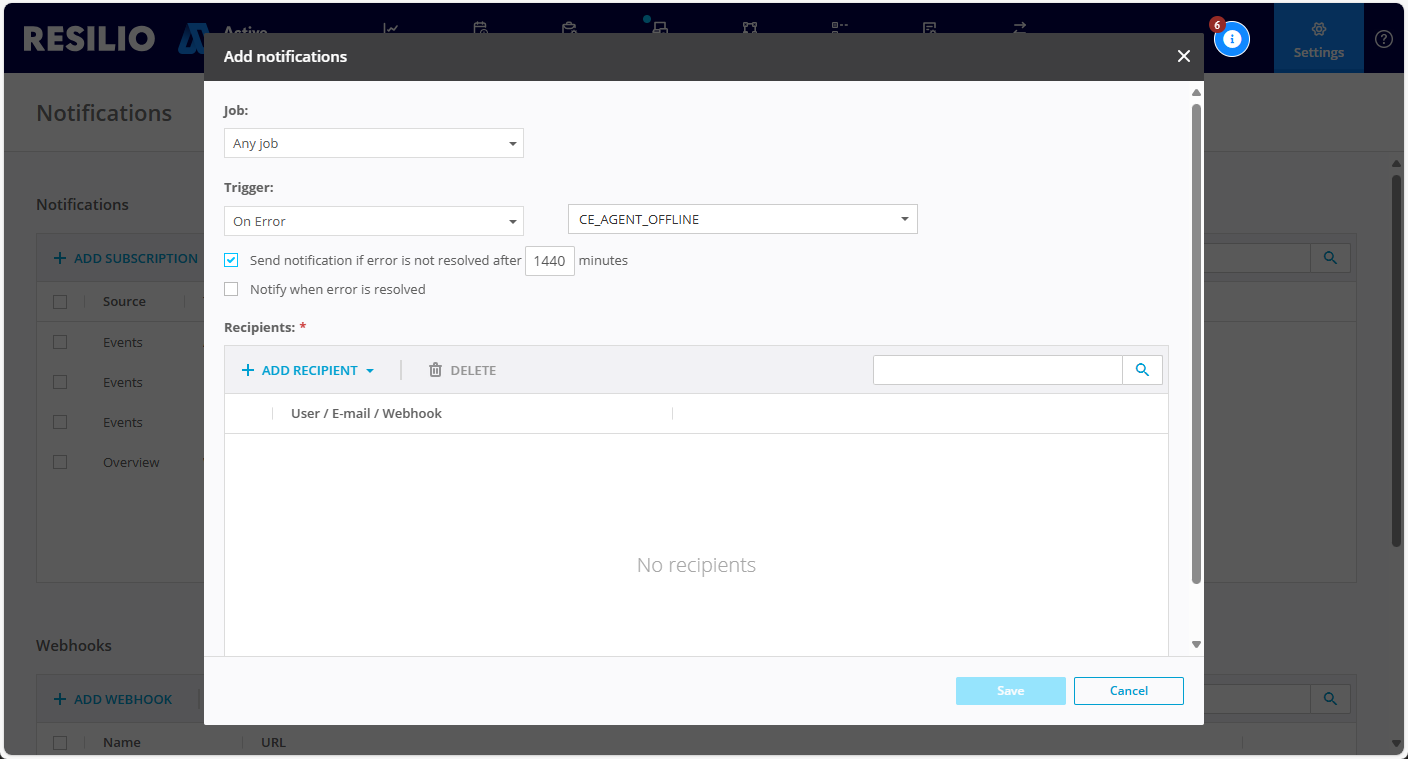
On Error - Sends a notification on any errors, or only specific one, reported by an Agent in a Job run. Select the Send notification if error is not resolved after 10 minutes option delay the notifications and give the Agent a chance to recover. Select Notify when error is resolved to be notified when an error has been cleared.
Get notified if an Agent has been offline for over 24 hours
To get notified about an Agent being offline for over 24 hours, select the CE_AGENT_OFFLINE error and add a 1440 minutes delay.
Warning
If a specific error has been ignored, it won't trigger a notification.

Add event subscription
From the Event drop-down list, select event that will trigger Management Console to send a notification:
- Agent added pending approval - An Agent is awaiting approval.
- Added Agent - An Agent has been added.
- Deleted Agent - An Agent has been deleted.
- Proxy not reachable - Cannot connect to the Proxy server.
- Tracker not reachable - Cannot connect to the Tracker server.
- Max Agents reached - The maximum number of Agents specified in the license has been reached.
Add overview subscription
Enable weekly/daily Job runs summary notification and define the time of the day they are send out.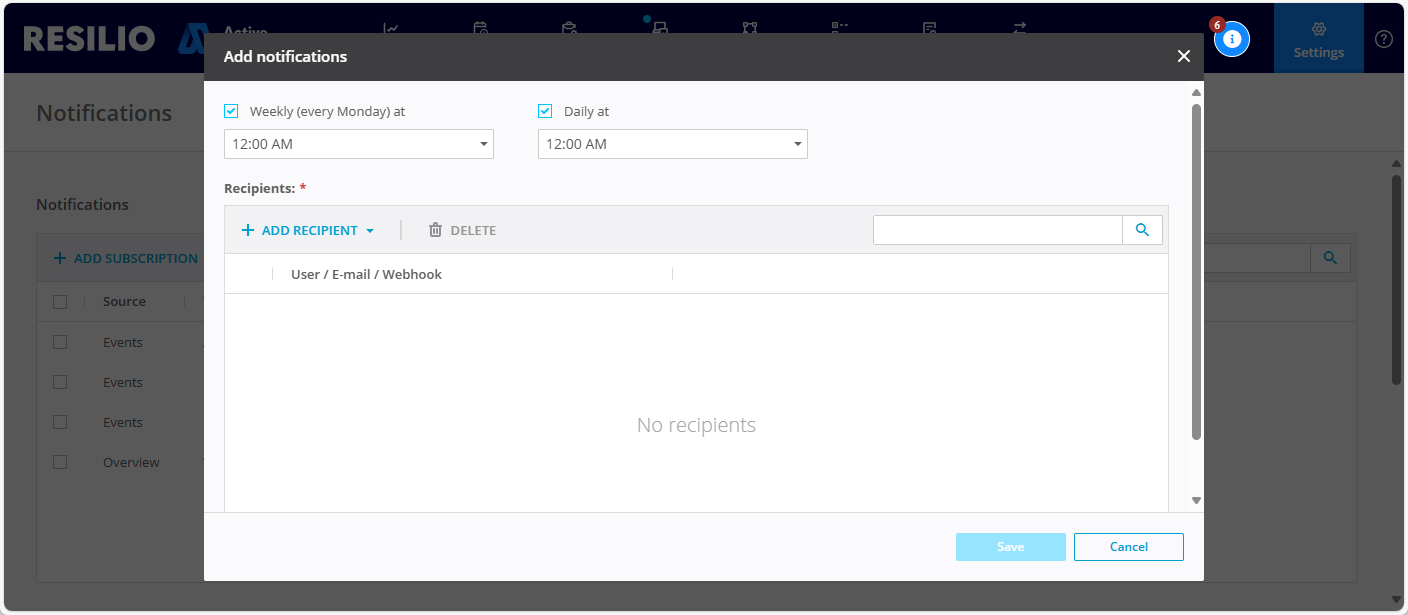
-
In the Recipients section, click + ADD RECIPIENT and select one of the options:
- Add me - Add the currently signed in user.
- Add user - Add another Management Console user account.
- Add e-mail - Provide an email address.
- Add webhook - Select Add webhook, then choose a webhook and click Add.
-
Click Save.
Set up notifications in Teams channels
Set up a workflow and post messages in Teams channels:
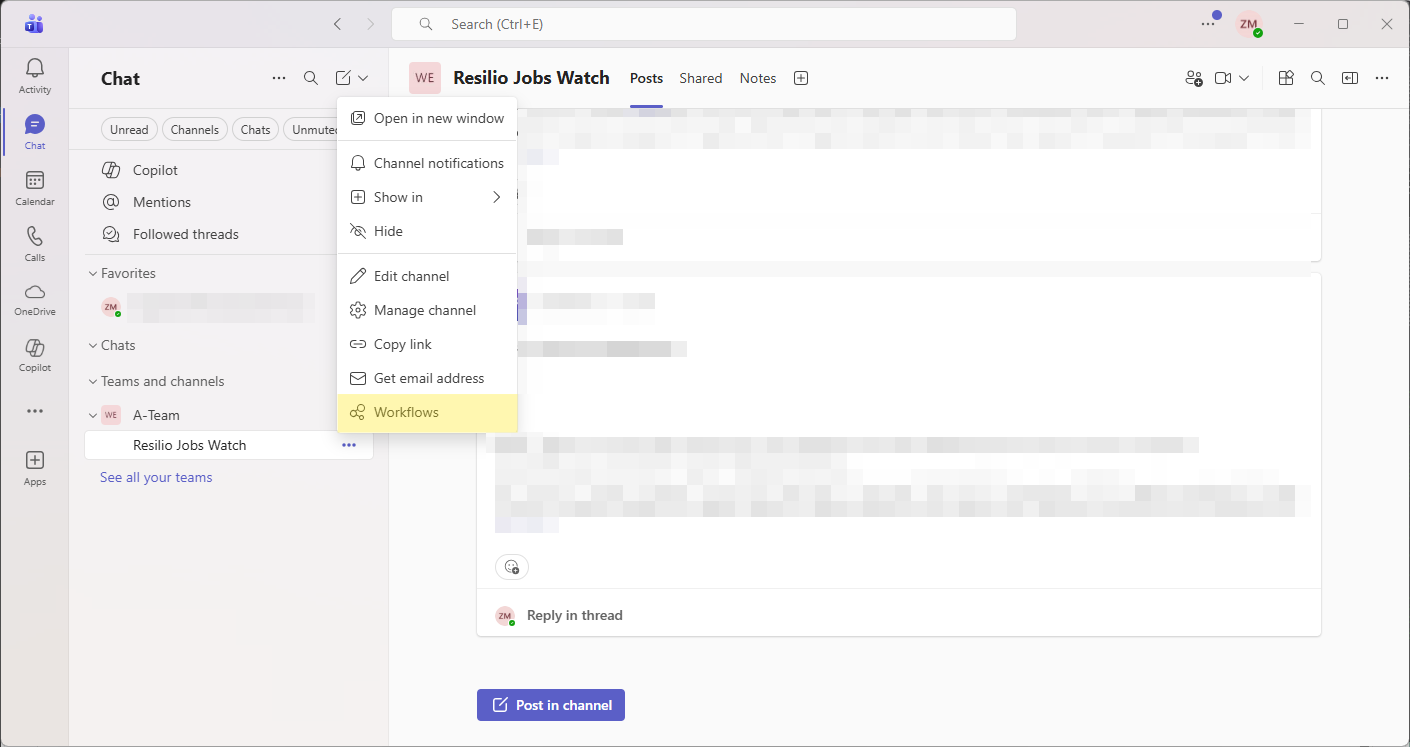
- In Microsoft Teams, locate the channel that you want to post messages to.
-
Click the more options icon, then select Workflows.
-
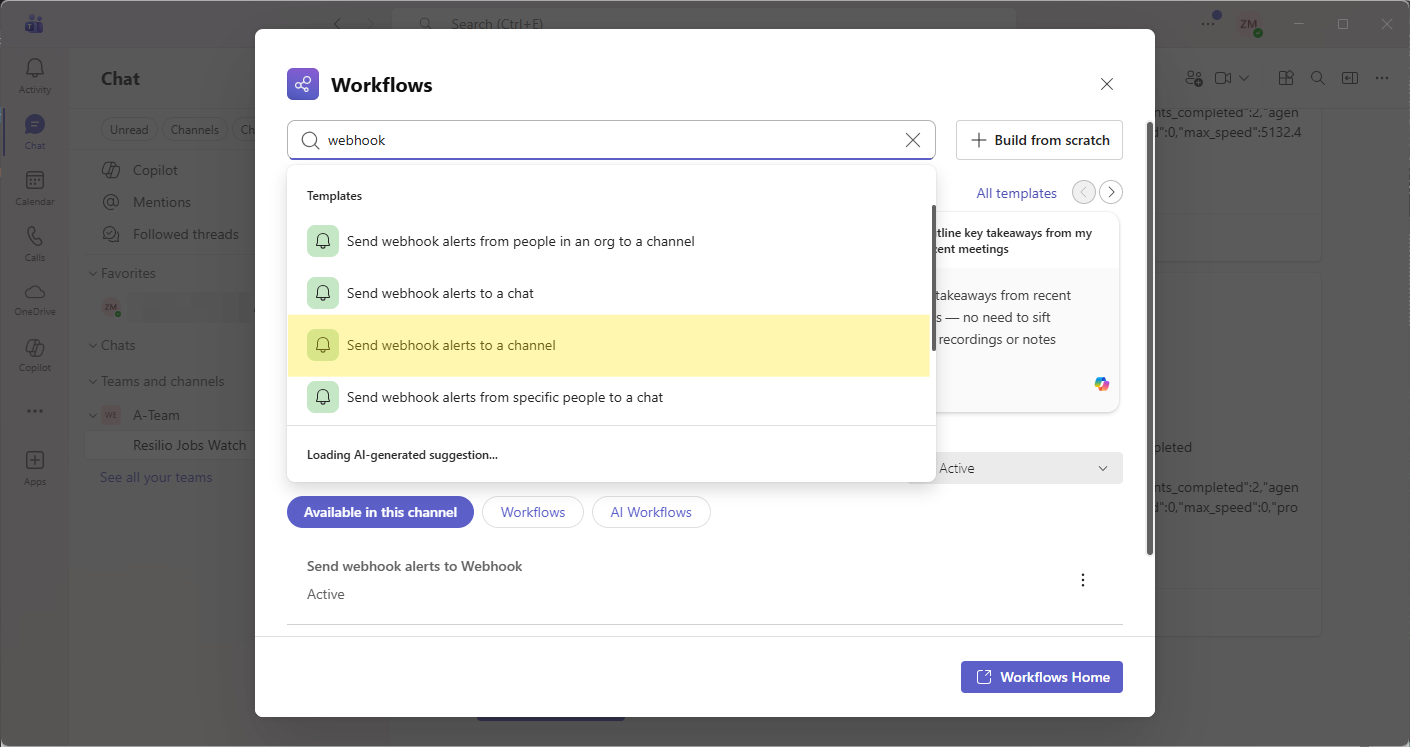
Find an select the Send webhook alerts to a channel template.
-
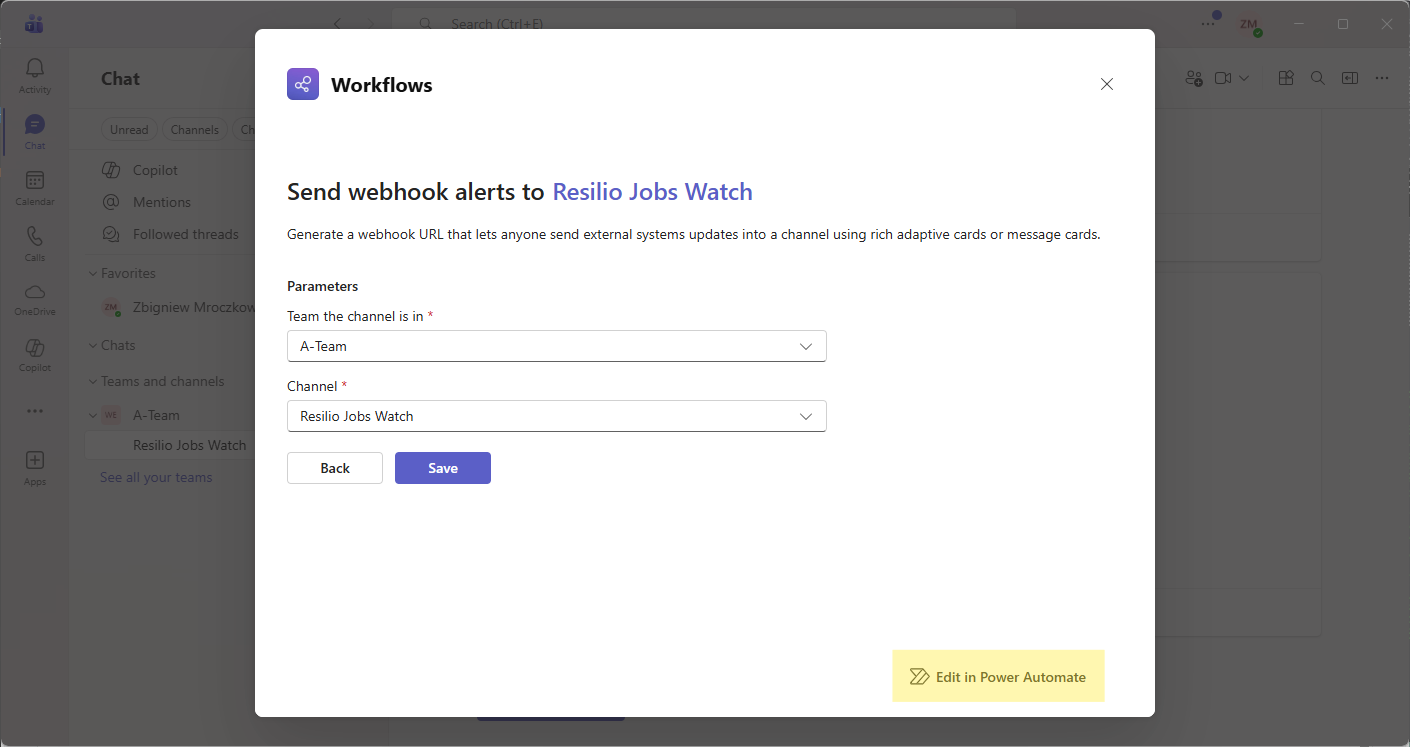
Select the team and the channel, then click Edit in Power Automate.
-
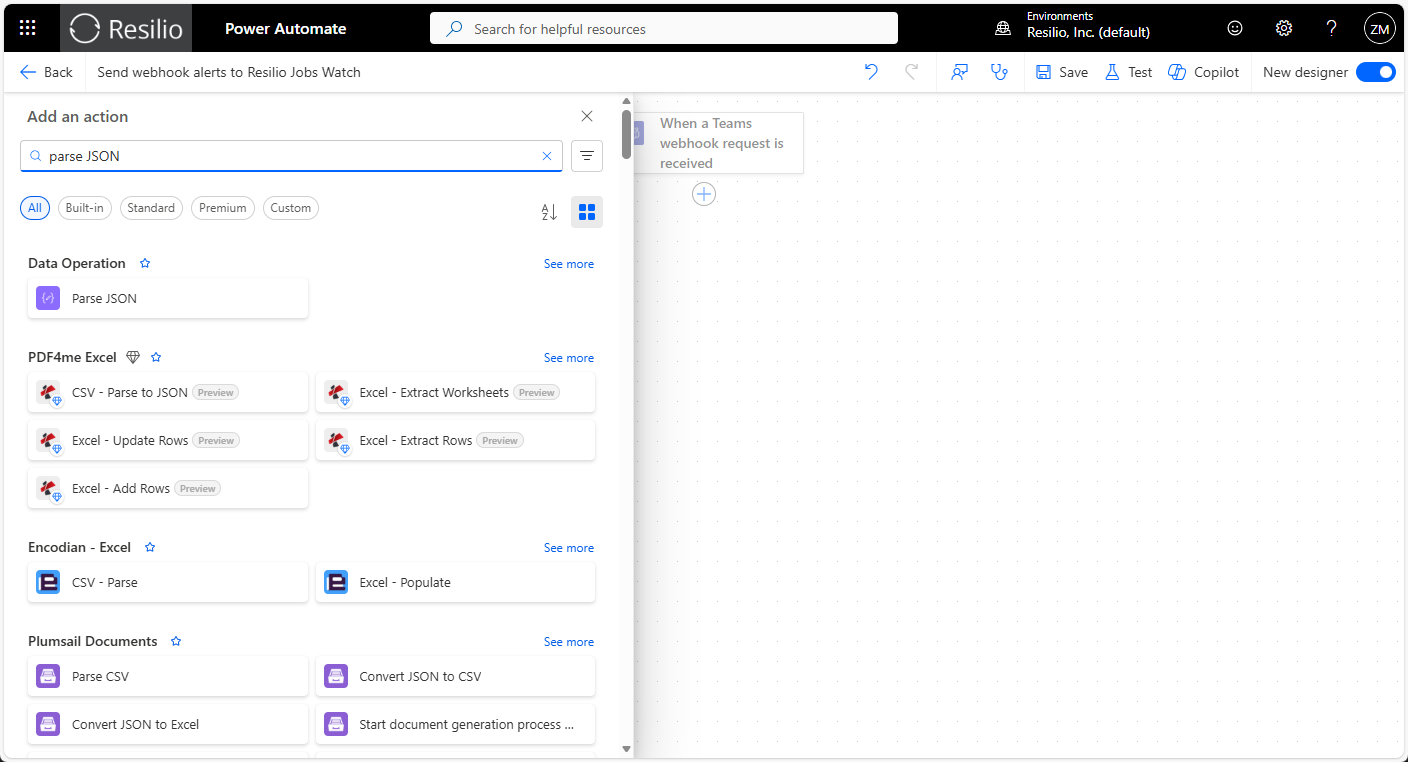
In the Power Automate editor, remove the default blocks except for the top trigger.
-
Add and configure the Parse JSON block:
-
Click +, then search and click the Parse JSON data block.
-
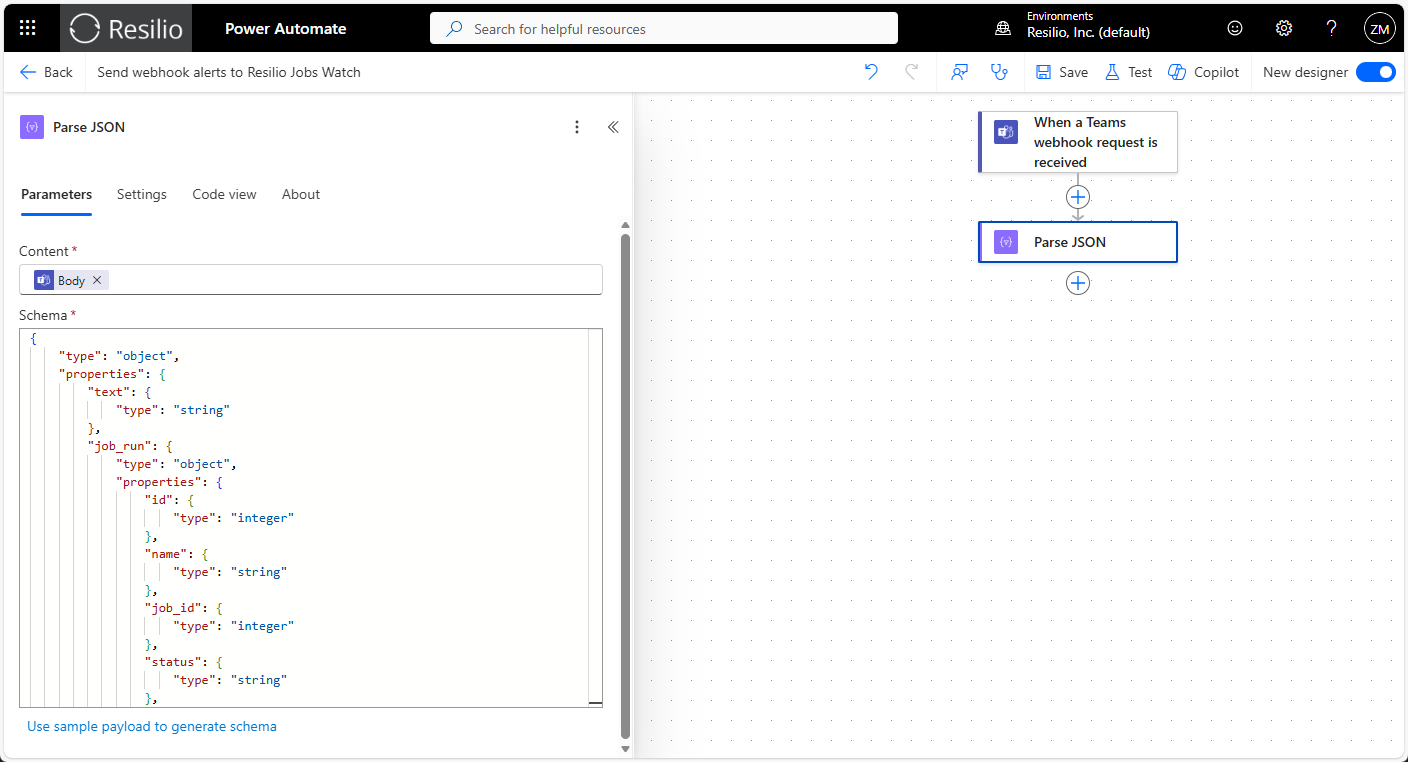
In the Content field, add the
triggerBody()expression. - Under the Schema text input area, click Use sample payload to generate schema.
- Paste the sample payload from the Examples section and click Done.
-
-
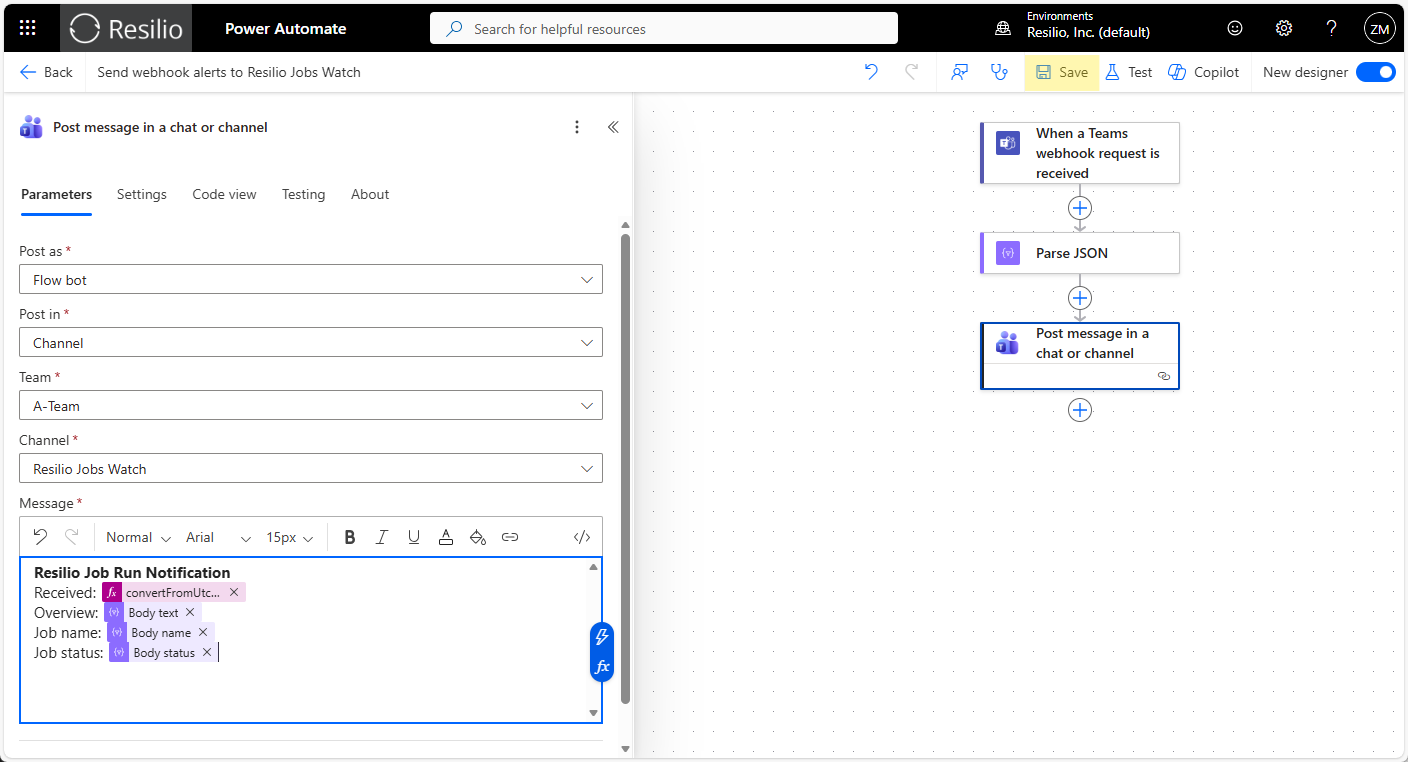
Add and configure the Post message in a chat or channel block:
-
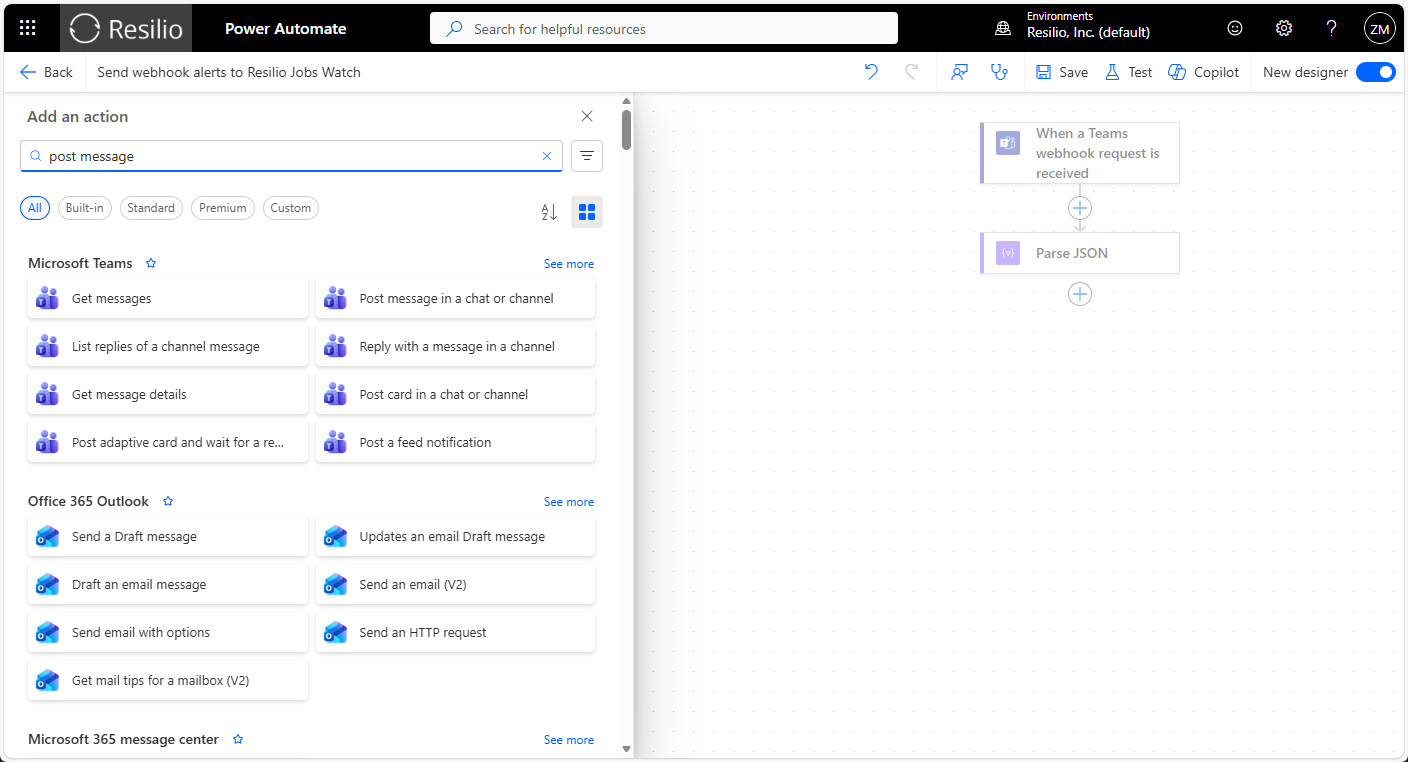
Click +, then search and click the Post message in a chat or channel data block.
-
From the Post as drop-down list, select
Flow bot. - From the Post in drop-down list, select
Channel. - From the Team drop-down list, select the team containing the channel that you want to post the message to.
- From the Channel drop-down list, select the channel that you want to post the message to.
-
In the Message area, provide the message template.
Tip
-
Add dynamic data extracted by the Parse JSON block to your message.
-
Use expressions to add function-based content.
Example:
convertFromUtc(utcNow(), 'Pacific Standard Time', 'MMM dd, yyyy h:mm tt')
-
-
-
Click Save.
-
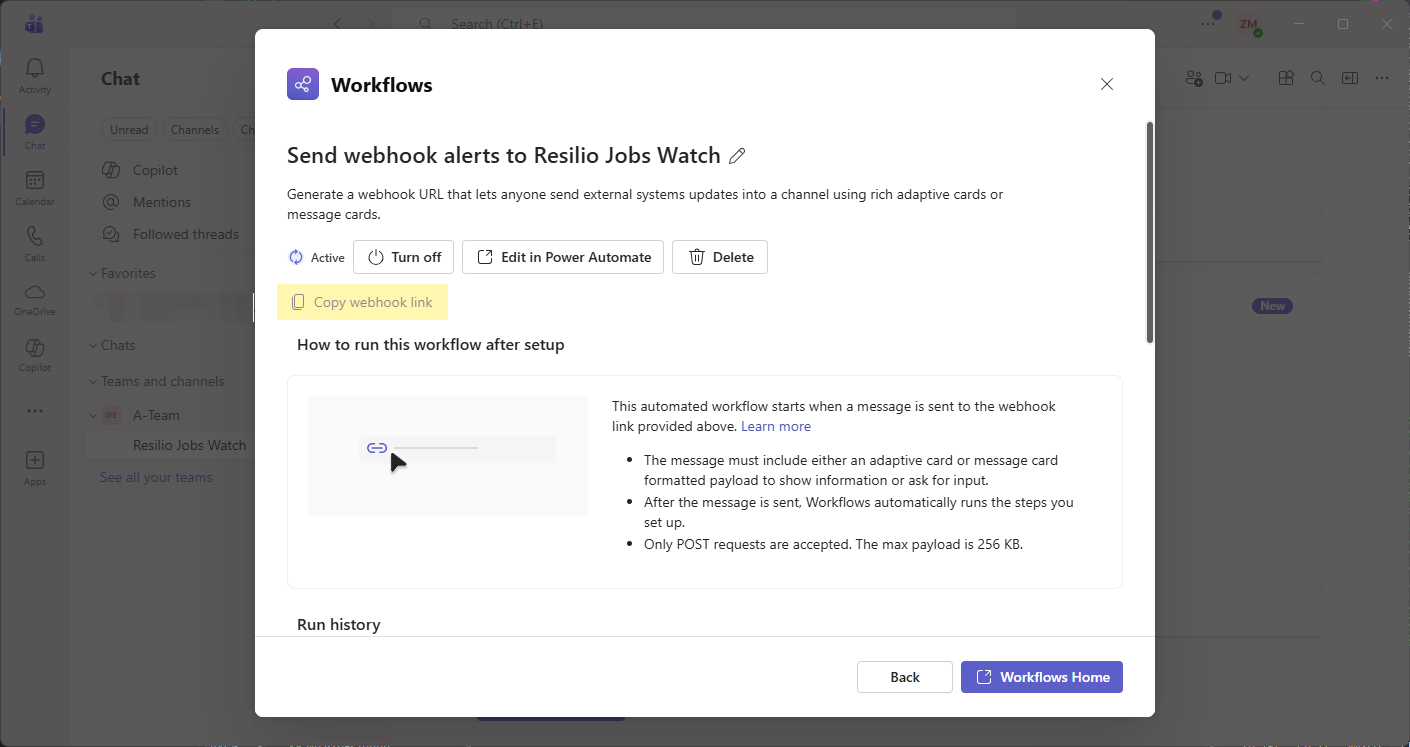
Retrieve webhook URL:
- In Teams, click the more options icon next to the channel and select Workflows.
- Click the previously created workflow.
-
Click Copy webhook link.
-
In the Resilio Management Console:
Examples
Teams channel message via webhook
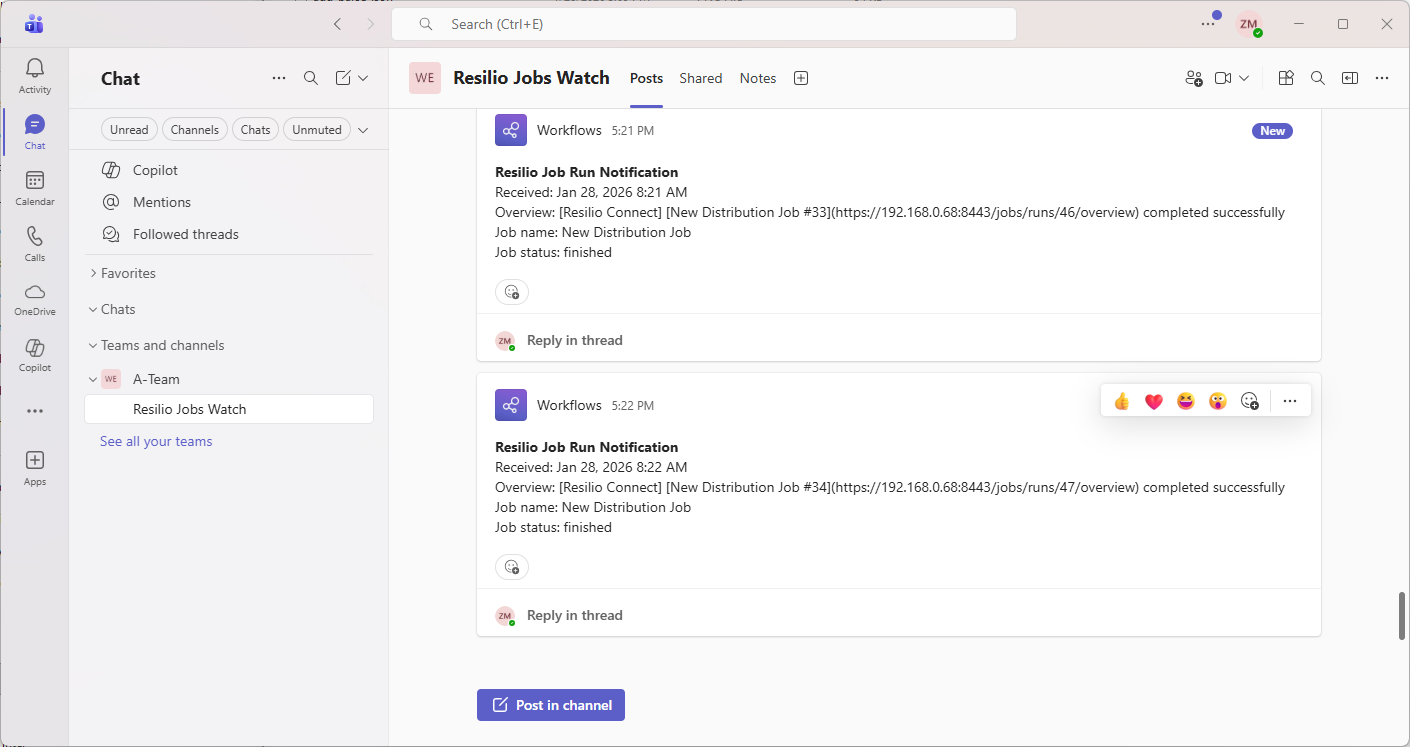
Webhook - Job Run completed successfully
{
  "text": "[Resilio Connect] [New Distribution Job #10](https://192.168.0.48:8443/jobs/runs/11/overview) completed successfully",
  "job_run": {
      "id": 11,
      "name": "New Distribution Job",
      "job_id": 1,
      "status": "finished",
      "run_id": 10,
      "files_total": 3,
      "size_total": 1653591452,
      "transferred": 33368,
      "agents_completed": 3,
      "agents_total": 3,
      "agents_inprogress": 0,
      "agents_offline": 0,
      "agents_failed": 0,
      "active": false,
      "down_speed": 0,
      "up_speed": 0,
      "max_speed": 0,
      "progress": 100,
      "started_by": "z@resilio.com",
      "type": "distribution",
      "run_type": "run",
      "size_completed": 3307182904,
      "files_completed": 6,
      "start_time": 1761655228,
      "finish_time": 1761655243,
      "duration": 14,
      "errors": []
  },
  "trigger": "JOB_RUN_FINISHED"
}
Webhook - Agent deleted
Webhook - daily overview report
{
    "text": "#### [Resilio Connect] Daily overview report\r\nHere're the daily stats from Resilio Connect Management Console.\r\nOctober 13, 2025 10:50 AM - October 14, 2025 10:50 AM\r\n\r\n##### STATUS\r\nJobs total: [5](https://10.0.2.15:8443/jobs/configure)\r\nAgents total: [2](https://10.0.2.15:8443/agents)\r\n\r\n##### JOB SUMMARY\r\nJob | Runs | Failed runs | Errors | Data Transferred\r\n--- | --- | --- | --- | ---\r\n[New Synchronization Job](https://10.0.2.15:8443/jobs/runs?filter=%7B%22jobId%22%3A%5B1%5D%2C%22status%22%3A%5B%5D%2C%22startTime%22%3A%7B%22type%22%3A4%2C%22from%22%3A1760345400001%2C%22to%22%3A1760431800000%7D%2C%22runType%22%3A%5B%5D%7D) | [1 runs](https://10.0.2.15:8443/jobs/runs?filter=%7B%22jobId%22%3A%5B1%5D%2C%22status%22%3A%5B%5D%2C%22startTime%22%3A%7B%22type%22%3A4%2C%22from%22%3A1760345400001%2C%22to%22%3A1760431800000%7D%2C%22runType%22%3A%5B%5D%7D) |  | 1 errors | 0 Bytes\r\n[New Synchronization Job 1](https://10.0.2.15:8443/jobs/runs?filter=%7B%22jobId%22%3A%5B3%5D%2C%22status%22%3A%5B%5D%2C%22startTime%22%3A%7B%22type%22%3A4%2C%22from%22%3A1760345400001%2C%22to%22%3A1760431800000%7D%2C%22runType%22%3A%5B%5D%7D) | [1 runs](https://10.0.2.15:8443/jobs/runs?filter=%7B%22jobId%22%3A%5B3%5D%2C%22status%22%3A%5B%5D%2C%22startTime%22%3A%7B%22type%22%3A4%2C%22from%22%3A1760345400001%2C%22to%22%3A1760431800000%7D%2C%22runType%22%3A%5B%5D%7D) |  | 2 errors | 0 Bytes\r\n[New Synchronization Job 2](https://10.0.2.15:8443/jobs/runs?filter=%7B%22jobId%22%3A%5B4%5D%2C%22status%22%3A%5B%5D%2C%22startTime%22%3A%7B%22type%22%3A4%2C%22from%22%3A1760345400001%2C%22to%22%3A1760431800000%7D%2C%22runType%22%3A%5B%5D%7D) | [1 runs](https://10.0.2.15:8443/jobs/runs?filter=%7B%22jobId%22%3A%5B4%5D%2C%22status%22%3A%5B%5D%2C%22startTime%22%3A%7B%22type%22%3A4%2C%22from%22%3A1760345400001%2C%22to%22%3A1760431800000%7D%2C%22runType%22%3A%5B%5D%7D) |  | 1 errors | 0 Bytes\r\n[New Synchronization Job 3](https://10.0.2.15:8443/jobs/runs?filter=%7B%22jobId%22%3A%5B5%5D%2C%22status%22%3A%5B%5D%2C%22startTime%22%3A%7B%22type%22%3A4%2C%22from%22%3A1760345400001%2C%22to%22%3A1760431800000%7D%2C%22runType%22%3A%5B%5D%7D) | [1 runs](https://10.0.2.15:8443/jobs/runs?filter=%7B%22jobId%22%3A%5B5%5D%2C%22status%22%3A%5B%5D%2C%22startTime%22%3A%7B%22type%22%3A4%2C%22from%22%3A1760345400001%2C%22to%22%3A1760431800000%7D%2C%22runType%22%3A%5B%5D%7D) |  | 1 errors | 0 Bytes\r\n[New Synchronization Job 4](https://10.0.2.15:8443/jobs/runs?filter=%7B%22jobId%22%3A%5B6%5D%2C%22status%22%3A%5B%5D%2C%22startTime%22%3A%7B%22type%22%3A4%2C%22from%22%3A1760345400001%2C%22to%22%3A1760431800000%7D%2C%22runType%22%3A%5B%5D%7D) | [1 runs](https://10.0.2.15:8443/jobs/runs?filter=%7B%22jobId%22%3A%5B6%5D%2C%22status%22%3A%5B%5D%2C%22startTime%22%3A%7B%22type%22%3A4%2C%22from%22%3A1760345400001%2C%22to%22%3A1760431800000%7D%2C%22runType%22%3A%5B%5D%7D) |  | 1 errors | 0 Bytes\r\n",
    "from": 1760345400001,
    "to": 1760431800000,
    "clients_count": 2,
    "jobs_count": 5,
    "job_summary": [
        {
            "id": 1,
            "errors_count": 1,
            "name": "New Synchronization Job",
            "runs_count": 1,
            "size": 166554018,
            "delta_files": 0,
            "delta_size": 0,
            "data_downloaded": 165730024,
            "delta_data_downloaded": 0
        },
        {
            "id": 3,
            "errors_count": 2,
            "name": "New Synchronization Job 1",
            "runs_count": 1,
            "size": 347387,
            "delta_files": 0,
            "delta_size": 0,
            "data_downloaded": 0,
            "delta_data_downloaded": 0
        },
        {
            "id": 4,
            "errors_count": 1,
            "name": "New Synchronization Job 2",
            "runs_count": 1,
            "size": 64926261,
            "delta_files": 0,
            "delta_size": 0,
            "data_downloaded": 64701312,
            "delta_data_downloaded": 0
        },
        {
            "id": 5,
            "errors_count": 1,
            "name": "New Synchronization Job 3",
            "runs_count": 1,
            "size": 0,
            "delta_files": 0,
            "delta_size": 0,
            "data_downloaded": 0,
            "delta_data_downloaded": 0
        },
        {
            "id": 6,
            "errors_count": 1,
            "name": "New Synchronization Job 4",
            "runs_count": 1,
            "size": 23445,
            "delta_files": 0,
            "delta_size": 0,
            "data_downloaded": 0,
            "delta_data_downloaded": 0
        }
    ]
}