Best Practices for Using LLMs with the Resilio Active Everywhere MCP Server
The Resilio Active Everywhere MCP Server connects your Management Console to an AI client, so you can ask questions about your environment in plain English (which jobs are failing, which Agents are offline, what changed last week) and get answers backed by live data from your Management Console.
This guide covers how to get consistently good answers: the questions worth asking, how to set up a project, how to write instructions, and the pitfalls that produce wrong answers.
Start by asking questions
The fastest way to learn what the MCP can do is to ask it directly. A good first prompt:
List all the tools you have access to and suggest some questions I can ask
From there, here are questions that show off what the MCP does well.
Troubleshooting
There are dedicated diagnostic tools for failing runs, offline Agents, and stalled transfers.
Which jobs are failing right now, and why?Are all of my Agents online? Investigate any that aren't.Is anything stuck? Check for stalled transfers.Agent XYZ has a warning. Investigate its health and tell me what to do.
Configuration and how-to
The MCP can read both your console's configuration and the official documentation.
Give me a health overview of all my jobs.Explain what my X job is configured to do, and whether anything about it looks unusual.How do I set up a bandwidth schedule? Use the Resilio documentation.I want to add a new Agent at a new site. Walk me through it and tell me what to decide in advance.
Custom reporting
Anything you previously built by chaining API calls, you can now ask for in a sentence.
Build me a report of transfer volume by job over the last month, with a chart.Which five Agents transferred the most data this week?
Analytics
The MCP can query a time series record of Agent actions, user changes, warnings, and errors. This lets you ask about change over time, not just the current state.
Feature availability
Available in Resilio 6.0 and newer.
Which Agents haven't moved any data in the last 5 days, and why?Which users or Agents drove the most file changes recently, versus their baseline?Show me error trends over the last two weeks. Is anything getting worse?
Security monitoring
Scan the audit log for suspicious activity.
Feature availability
Available in Resilio 6.0 and newer.
Run a security scan of my management console.Flag any Agent with an abnormal spike in file deletions in the last 24 hours.Summarize login activity for the past week and point out anything unusual.
Walkthrough: investigating an Agent warning
In this example, we will investigate a problem with an Agent.
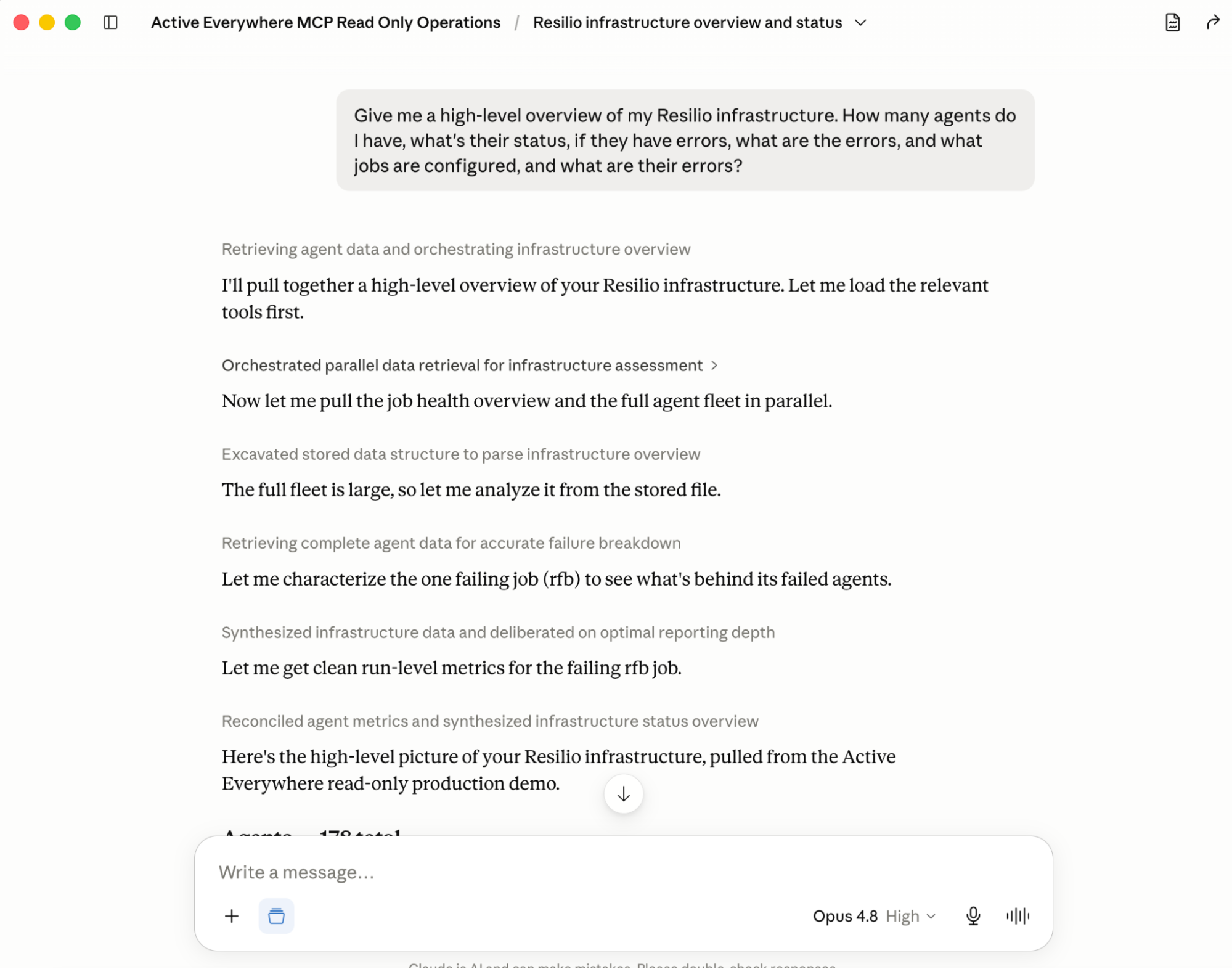
The AI pulls the job health overview and the full Agent fleet, separates Agents that are merely offline from Agents with real errors, and summarizes the failing jobs:
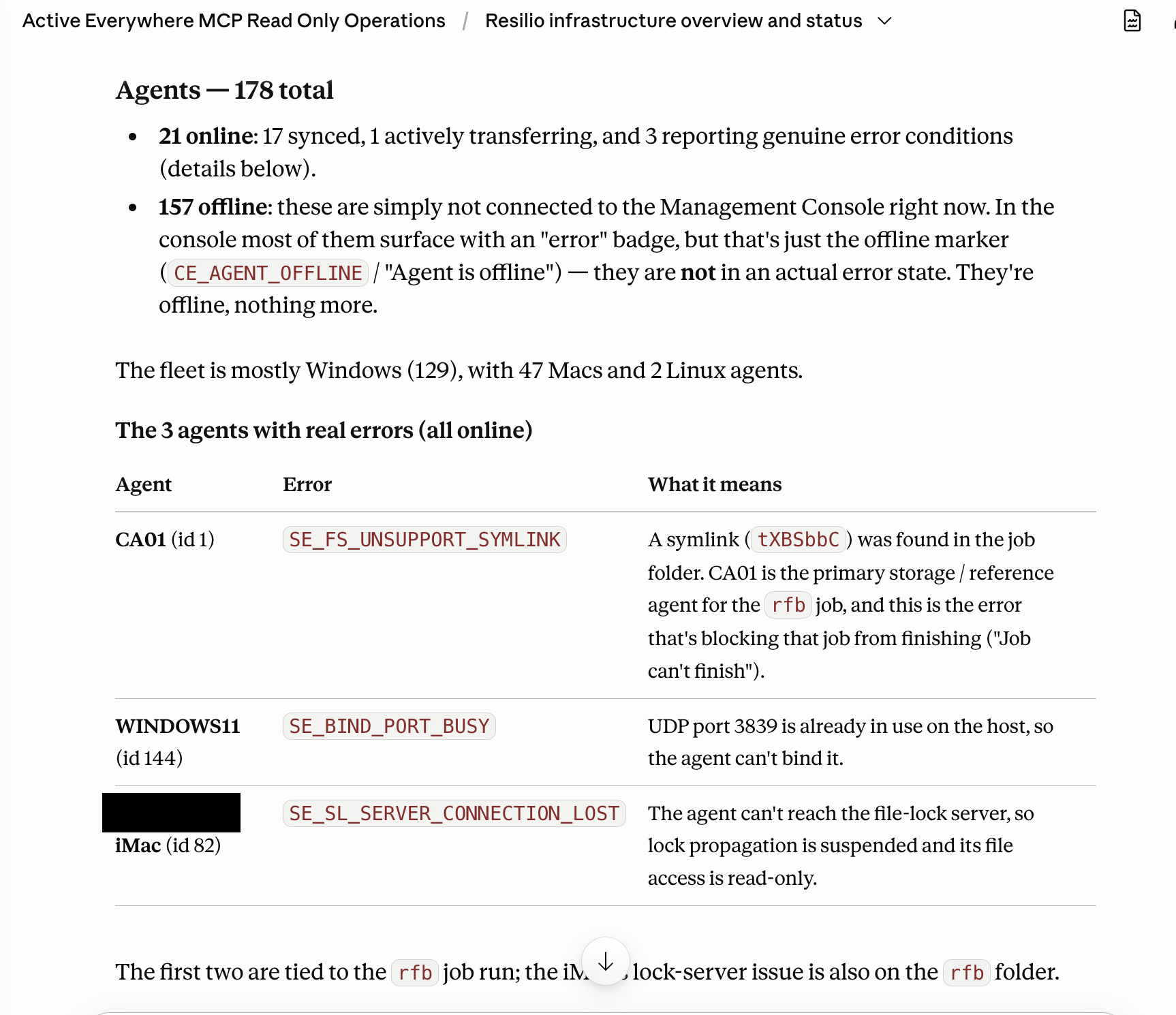
From here, pick one error and go deeper:
What is the SE_BIND_PORT_BUSY error? How do I fix it?
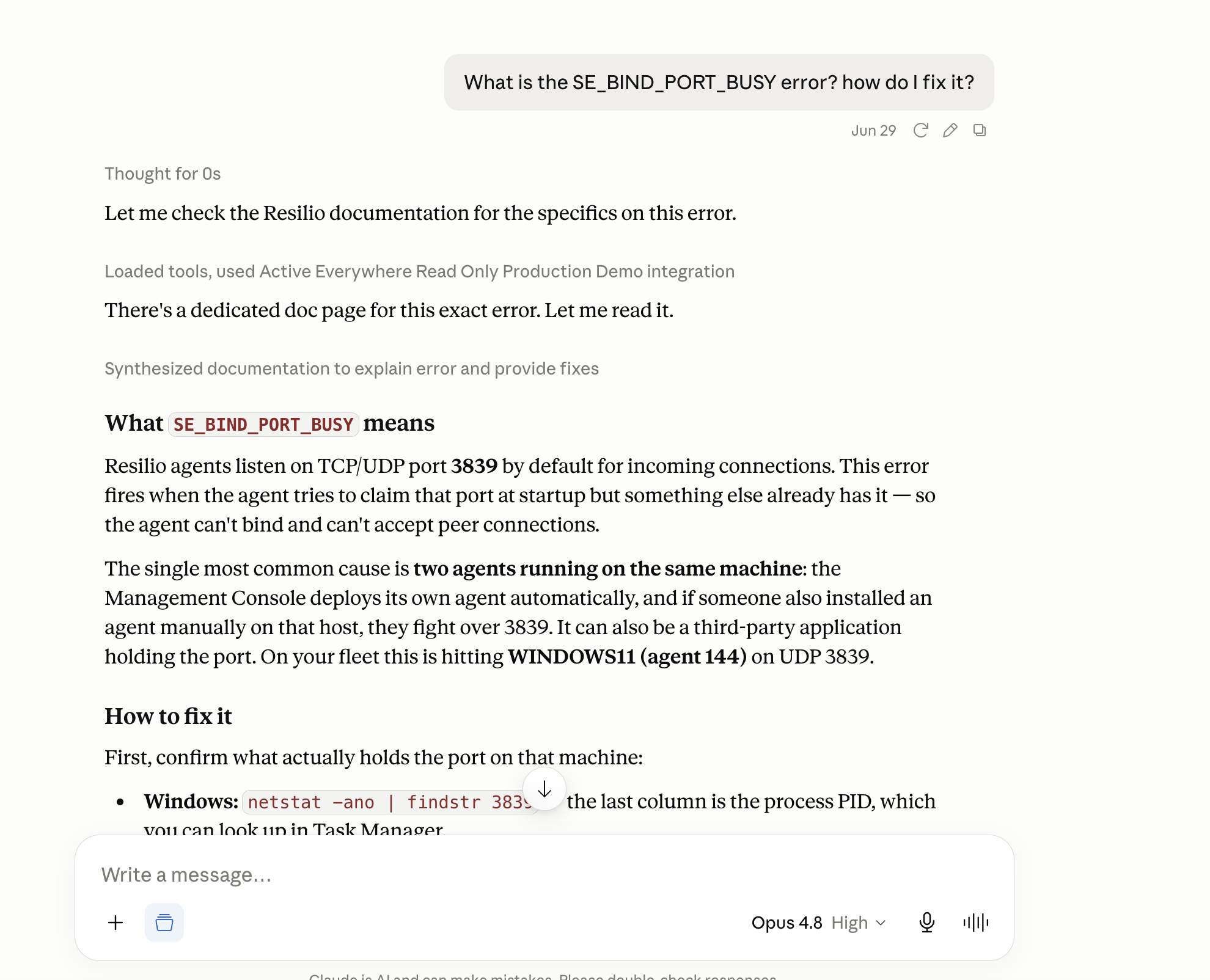
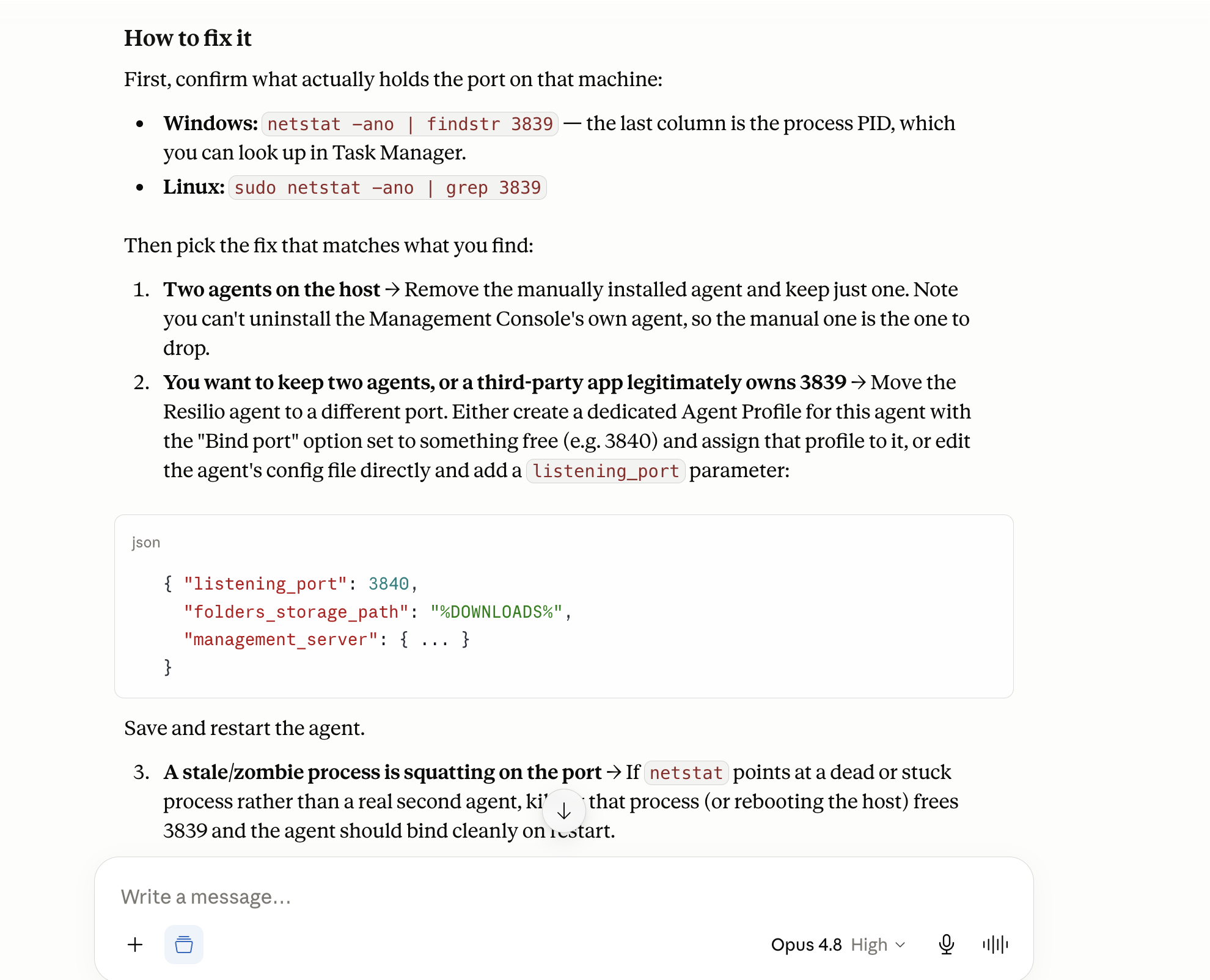
The AI searched the Resilio documentation, found the page for this exact error, and came back with the likely cause (two Agents fighting over the same port on one host), the specific Agent affected, and concrete commands to confirm and fix it.
Doing the same by hand means paging through the Agents list, cross-referencing errors against jobs, and searching the docs yourself.
When to use the MCP vs. the API directly
The MCP server uses the same Management Console API you may already script against. The difference is who writes the call sequences. With the API, you chain calls and parse responses yourself. With the MCP, you describe the outcome and the AI selects, sequences, and interprets the calls, and layers on things that would take time to build by hand, like documentation search, analytics SQL, and multi-step diagnostics.
When is the API better?
- Getting comprehensive enumeration lists without risk of AI omitting anything.
- Sensitive write operations where you don't want AI as your middle man.
- The MCP exposes a curated subset of API calls; anything we left out for security isn't reachable through the MCP. Those calls remain available through the API directly, for users whose token grants the permission.
- Cases where you need a predictable workflow and deterministic results.
- Third-party event-driven automation - using the API to trigger Management Console actions in response to external events.
Set up a project
The AI can see your console through the MCP's tools, but it does not know which jobs are critical, which Agents run on slow links, or what your team's rules are. A project is how you tell it once instead of in every chat.
In Claude, a Project holds two things, and every conversation inside it inherits both:
- Instructions define behavior: what the AI should know about your environment and how it should act. Keep them short and factual.
- Knowledge files provide information the AI can consult when it needs to: escalation procedures, naming conventions, site topology. If you would otherwise paste a document into the chat repeatedly, it belongs here.
Other AI clients have equivalents, and the concept is the same everywhere.
Write instructions that describe your environment
Good instructions are mostly context the AI can't get from the tools, plus a few rules about behavior. A dozen lines is enough to start.
Add the context the tools can't surface. Don't restate what the AI can discover on its own. It can already list your Agents, jobs, and groups through the MCP, so writing "we have 40 Agents across 12 sites" adds nothing. What the tools cannot tell is what any of that means: which jobs matter, what's normal for your environment, and what counts as a problem. That's what the instructions are for. For example:
This Management Console manages file delivery for ⟦TODO: one sentence on what the deployment is for, e.g. "our retail chain: nightly price and media updates from HQ out to store servers"⟧. The [job name⟧ job is business-critical; treat any error on it as urgent. Agents matching ⟦prefix⟧-\* sit on links under ⟦N⟧ Mbps, so slow transfers there are normal, not a problem. Our maintenance window is ⟦day/time⟧; offline Agents during that window are expected.
Notice everything in that example is a judgment or a caveat, not an inventory. Good candidates: which jobs or Agents are critical, known-slow or flaky links, expected downtime windows, naming conventions the AI should read meaning into, and anything your team has learned the hard way about this deployment.
Set the rules of engagement
Tell the AI how you want it to operate, for example if you plan on enabling write tools:
Always confirm with me before running anything that changes configuration. When answering how-to questions, search the Resilio documentation rather than answering from general knowledge, and tell me which article you used. If you can't find something, say so instead of guessing.
Help it use the tools well
Two lines we recommend adding:
-
When calling tools, omit optional parameters you don't need. Never pass an empty string. You can pass null.
Some AI clients send empty strings for optional parameters, which makes tool calls fail. -
For questions about what is configured right now, use the standard read tools. Use analytics only for questions about what happened over time.
The analytics database is an event history, not a snapshot of current state. "How many jobs do we have?" should come from the read tools; "how many jobs were created this month?" is an analytics question.
Iterate
When the AI does something you did not want, add a line to the instructions. Projects improve one correction at a time.
Use AI to improve instructions
Ask the AI to suggest improved instructions based on your conversations.
One last recommendation, echoing the launch post: keep the MCP read-only while you build up your project, and use a dedicated API token scoped to just the permissions you want the AI to have. If you plan to change the configuration to allow for mutating changes, be sure to give the AI client the necessary information and double check its work.
Setting up/Changing your configuration
For instructions on how to set up the MCP server, refer to MCP server - quick start. One of these steps involves editing the MCP configuration file to include your credentials. But, what if you want to change the config? Say you want to change your API token, configure the MCP to be able to make mutating changes to your management console, or run the MCP through HTTP rather than STDIO, you can always make configuration changes.
Common pitfalls
Empty strings in tool parameters
Some AI clients send an empty string ("") for optional parameters the model didn't fill in, instead of leaving them out. The server can't convert an empty string into a number or a boolean, so the call fails before it runs. If you see unexplained tool call failures, especially on tools with numeric or boolean filters, add the "omit optional parameters" instruction from the previous section. The server's built-in guidance already asks for this, but repeating it in your own instructions helps.
Support ticket confusion
You can file support tickets using the MCP in any mode. When you file through the MCP, the ticket is sent through the API. Occasionally, the AI client may suggest you to “send an email” to support, but this is no longer supported by Resilio as a way to file a ticket. If you don’t want to use the MCP or API to submit a ticket, it can also be done through the Management Console.
How can you file the ticket?
You can ask a question like:
Can you file a support ticket for me? I have an error that I can’t fix in my management console.
The AI client will collect the necessary information, and submit the ticket through the API.
Enumeration Requests
Requests for a comprehensive list - every Agent, all jobs, etc. - become unreliable as the number of entries grows. The client may not page through the entire result set, and even when all the data is present, the model can skip or drop individual entries while working through a long list. The output often looks complete while silently omitting records. It is best to double check such answers, and understand that AI can silently miss entries, even when the data returned by the MCP is complete.
Security recommendations
- Keep the MCP read-only while you build up your project
Write tools are disabled by default. Leave them off until your instructions are settled and you trust the answers you're getting. - Use a dedicated API token scoped to just the permissions you want the AI to have
Don't reuse an admin token. Even with write tools enabled, a scoped token is defense in depth: the AI can only do what the token permits. - Use write tools with caution
If you enable write tools, give the AI client the necessary context in your project instructions (including the confirm-before-changes rule above) and double-check its work.
Related topics: