User Agent authentication
During Agent provisioning, the Management Console authenticates Agents to ensure secure communication and control over the connected devices. Agents can be authenticated using:
- Active Directory.
- Entra ID, Okta or any OpenID Connect compliant identity provider.
- A bootstrap token delivered to the Agent in a configuration file.
- Manual approval by the administrator.
Active Directory
Enable Active Directory authentication to allow Agents running on domain-joined machines to authenticate using their Active Directory user account credentials.
To enable Active Directory authentication:
- In Management Console, select Settings > Agent Authentication.
- In the Active Directory section, click Configure.
- (Optional) Disable Require re-authorization on configuration change to allow Agents to continue operating until the current authentication expires in case the Agent authentication settings are changed.
-
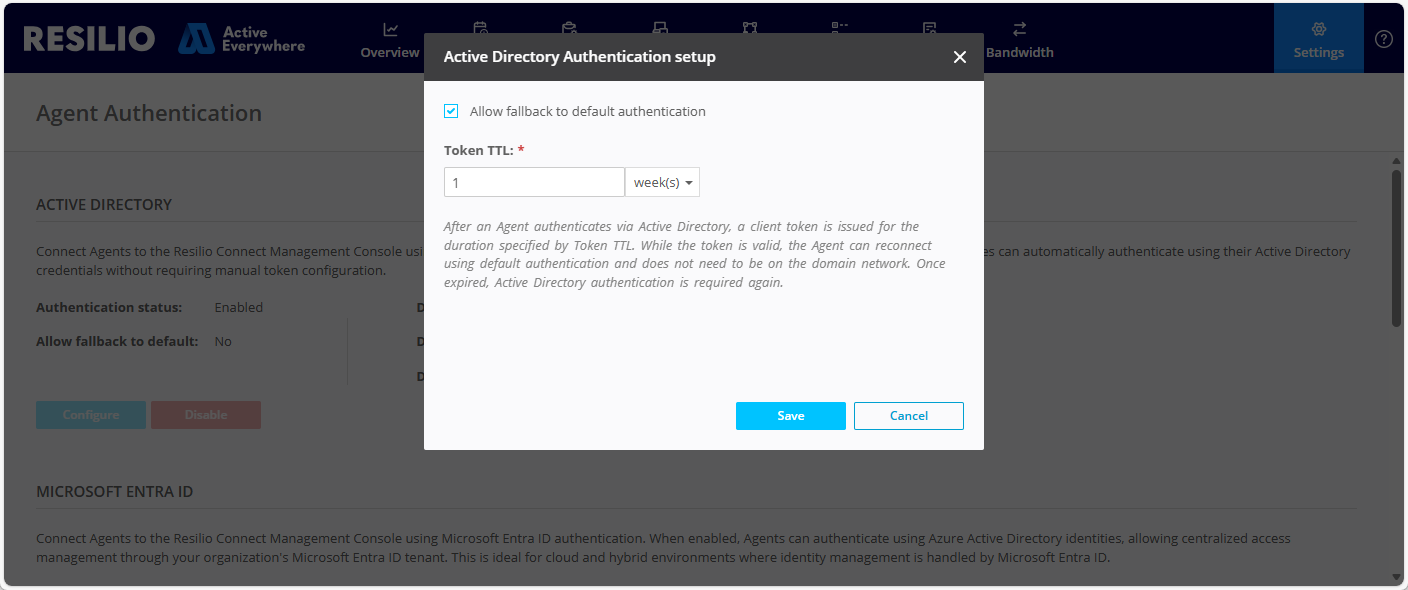
(Optional) Select Allow fallback to default authentication and specify the desired TTL value.
Allow fallback to default authentication
The Allow fallback to default authentication option enables an Agent to continue to operate without having to re-authenticate against the Active Directory domain controller. This is particularly useful in scenarios where the Agent may lose connectivity to the domain controller, such as when a laptop is taken off the corporate network. By setting an appropriate TTL, you can ensure that Agents remain functional while still maintaining security by requiring periodic re-authentication.
-
Click Save.
OpenID Connect provider
Allows Agents to authenticate using OpenID Connect compliant identity provider, such as Microsoft Entra ID or Okta.
Important
Once you enable user Agent authentication via OpenID Connect compliant identity provider, all user Agents must authenticate using this method. Agents that previously authenticated using Active Directory will no longer be able to connect to the Management Console, unless they are reconfigured to use the OpenID Connect authentication method.
To enable Agent authentication via an OpenID Connect compliant identity provider:
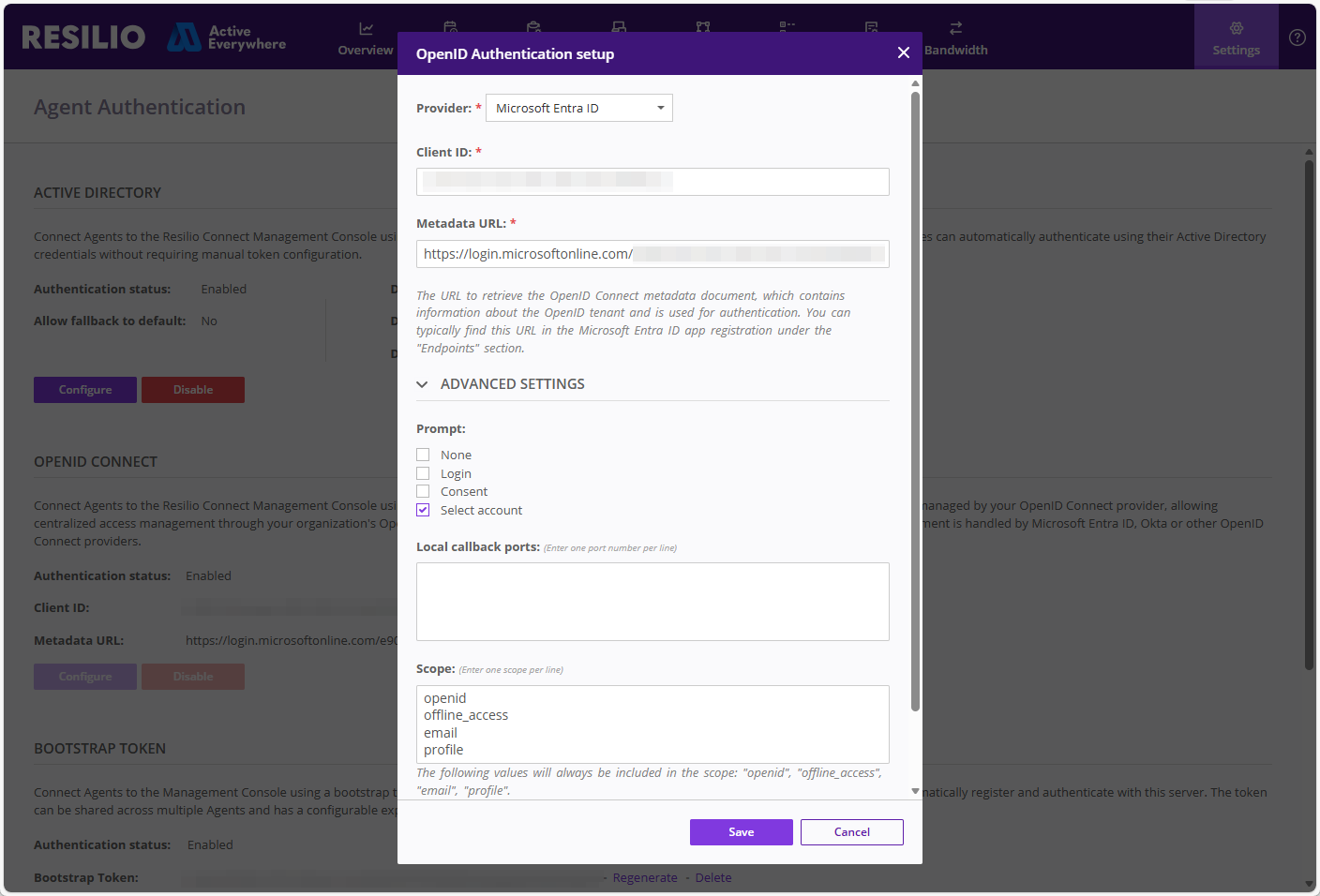
- In the OpenID Connect section, click Configure and select your identity provider.
-
Enter mandatory parameters:
-
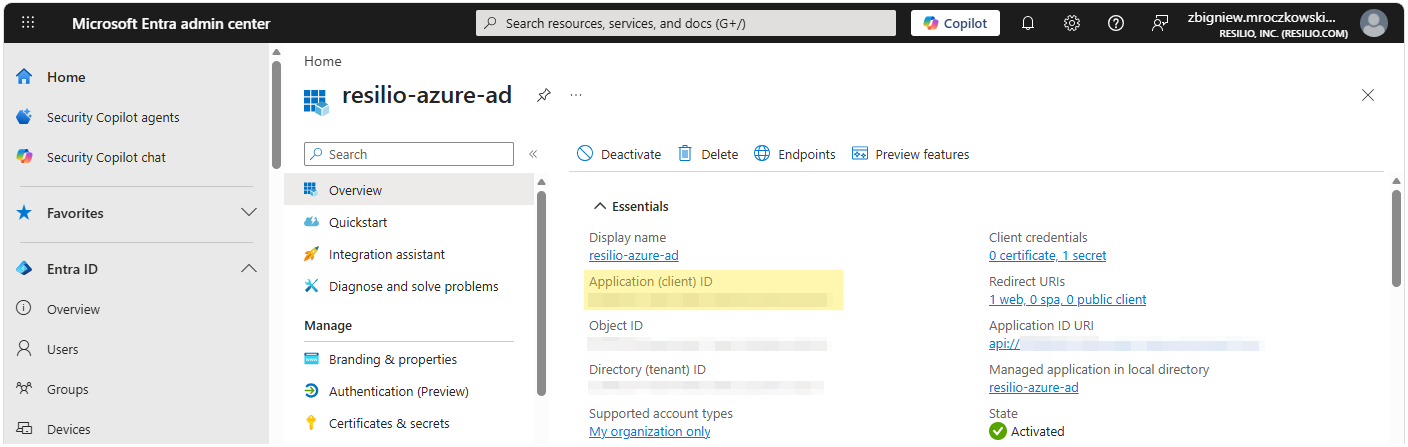
Client ID – Your enterprise application ID.
Tip
In case of Microsoft Entra ID, you can find it in Microsoft Entra ID center on the application's Overview page.
-
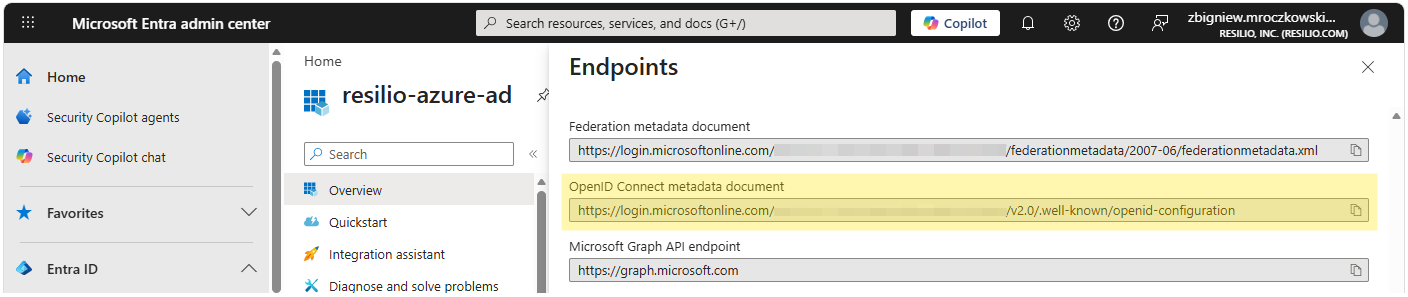
Metadata URL – The URL to the OpenID Connect metadata document for your enterprise application.
Tip: Determine the Metadata URL for Entra ID application
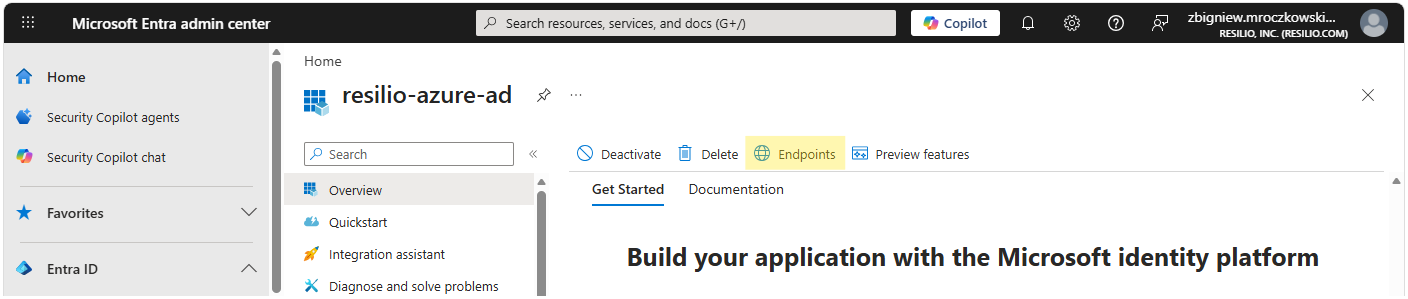
To determine the Metadata URL for your Entra ID application:
-
On your application's Overview page, click Endpoints.
-
Locate the OpenID Connect metadata document endpoint.
-
-
-
(Optional) Change advanced settings:
- Prompt – Specifies in the authentication request what the authentication server should display to the end user.
- Local callback ports – Ports used by the authentication server to send the authentication response back to the Agent.
-
Scope – Specifies the scope of the access request.
Note
openid,offline_access,emailandprofileare always included in the request scope, even if not specified in this field. -
Require re-authorization on configuration change – Requires re-authorization of end user Agents when Agent authentication settings are changed. Disabling this option allows Agents to continue operating until the current authentication expires in case the Agent authentication settings are changed.
-
Click Save.
Bootstrap token
Bootstrap token authentication allows the Management Console to authenticate Agents using a token delivered through a configuration file. This method is useful for initial provisioning of Agents in environments where Active Directory or OpenID Connect authentication is not feasible. For more information, see Bootstrap token.
To generate a configuration file:
- Select Settings > Agent Authentication.
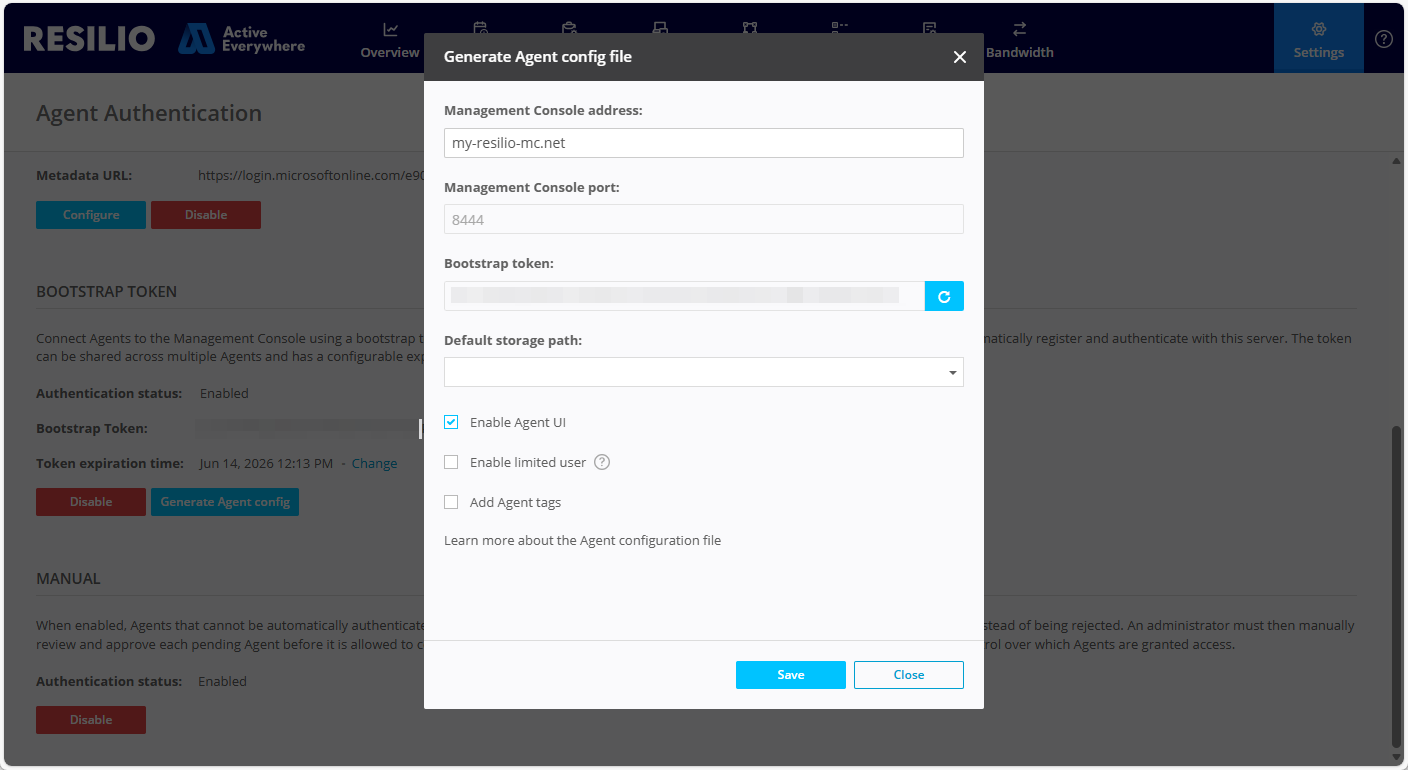
- In the Bootstrap token section, click Generate Agent config.
-
Provide the following:
- Management Console address – The Management Console's hostname or IP address.
-
Management Console port – The port number on which the Management Console listens for incoming connections.
Note
Management Console's incoming connections port number is read only. It can be changed by editing the configuration file.
-
Bootstrap token – The bootstrap token authenticates the connection between Resilio Agents and the Management Console.
- Default storage path – Select a path macro that defines the default storage path for the jobs.
- Enable Agent UI – Enables user interface for Resilio Agents running on Microsoft Windows.
-
Enable limited user – The limited user mode restricts access to the operating system. It disables file system browsing, and scripts and triggers execution. For details, see Limiting admin's access to the Agent.
Important
Limited user mode is not available in Resilio 6.0. Do not select this option.
-
Add Agent tags – Tags enable automated assignment of Agents to groups.
Important
Tags are not supported in Resilio 6.0. Do not add tags to the configuration file.
-
Click Save/Download.
Manual
Important
Manually approved Agents cannot participate in Enterprise Hybrid Work Jobs, as these Jobs require Agents to authenticate using Active Directory or OpenID Connect compliant identity provider.
Manual authentication allows administrators to review and manually approve or decline each Agent before it can connect to the Management Console. This method applies to Agents that connect to the Management Console without authenticating against other methods, such as Active Directory, Entra ID, Okta or bootstrap token.