Administrators and administrator groups
Overview
Resilio Management Console allows to configure grant access to multiple administrator users, with each having their own access level as well as unite them in groups and configure granular access to Agents, Groups and Jobs.
The configured access levels also apply to API tokens. Starting with Resilio Connect v3.3.0 API tokens can be generated for AD users (through API only).
Tip
In Resillio Active Everywhere 3.3.2 and newer, Administrators can also use Azure AD to configure Management Console Users. Those can be configured with local users or instead of. Also, Resilio Management Console can integrate with an Active Directory to retrieve Users and Administrators.
Create an administrator user
To add an administrator user:
- Select Settings > Administrators.
- Click + Create new admin.
- Provide user information, assign administrator groups, then click Save.
Note
If an administrator user belongs to several groups, the resulting permissions are the sum of all the permissions from the groups.
Default administrator groups
The following administrator groups are available by default:
- Super Administrator - Has full access to all objects in Management Console: agents, jobs, groups, as well as settings, API, logging, backups, schedule, cloud storage, etc. Additionally SuperAdmin can create, edit and remove other users and user groups.
- Administrator - Has full access to objects in MC, except for the following: cannot edit other users; has view only to cloud storage (can use them in jobs configuration); cannot view, make or restore backups; no access to API tokens; no access to auxiliary servers; no permissions to upload new license.
- View only - This user cannot make any changes and has no access to most of the objects in Management Console. This role can be useful for cases when one needs to monitor the activity, performance and detect any failures.
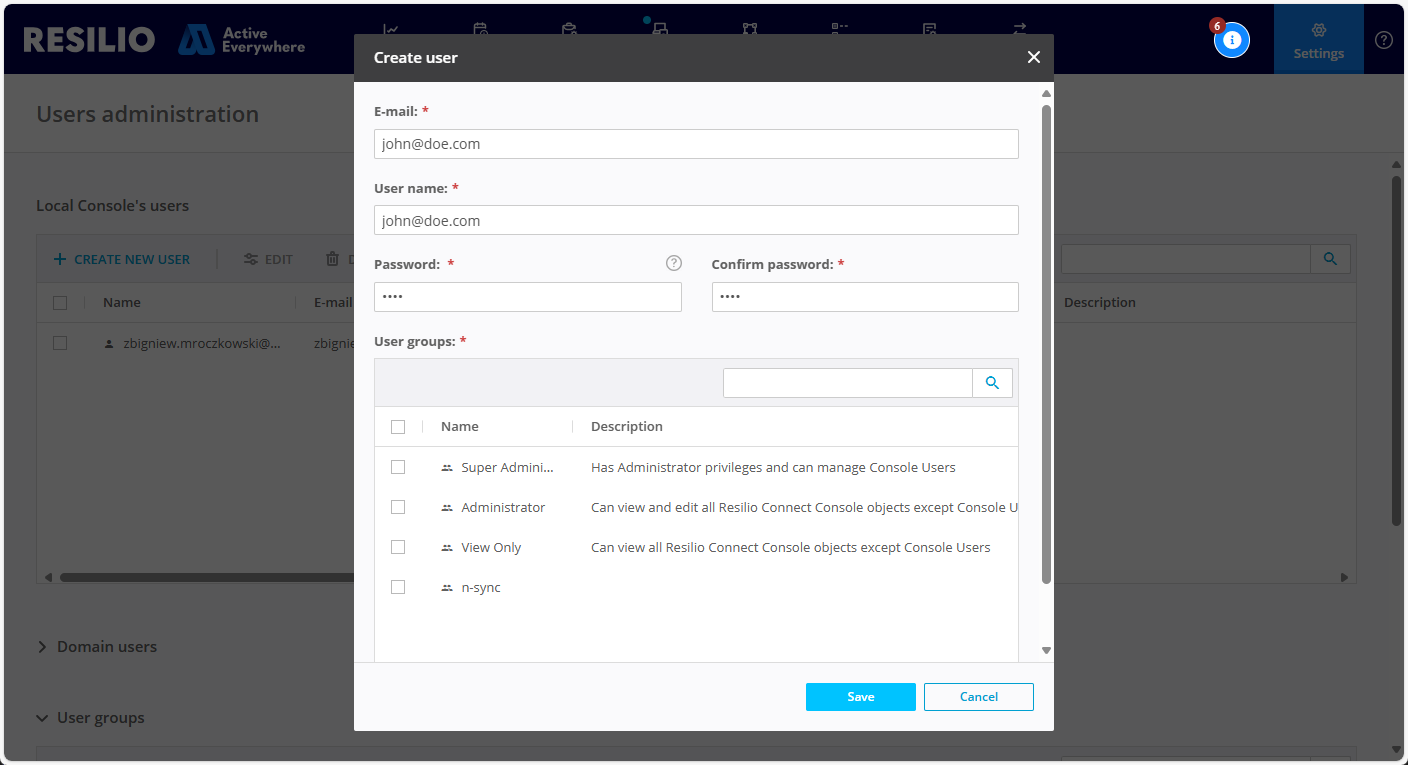
Administrator Groups
In addition to default administrator groups, one can create custom administrator groups. An admin user can belong to multiple groups at a time, the user's access will be the summary of highest access levels to an object. For example, if within one group the user has View Only access to everything, and within another group the user can Edit & Run a Job, the actual access to the Job will be Edit & Run.
Administrators that belong only to custom groups and have none of default roles don’t have access to the Overview tab with overall performance statistics, and only have access to the General Settings tab.
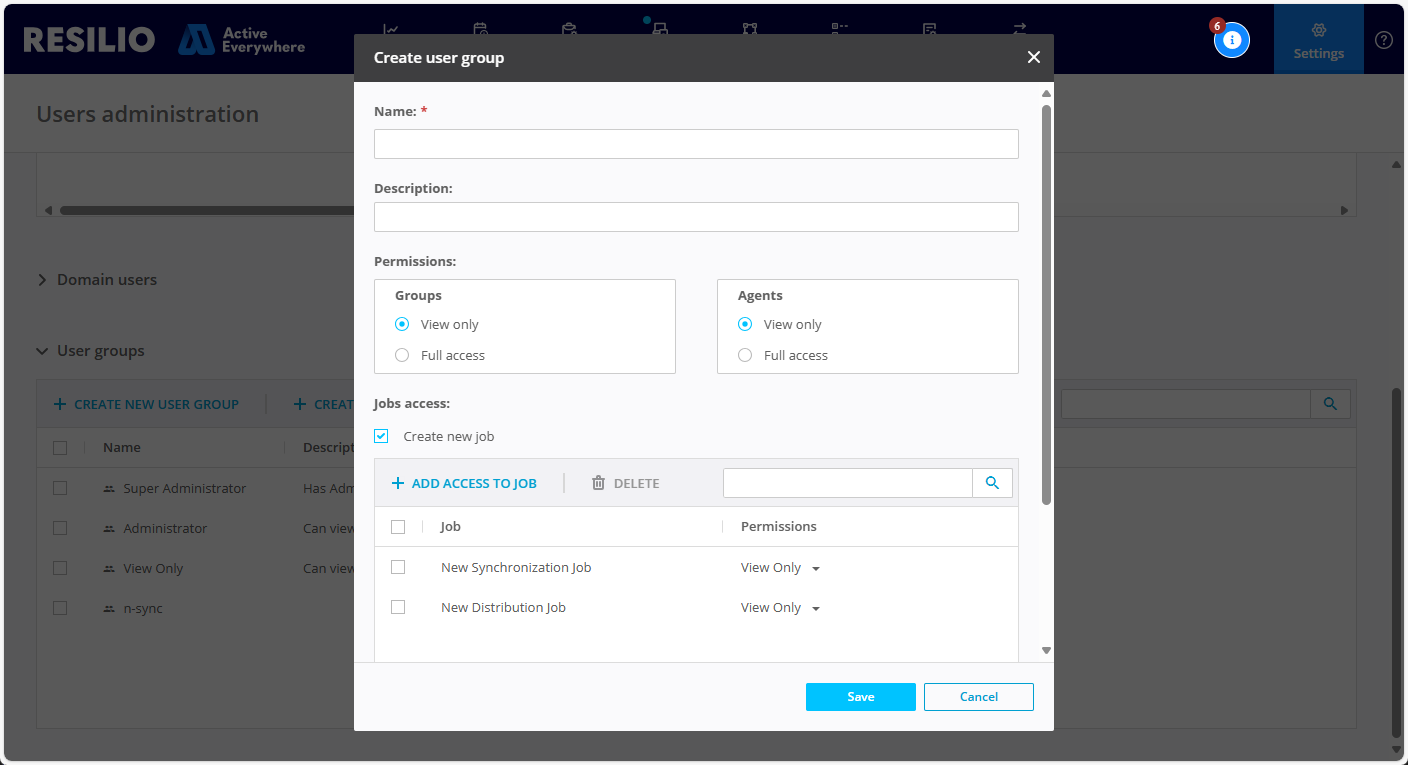
The following access levels are be available:
Groups and agents
- Full access means that the user will be able to add/create/edit/delete groups and agents.
- View only implies that groups and agents tabs are visible, but the user won’t be able to make any changes there.
Job access
When creating a user group, you can manage access only to already existing jobs.
- Create new job option allows the user to create all types of jobs. Automatically, the user gets Full access to this job, and thus can even grant other users access to it (when editing a job on Settings step).
- View only - The user cannot make any changes to the job.
- Run - The user can only manually start a job. Applies Consolidation, Distribution and Script jobs.
- Edit & Run - Adds access to editing a job, but cannot delete it.
- Full access - The user will be able to edit/delete a given job as well as manage other groups’ access to it.