Quick Start
Resilio enables fast and reliable data synchronization across multiple endpoints. Set up a simple Synchronization Job to facilitate collaboration between a few users, deploy a file caching solution to ensure high-speed, low latency access for hundreds of users in different locations or set up VPN-less access to Nasuni Edge Appliances and SMB shares.
Enterprise Hybrid Work Job, available in Resilio 6.0, is a highly scalable data transfer workflow enabling VPN-less access to SMB shares in Windows domain environments.
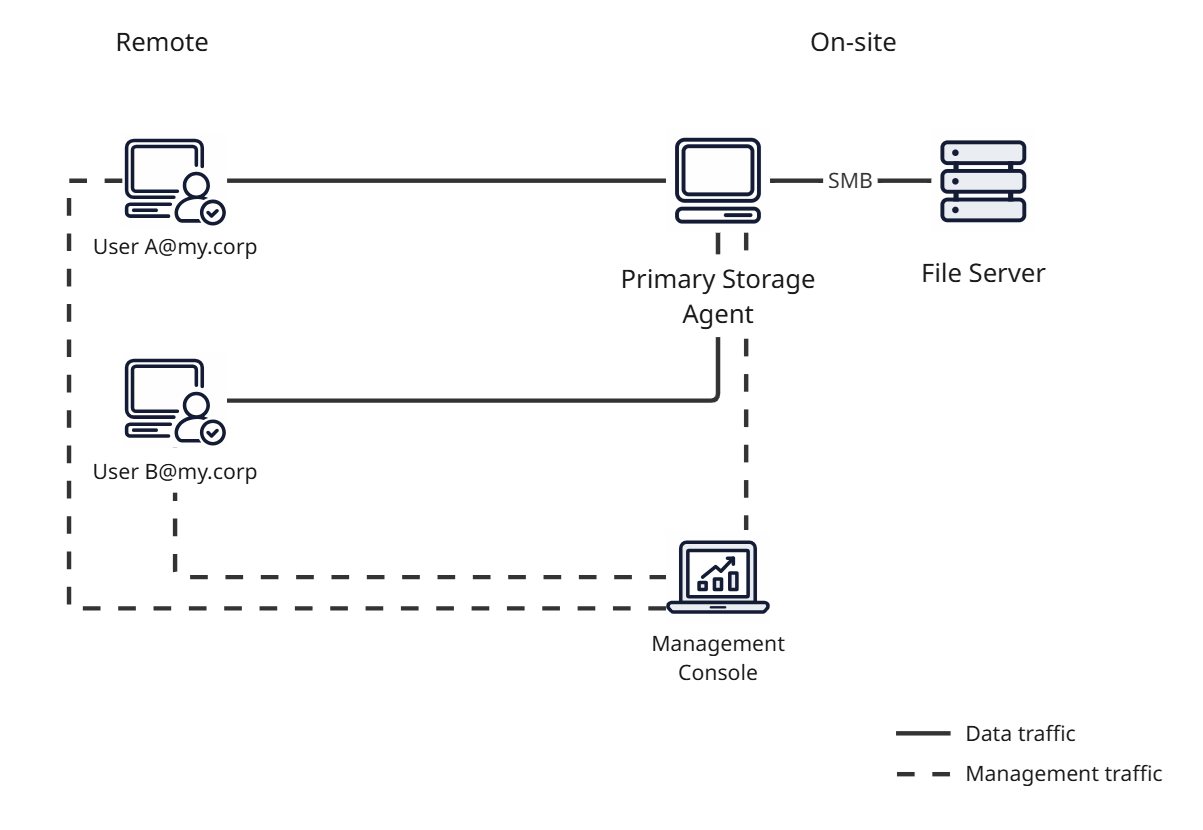
The Enterprise Hybrid Work Job type benefits include:
-
Ability to access volumes with billions of files - On-demand scanning fetches metadata of top-level file system items while the end user browses the Job folder. This reduces the volume of data required to serve files to all participating Agents.
-
Synchronous locking - The Primary Storage Agent serves as a lock server to provide synchronous locking for files in the Job folder. This allows preventing data corruption when multiple end users access the same files either remotely or from the local network.
To get started:
- Review system requirements and prerequisites
- Set up Management Console
- Set up the Primary Storage Agent
- Set up user Agents
- Create a Domain group
- Create an Enterprise Hybrid Work Job
Review system requirements and prerequisites
- Make sure hosts running Management Console and Agents meet the minimum system requirements.
- Set up your Active Directory environment - Assign SPNs and enable impersonation.
- Configure an OIDC compliant identity provider for end user Agents authentication.
Set up Management Console
To set up the Management Console for Enterprise Hybrid Work Job:
-
Install Management Console version 6.0 or newer.
Note
- Install and run under
Local Systemaccount. - Install Resilio Connect Tracker.
- Install and run under
-
(Optional) Enable authentication for Management Console administrators via Active Directory, Entra ID, Okta or OpenID Connect identity provider.
Set up Primary Storage Agent
Primary Storage Agent provides remote access to shared file storage resources.
To set up Primary Storage Agent, see Install Agent - Primary Storage Agent.
Set up User Agents
User Agents are installed on end users' machines to provide them with access to the shared storage resource via the Primary Storage Agent.
To set up User Agents, see Install Agent - End User Agent.
Create a Domain group (Optional)
In Management Console, create a Domain group that matches the Active Directory group that end users belong to.
Note
This step is optional. You can add individual end user Agents or Domain groups during Job creation.
Create an Enterprise Hybrid Work Job
To create an Enterprise Hybrid Work Job:
-
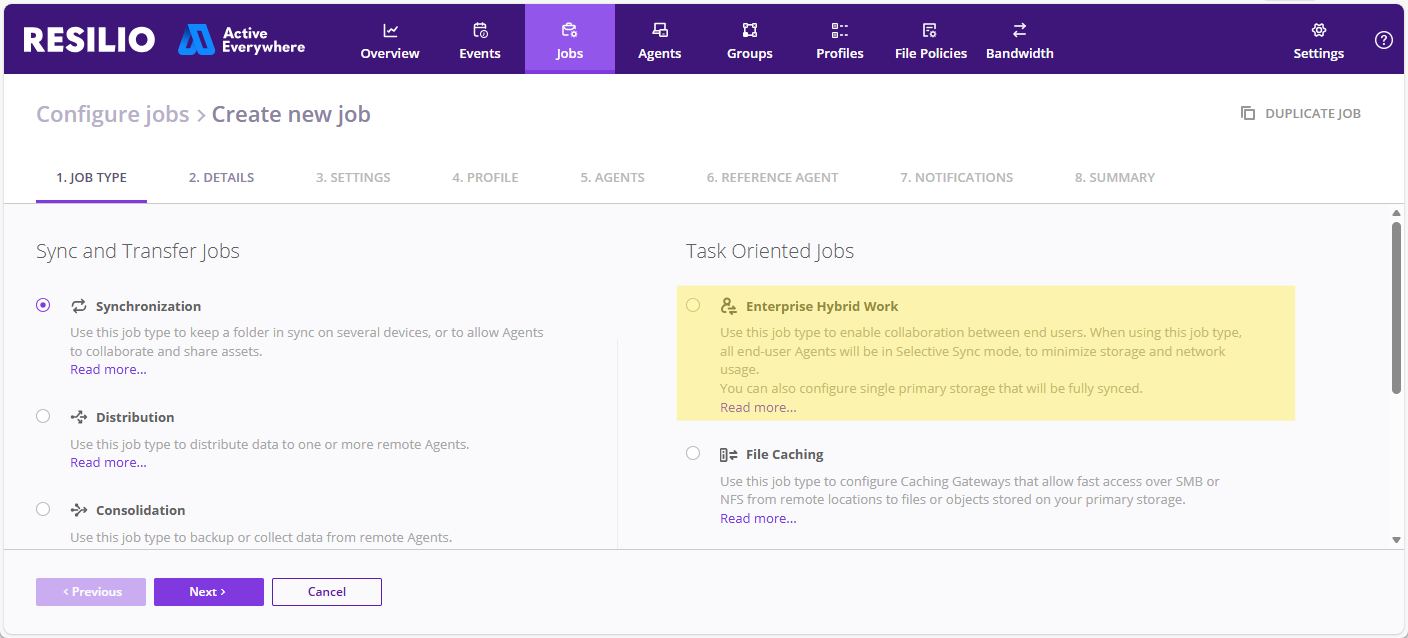
In the Management Console, select Jobs > Configure Jobs, then click + CREATE NEW JOB and select Enterprise Hybrid Work.
-
On the DETAILS tab, provide the Job name and, optionally, a description.
-
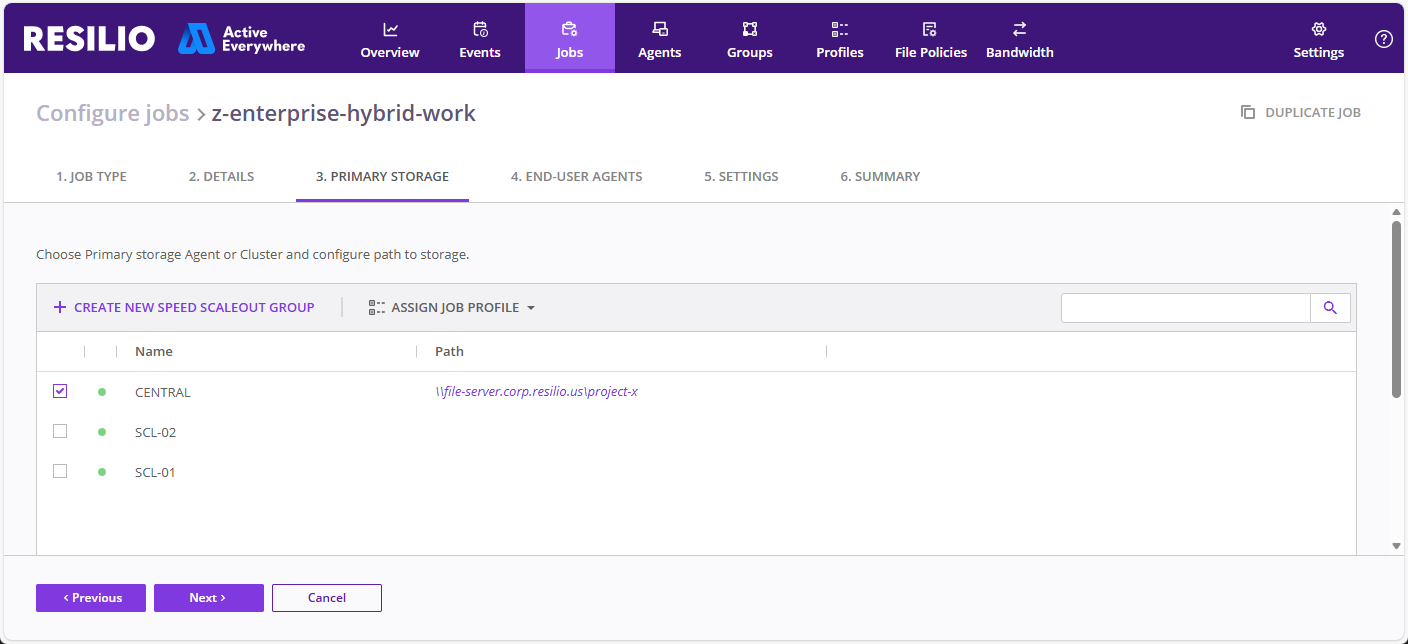
On the PRIMARY STORAGE tab, add your Primary Storage device:
Note
- Only server type Agents running on domain joined machines under Local System (machine) accounts are shown at this step.
- Only one Primary Storage instance can be selected.
- Once the Job is created, you cannot change the Primary Storage instance.
- The Primary Storage instance serves as a Lock server and the Reference Agent.
-
Select your Primary Storage Agent, then specify Job folder path:
- Click Specify path.
- Provide an SMB share or Nasuni DFS namespace path, then click Save.
Nasuni DFS namespace
When using Nasuni DFS namespace, make sure that the Primary Storage Agent's Job Profile has:
- The Follow symlinks option enabled.
- The
preserve_logical_pathcustom parameter has been added and set totrue.
Important: Primary Storage Agent Job folder path
You cannot change the Job folder path on the Primary Storage Agent once the Job is created. If you need to change the Job folder path, you will have to create a new Job.
-
Click Assign Job Profile and select Primary storage default profile.
-
(Optional) Change the service principal name fetched from the Active Directory:
Select Input SPN manually, then provide the Primary Storage device SPN.Note
Computers in Active Directory can have multiple SPNs assigned. If the SPN fetched by the Management Console is incorrect, specify the correct SPN value manually.
-
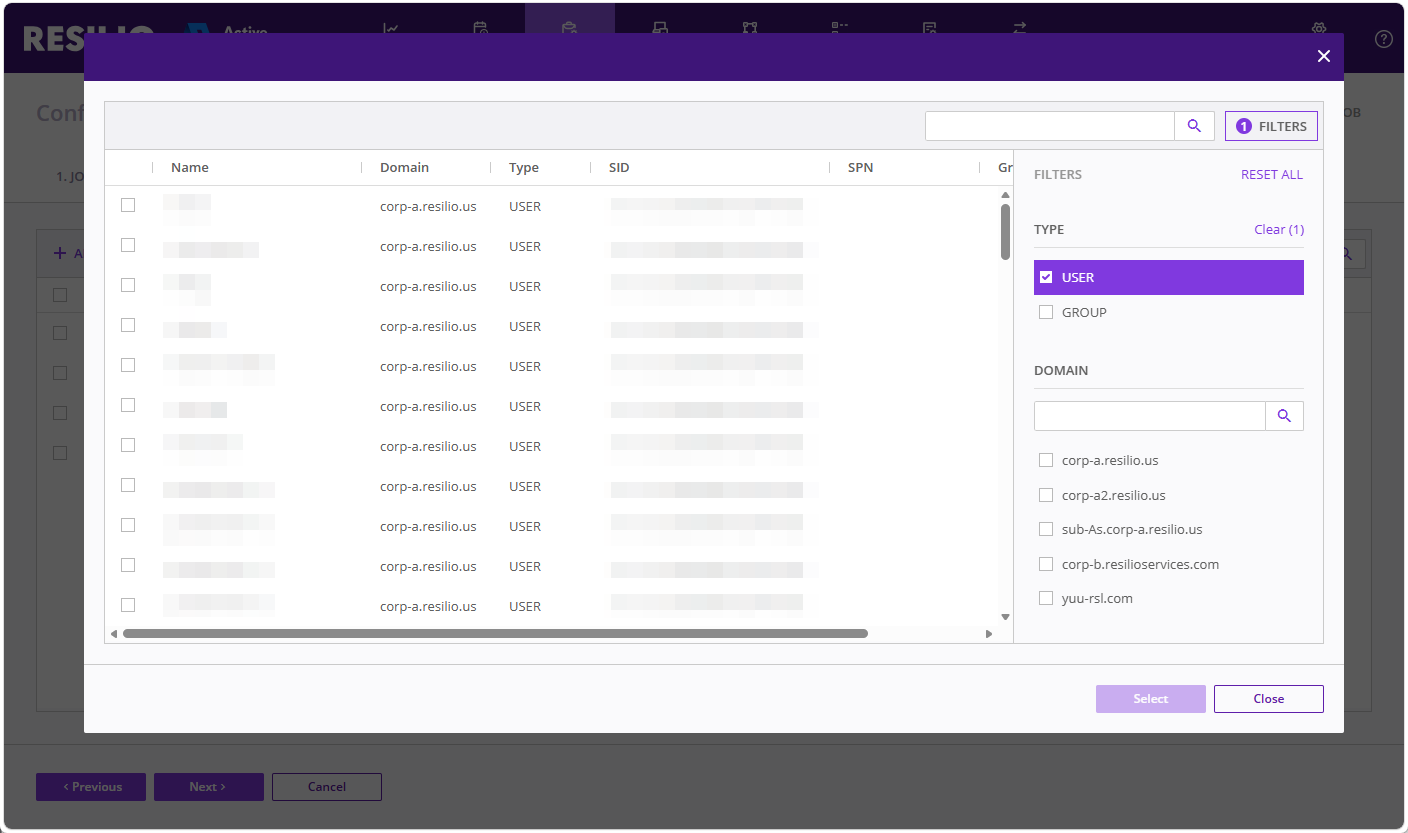
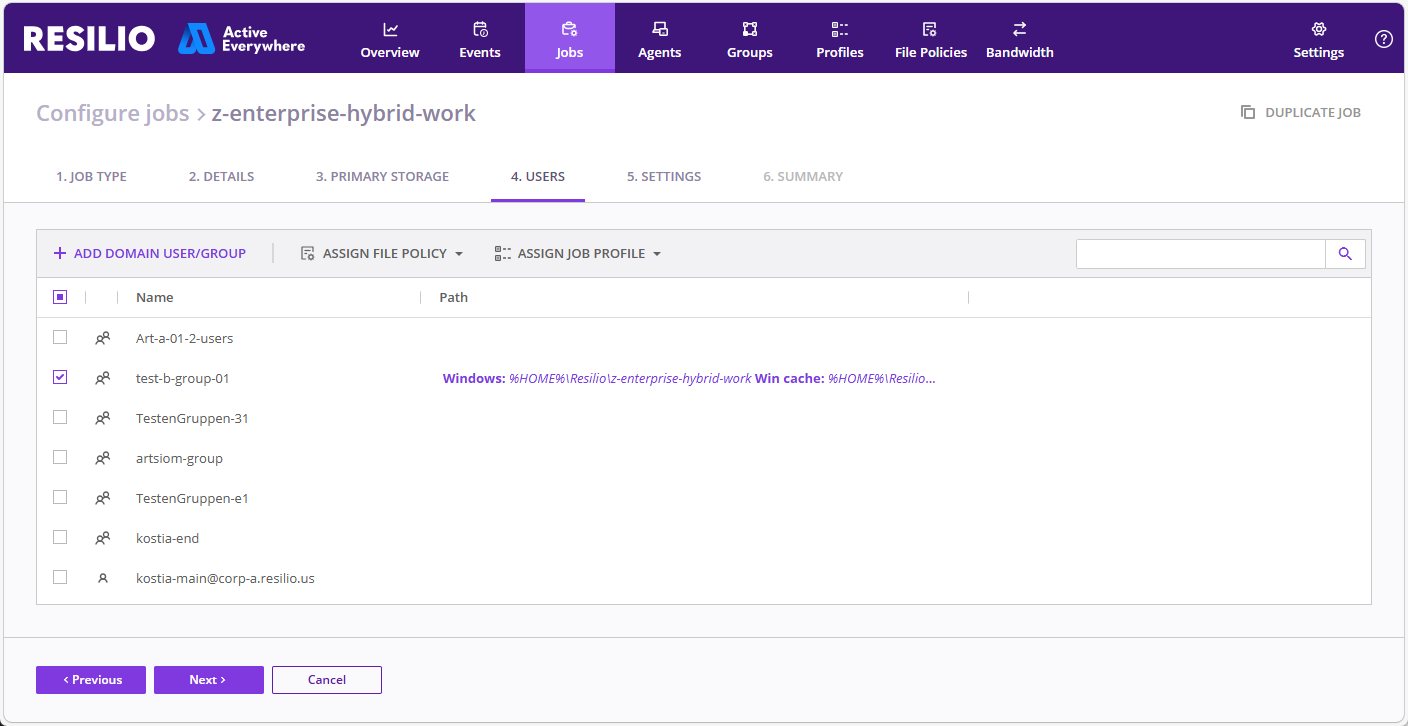
On the USERS tab choose from previously added domain groups and individual users , or add new ones.
Note
User accounts in Active Directory must have
UserPrincipalName(UPN) property assigned. For more information, see User account properties section in System Requirements and Prerequisites - Resilio 6.0 - Active Directory.- Click + ADD DOMAIN USER/GROUP and search for a user or a group.
-
Select a user or a group, then click Select.
Tip: Multiple domains
If you cannot locate a user or a group, make sure they are in the same domain as the Management Console or a two-way trust relationship exists between the domains.
-
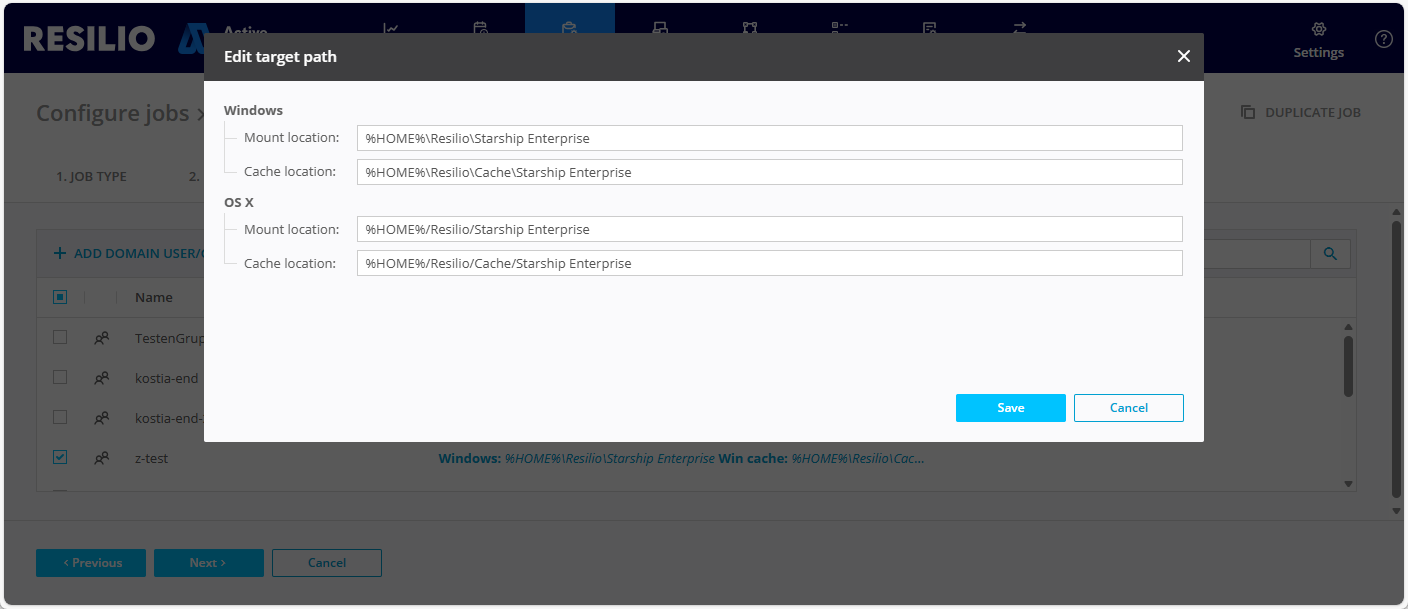
(Optional) Click the default Job folder path to change it, provide paths for mount and cache locations for end user devices, then click Save.
Tip: Map Job folder to a drive letter
Define the Mount location as
<drive_letter>:to map the Job folder to a specific drive letter, for example,M:. The drive letter must be in uppercase and not already in use by another drive.Important: External storage devices
External storage devices are not supported.
-
(Optional) Click Assign File Policy and choose a file policy, that defines how Agents manage file caching depending on available storage space.
Important: File policy rules
Do not add file rules to your file policy as it may cause unexpected issues with file browsing on end user Agents.
-
Click Assign Job Profile and select End-user default profile.
-
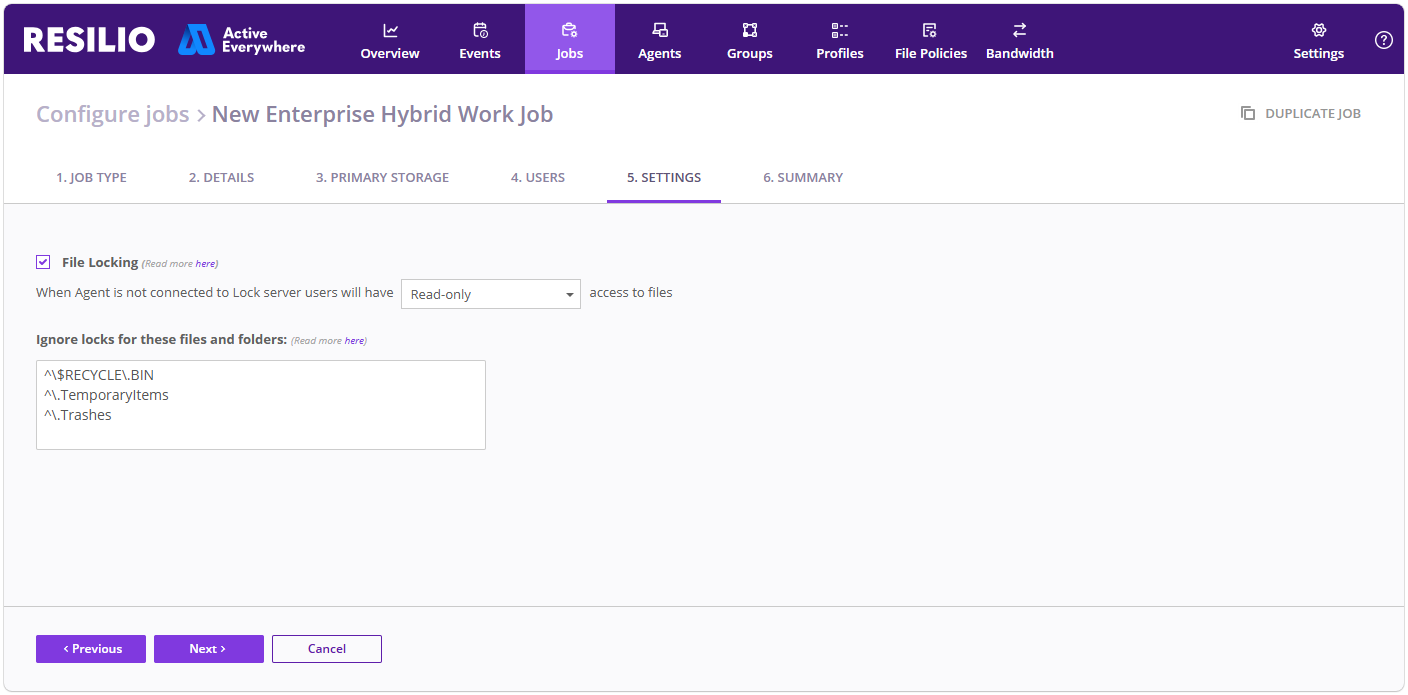
On the SETTINGS tab, adjust File Locking parameters.
Important: File locking
- Do not disable file locking.
- You cannot enable or disable file locking after the Job is created.
- Do not clear the default Ignore locks for these files and folders entry. Instead, add each new regular expression rule in a separate line.
- When Agent is not connected to Lock server - Access level to shared files when the locking server is unavailable.
- Ignore locks for these files and folders - A regular expression (PCRE2 syntax) to match files and folders that you want to exclude from locking.
-
On the SUMMARY tab, verify your Job's configuration, then click Save.
Known issues and limitations
Existing Resilio deployments
- You cannot upgrade your existing 4.x or 5.x deployment to Resilio 6.0.
IT environment
- Proxy servers are not supported.
- Management Console cannot list Foreign Security Principal (FSP) objects within a group in an Active Directory domain. If you have a group, containing users from other trusted domains as Foreign Security Principal objects, Management Console won't be able to access those users and add them to the Job. You must assign users and groups from each domain separately.
Analytics
- There's no option to limit the size the analytics database takes up on the Management Console host.
- When upgrading from version 6.0.0.3622 or older, delete the
mchost\UserData\userdata.sqlitedatabase file in the Management Console storage folder. Note that this will delete all existing Saved Views but it is necessary due to changes in the analytics framework.
Enterprise Hybrid Work Job
- Speed Scaleout Groups are not supported.
- File locking must remain enabled.
- Impersonation does not apply to highly privileged accounts, e.g. Domain Admins or Enterprise Admins.
- You cannot create and manage Enterprise Hybrid Work Jobs via API.
- You cannot change the Primary Storage Agent after the Job is created.
- You cannot change the Job folder path on the Primary Storage Agent after the Job is created.
- You cannot enable or disable file locking after the Job is created.
- Do not add file rules to your file policy.
End user Agents
- External drive support is not available for end user Agents.
- Windows 11 Enterprise multi-session is not supported.
- Cache folder cannot be located on an SMB share on a ReFS volume.
- Download and upload time estimates can be inconsistent - Job ETA may be missing while ETA for individual files could be available.
- Agent UI may be blank if there are thousands of files in the active queue.
- Some errors can remain for some time, even after they have been resolved.
- If there is a connection problem or invalid Management Console address was applied, user can see a pending attempt to connect to the Management Console.
- Minor UI glitches and inconsistencies.
- Running executable files from the Job folder may fail due to a bug in Windows WebDAV client. For details, see Cannot access executable binaries.
- Overloading an Agent with too many file operation requests within the Job folder may result in the Agent reporting the
SE_RECHECK_FILE: Cannot check file blocks, error=transfer key invalid, system error: The cloud operation is invalid. (380)error. - File's
mtimeupdate on the Primary Storage Agent triggers dehydration of the file on end user Agents participating in the Job, even if the file is not modified. The file won't be rehydrated automatically until the end user Agent accesses the file. - For apps-specific issues and limitations, see Resilio 6.0 Applications Compatibility.
To get started:
- Set up the Management Console
- Deploy Agents
- Set up data transfer jobs
- Monitor your Resilio deployment
- Enhance Resilio Platform's security
Set up Resilio Management Console
Resilio Management Console is a central interface for setting up Agents, configuring sync and transfer jobs, and monitoring your job runs.
Prerequisites
- Resilio license. If you don’t have one yet, reach out to our sales team.
- A URL to the download page. You should receive it along with your license.
- Firewall rules and port forwarding set up to allow traffic on a set of ports. For details, see Ports Protocols Port Forwarding.
To set up Resilio Management Console:
- Open a web browser and navigate to the download page.
- In the Management Console section, download the installer specific to your operating system.
- Install the Management Console. For details, see Install Management Console.
- In a web browser, navigate to your Management Console interface, running on port 8443. For example, https://some-dns-name.com:8443, or https://10.0.0.2:8443.
- Enter your email address, provide a password, agree to our Terms of Use, EULA and Privacy Policy, then click Continue to set up your admin account.
- Click Upload a new license , and browse the filesystem to locate your Resilio license.
-
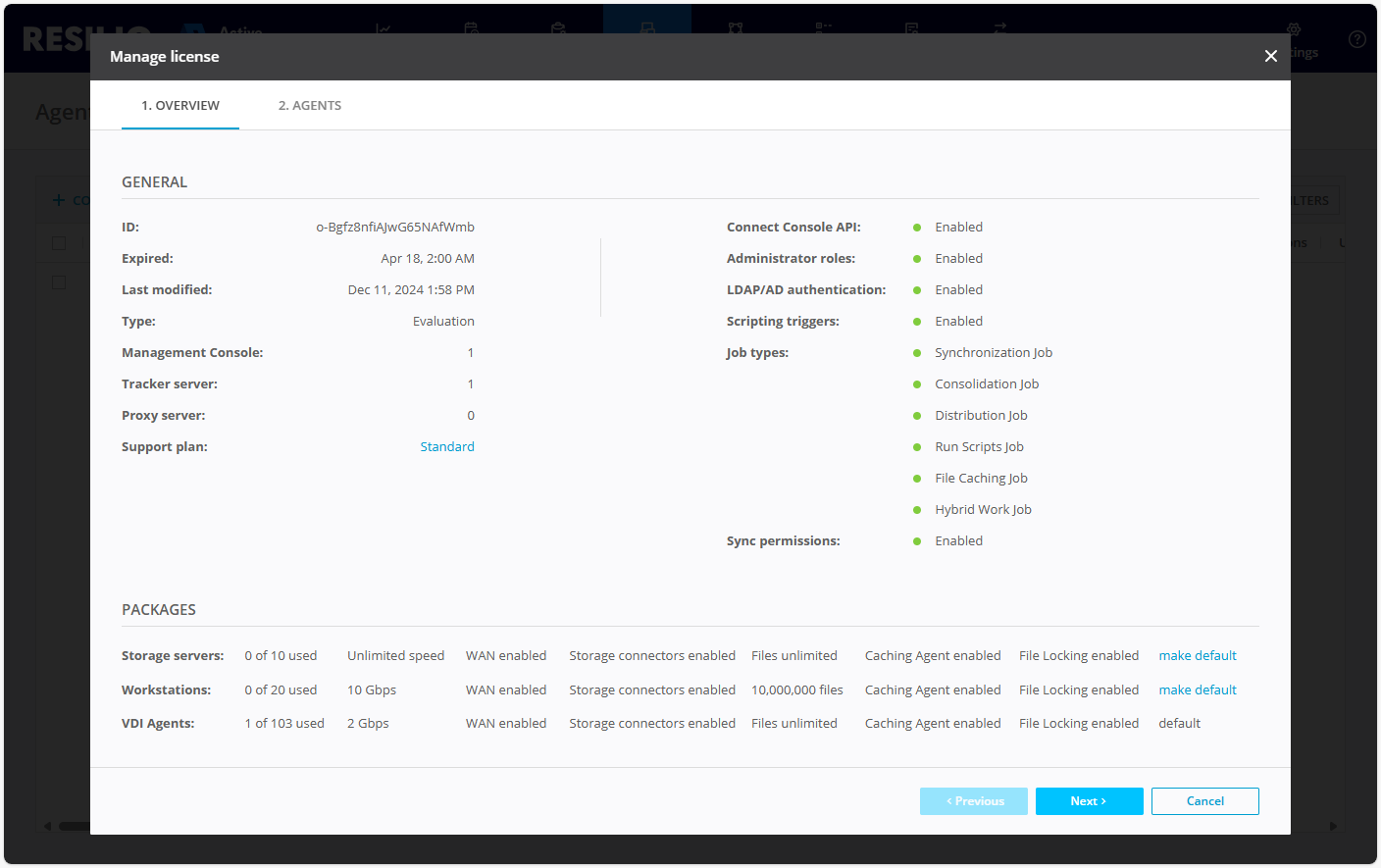
Review your license details, then click Next.
-
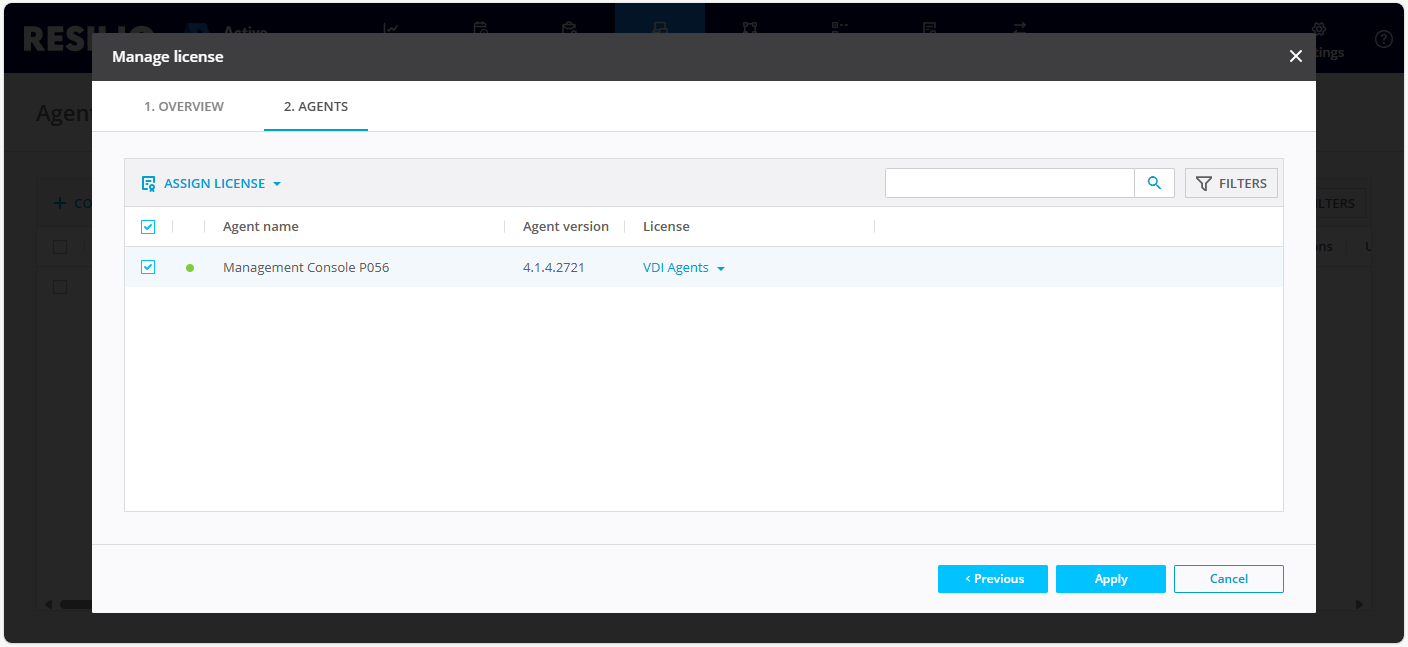
Select your Management Console instance to assign one of the Agent license to it, then click Apply.
Deploy Resilio Agents
Agents are lightweight applications that run on end users’ workstations or storage servers. Altogether, they comprise a multipoint-to-multipoint network that enables efficient transfer of large data sets.
To deploy an Agent:
- Open a web browser and navigate to the download page.
- In the Desktop & Server Agent section, locate and download an installer for an operating system of your choice.
- Install and set up Agents. For details, see Install Resilio Agent.
-
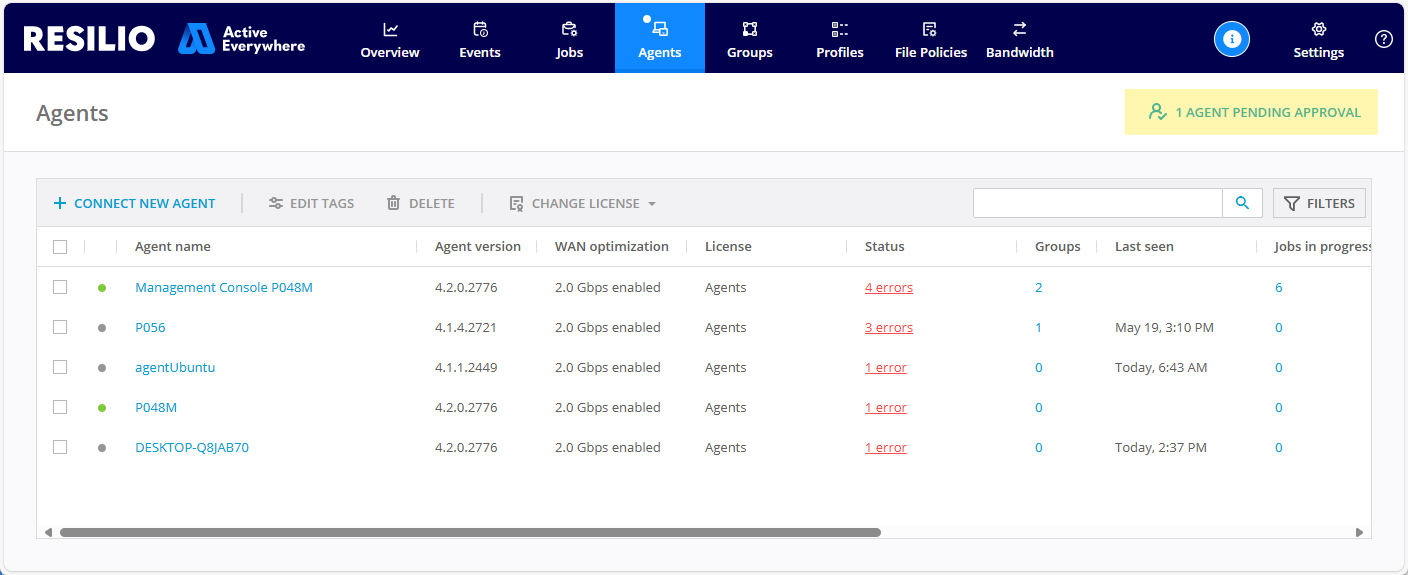
(Conditional) Approve pending Agent connections.
Note
Applicable to Agents connecting without a configuration file.
-
In the Management Console, select Agents, then click the AGENT PENDING APPROVAL notification.
-
Select Agents you want to add, then click Approve.
-
Set up data transfer jobs
Jobs define source and target Agents along with configuration parameters specific to a job type. Choose a job type that matches your use case and keep your files in sync across your entire organization.
Set up a job tailored to your specific use case:
- Synchronization Job - Synchronize data across multiple systems, ensure identical file copies are consistently available on each endpoint.
- Distribution Job - Transfer data from a centralized storage to remote locations. Run transfer jobs manually or set up scheduled runs.
- Consolidation Job - Transfer data from multiple locations to centralized storage for data collection or backup.
- File Caching Job - Deploy local caching gateways to ensure high-speed, low-latency access to large data sets accessed by hundreds of users across multiple locations.
- Hybrid Work Job - Enable collaboration in distributed teams. Ensure consistent access to the latest copy of data both on-site and remotely.
- Storage Tiering and Archival Job - Implement automated data movement between storage tiers.
- Run Script Job - Execute OS-level scripts on remote Agents. Run Script Jobs can be launched manually or initialized automatically based on a predefined schedule.
Monitor your Resilio deployment
-
Monitor overall system status
From the top menu, select Overview to access all time data transfer statistics, jobs and agents information and summaries along with the data transfer charts. For more information, see Dashboard Performance Monitor.
-
From the top menu, select Jobs , then locate and click a job run that you want to view in detail.
-
Set up notifications
Subscribe to job or event specific notifications, or to an overall system status summary. Add an SMTP server, then configure email notifications.
-
Manage error messages
In certain scenarios, Resilio may report errors despite being fully operational and successfully completing all job runs. To maintain a clearer job status overview, you have the option to disable the reporting of specific errors.
-
Set up bandwidth policy
Create a schedule and limit bandwidth utilization depending on the time of the day.
-
Analyze job runs
You can query job runs when troubleshooting, to determine if a specific file has been transferred successfully or not. For more information, see File Query In A Job Run.
Enhance Resilio Platform's security
Resilio has a number of security measures built in. To further secure your deployment, refer to the Security considerations and settings documentation section.
Video tutorials
Windows
Chapters overview
-
Introduction, System Requirements & Network Configuration [00:00]
This chapter overviews the requirements and steps in setting up Resilio on Windows. It introduces the system specifications, required network ports, and key resources like the system requirements page and network diagram. The focus is on installing the management console and agents on Windows Server 2022.
-
Management Console Installation [02:30]
A step-by-step guide to installing the Resilio Management Console on a Windows server.
-
Installing Agents on File Servers [04:50]
Installing Resilio agents on Windows file servers. It discusses the importance of copying the installation files locally, avoiding network-based installations, and registering agents with the management console. It also explains best practices for using DNS or static IPs for agent registration.
Linux
Chapters overview
-
Introduction and System Requirements [00:00]
Installing Resilio platform with a focus on installation in Linux environments.
This guide will cover the complete setup process, including configuring the management console on AlmaLinux, Red Hat, and Rocky Linux and installing agents on Ubuntu. By the end of this video, you'll understand:
- The system requirements and specifications for Resilio.
- Necessary ports and protocols for successful communication.
- Key installation and configuration steps for a seamless setup.
-
Installation of Management Console [03:30]
Step-by-step guide walkthrough of installation of the management console.
Commands Used:
chmod +x (package name)- Install variations
rpm -Uhv (package name)(dnf, yum,apt) install -y (package name)dpkg -i (package name)
systemctl status resilio-connect-management-console.servicesystemctl enable resilio-connect-management-console.servicesystemctl start resilio-connect-management-console.service
-
Configuration of Management Console [06:10]
This section provides detailed instructions for configuring the Resilio Management Console.
-
Installing the Agent [08:00]
This chapter includes instructions for Ubuntu and Debian-based installations, setting up agent connections to the management console, and ensuring proper communication using statically assigned IP addresses.
Commands Used:
chmod +x (package name)- Install variations
rpm -Uhv (package name)(dnf, yum,apt) install -y (package name)dpkg -i (package name)
systemctl status resilio-agent.servicesystemctl enable resilio-agent.servicesystemctl start resilio-agent.service
-
Configure User Permissions [10:27]
Discover how to customize Resilio's user and group settings to make sure it's compatible with your environment. This chapter details modifying service files for the management console and agent to run under appropriate user accounts and tips for maintaining security and system stability during configuration.
Commands Used:
cd /user/lib/systemd/systemnano resilio-agent.servicenano resilio-connect-management-console.servicesystemctl daemon-reloadsystemctl restart resilio-connect-management-console.servicesystemctl restart resilio-agent.service
-
Conclusions & Support Information [13:06]
You have successfully installed and configured the Resilio platform on your Linux environment. If you encounter any issues or need additional help, visit the Resilio Support Center for detailed guides and troubleshooting tips.