Change storage path location for the Resilio Management Console
The storage path defines the location where the Management Console keeps its setting, database files, debug logs and other service information. For default storage folder location, see Storage Folder.
You can change the default storage path.
Prerequisites
When changing the storage path location, ensure that:
- The user running the Management Console service has recursive read-write access to the new storage location.
- The new storage location already exists on the server.
Windows
To change the storage folder location on Windows:
-
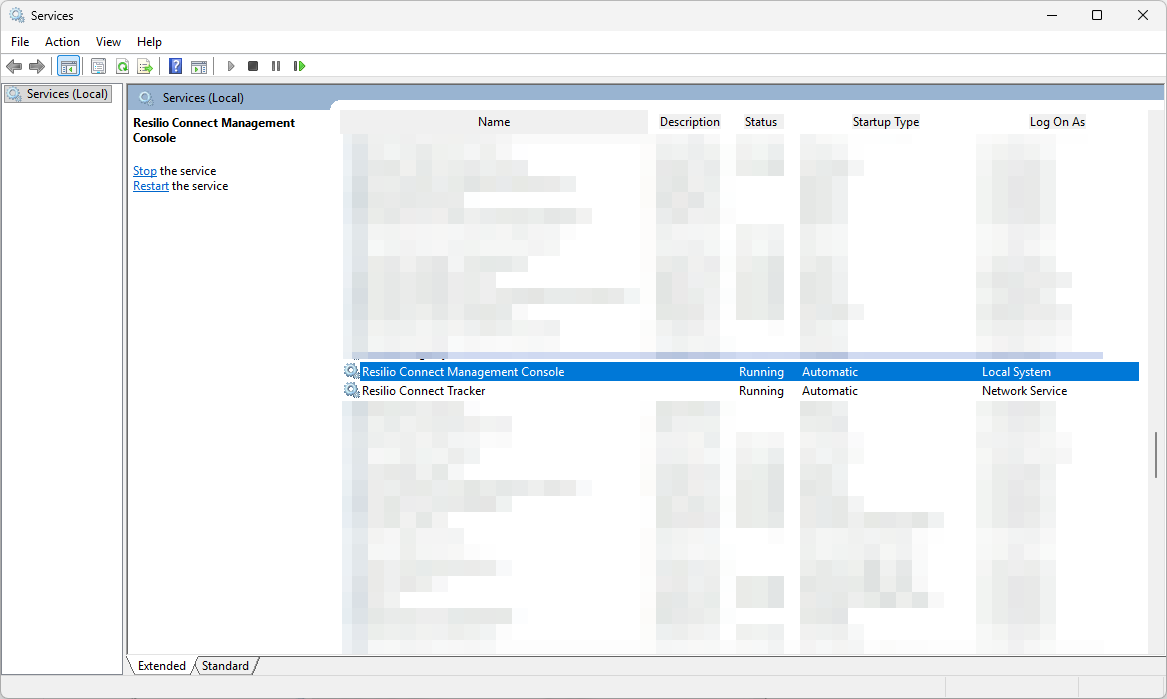
Open the services management console, then locate and stop the Resilio Connect Management Console service.
-
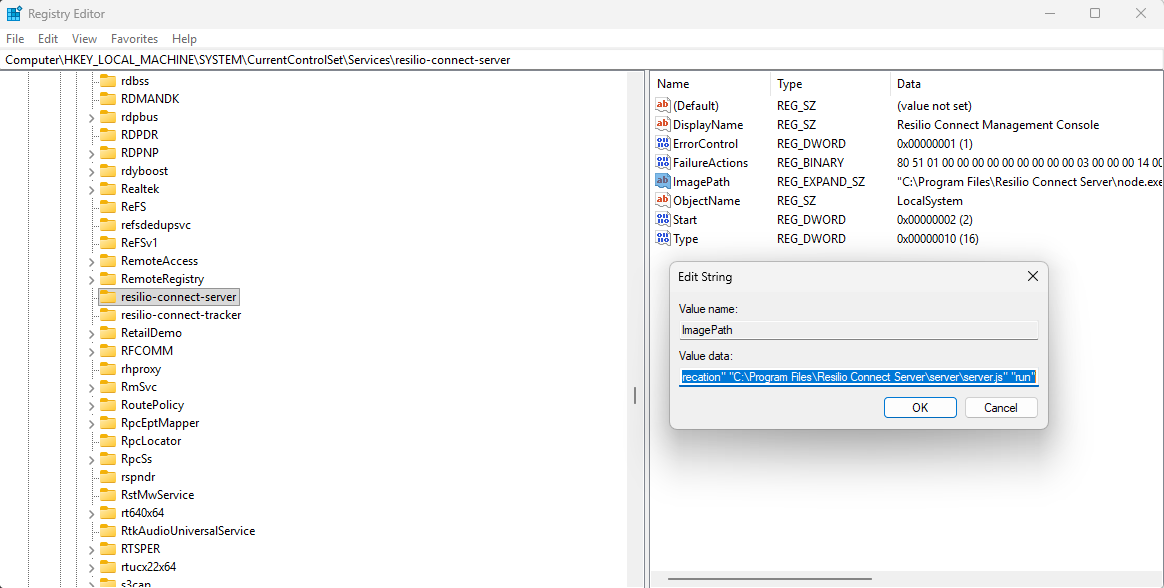
Open Windows Registry editor and navigate to
Computer\HKEY_LOCAL_MACHINE\SYSTEM\CurrentControlSet\Services\resilio-connect-server.
-
Double-click Image path and enter the path to the new storage location with an
--appdataparameter.Example
"--appdata" "K:\server"Note
The folder you select must already exist.
-
If necessary, copy the files from default storage location to the new location. Do not delete the current storage location until verifying that everything is configured correctly.
-
Start the Management Console service and confirm that it uses the new storage location. One of the ways to verify it is the Modified timestamp of
common.logandaudit.logfiles - it will be updated to the current time.
Linux
To change the storage folder location on Linux:
-
Copy the contents of
{path_to_resilio-connect-server}/varfolder to the new location. -
Run your service with the
--appdataparameter and path to a new location:/opt/resilio-connect-server/srvctrl start --appdata /new/storage/path
Info
If the Management Console runs as a daemon, update its .service file accordingly and add the parameter to the launch command.