Errors with file permissions
Different operating systems (Windows or Linux) handle file permissions in their own way. In general, if some permissions are absent, program is not able to either read some files, acquire a unique lock or write files to some location.
In case of different errors, you can encounter the following notifications in the Management Console.
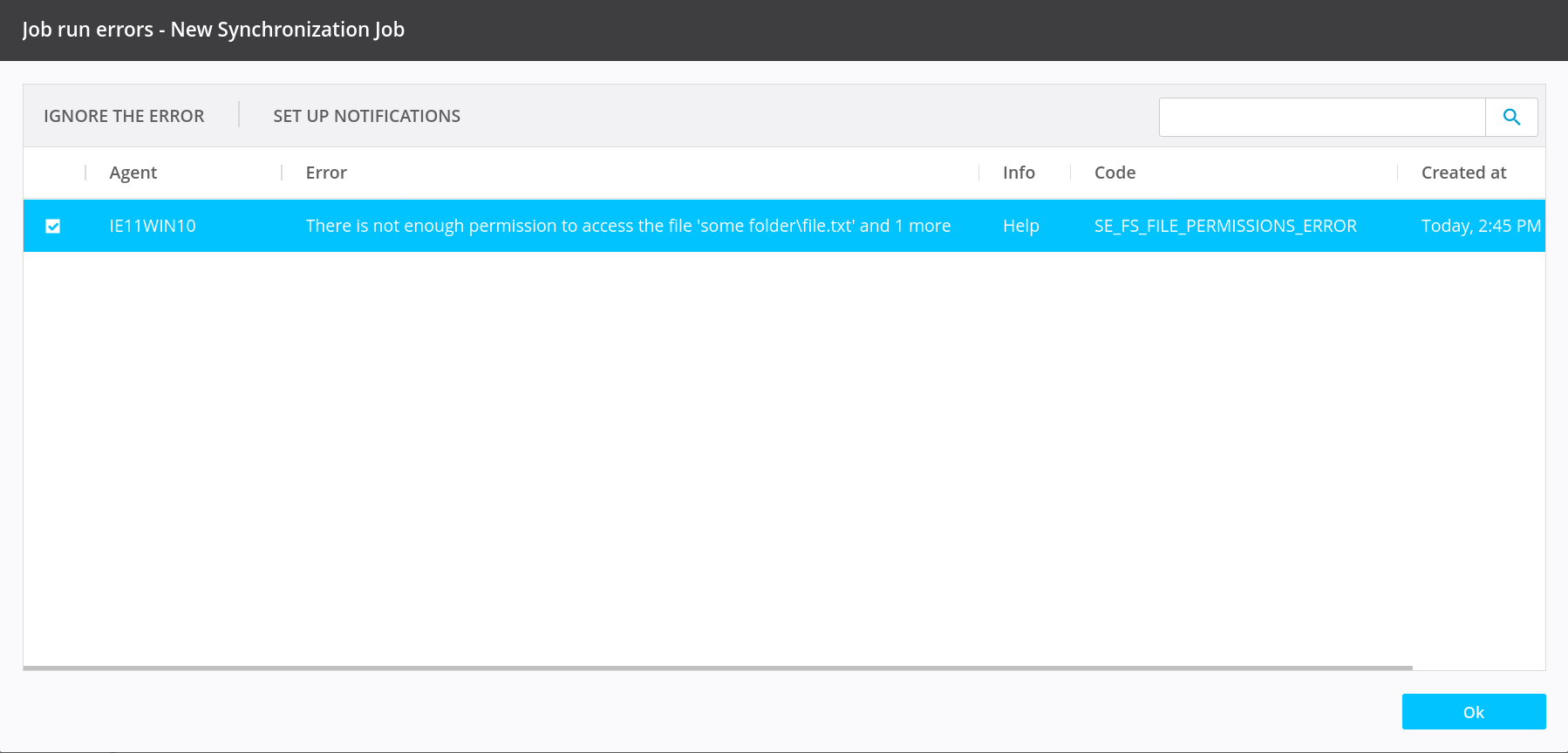
There is not enough permission to access the file
Error code: SE_FS_FILE_PERMISSIONS_ERROR.
Resilio Agent shows an error in the Management Console if it doesn't
have enough permissions to read some files in the job. The error looks like
the following:
Note
If you need a list of all files locked, you should check the Agent's event log.
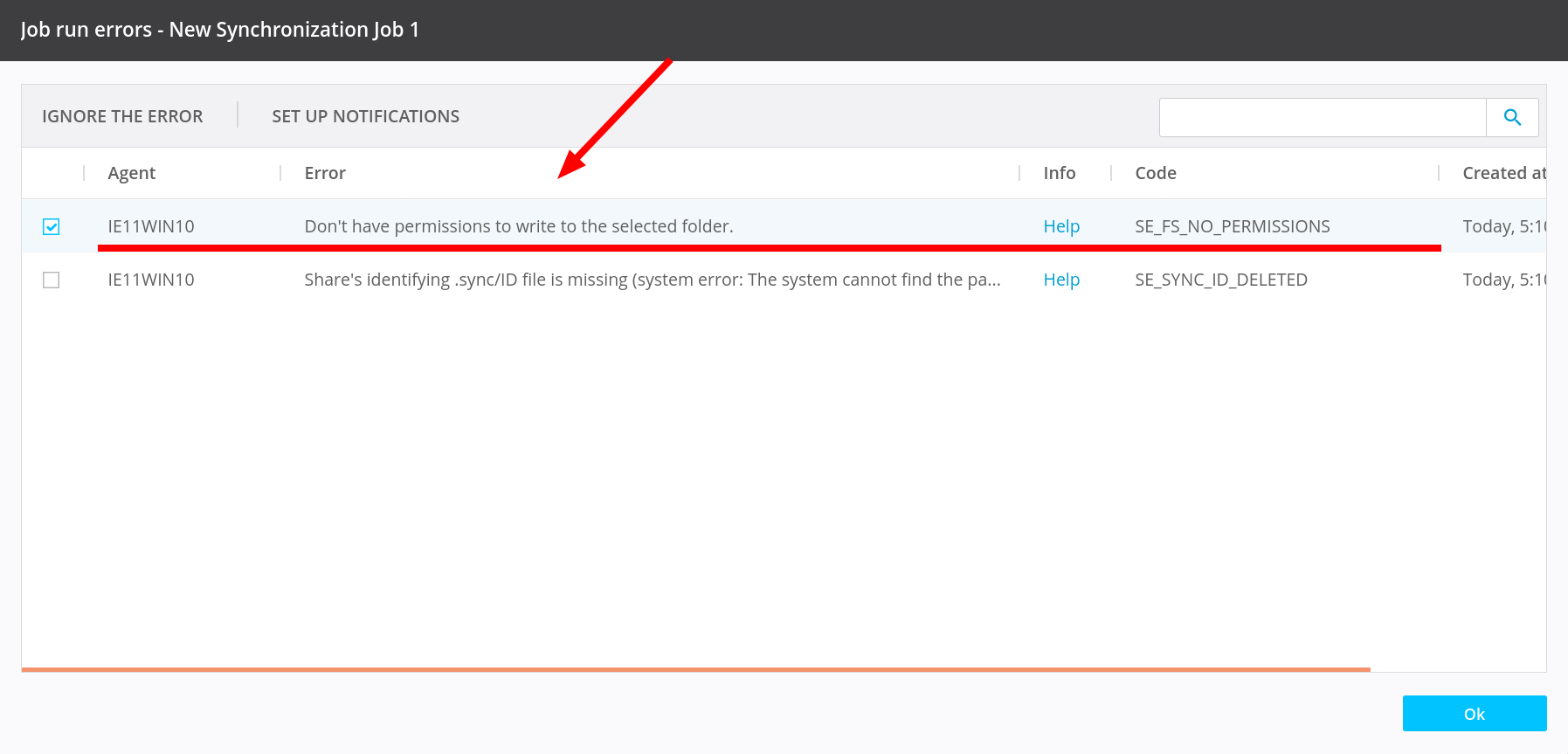
Don't have permissions to write to the selected folder
Error code: SE_FS_NO_PERMISSIONS
For Synchronization job it's not necessary to create the directory in advance, admin can point it to a non-existing folder and the Agent will create path to it. If the Agent is not able create job's path due to lack of the write access, you will see the following error. Check the Agent's permissions to wrire to the given directory.
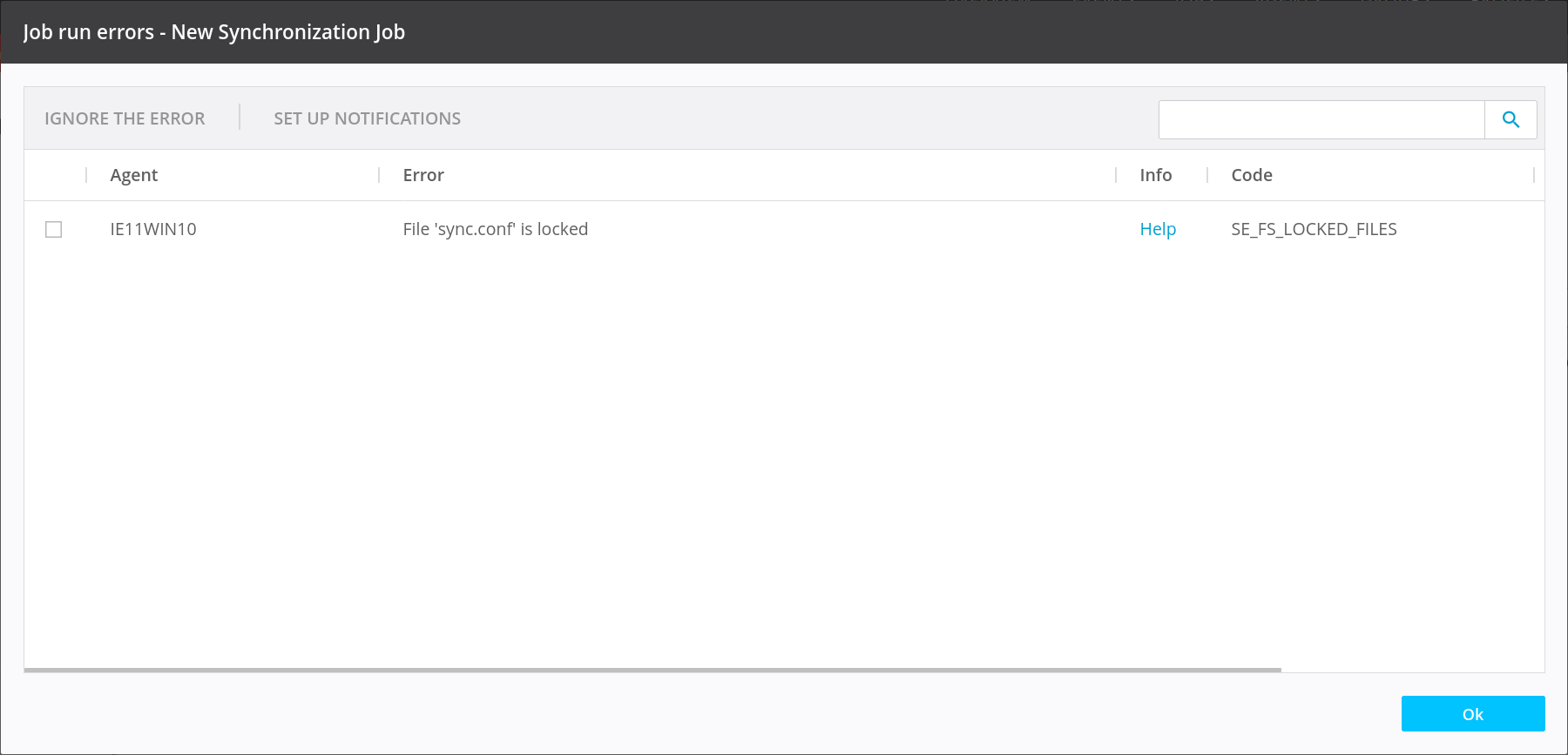
File '%s' is locked (renamed to "File is opened by another application, Agent can’t process it" in 4.1.0)
Error code: SE_FS_LOCKED_FILES.
This is a Windows-specific error as Linux doesn't offer an exclusive file lock. If you encounter such error, it means that some other application obtained an exclusive lock on file in the job.
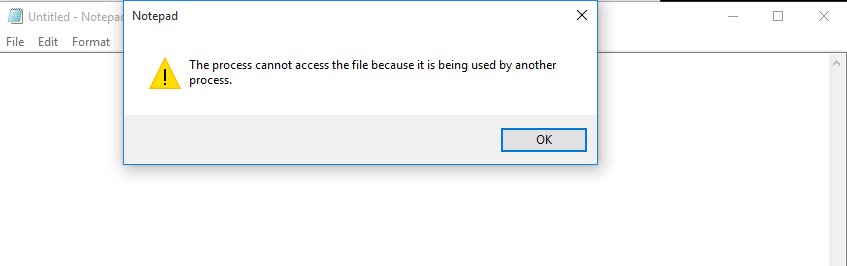
As a simple test that the file is locked indeed, try opening this file in the notepad. You should see the following warning.
To find out what exact process locked the file, Process Explorer from Sysinternals Suite is the simplest option. Run Process Explorer as an Administrator and open Find -> Find Handle or DLL... Paste the file's path and press the Search button, you should see the process which locked the file.
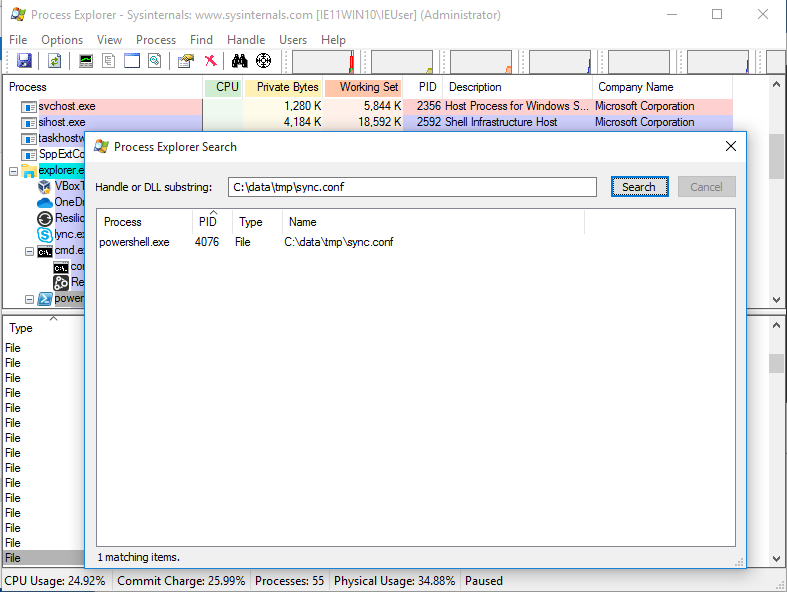
Unable to list folder children
Error code: SE_OPERATION_ABORTED
This error is specific to Distribution or Consolidation Jobs.
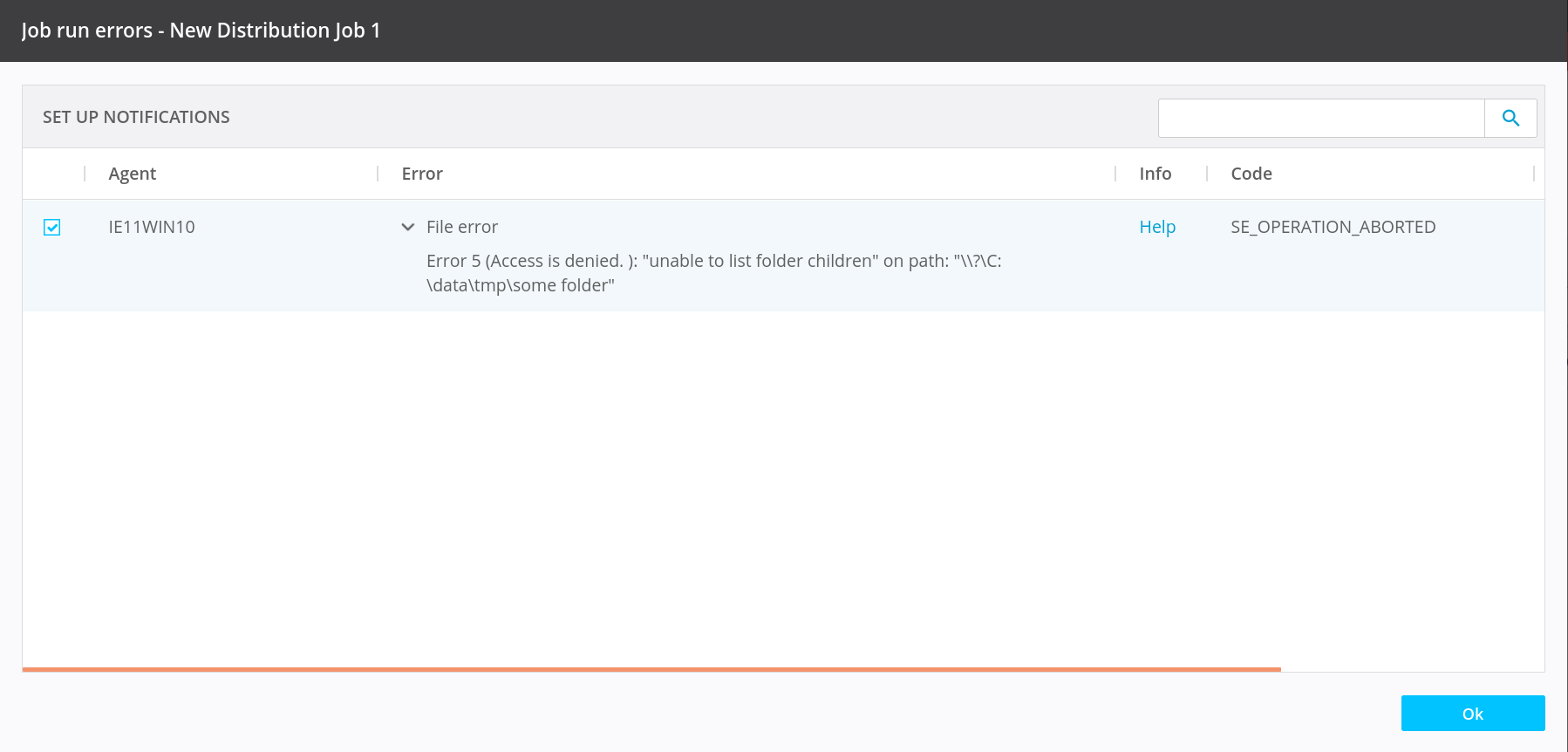
It happens when one or more sub-folders of the folder added to the job don't have read permission. Check the troubleshooting section below for more information.
Another possible reason is that file was deleted from source during transfer before it was actually delivered to the destination.
Troubleshooting permissions errors
The main reason for file access errors are missing read or write permissions to the mentioned objects.
Basically all permissions errors boil down to one thing - the user that runs the Agent does not have read or write permissions to the mentioned objects. Below are some specific steps to troubleshoot.
In the Task Manager, check the User who is running the Resilio Connect Agent process.
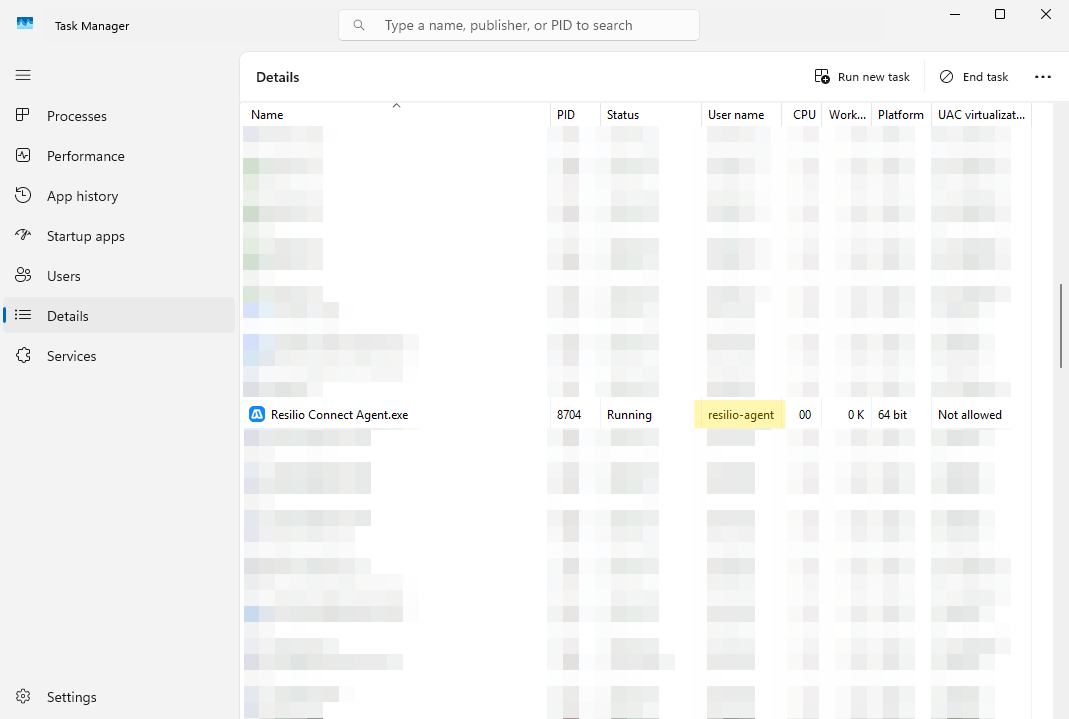
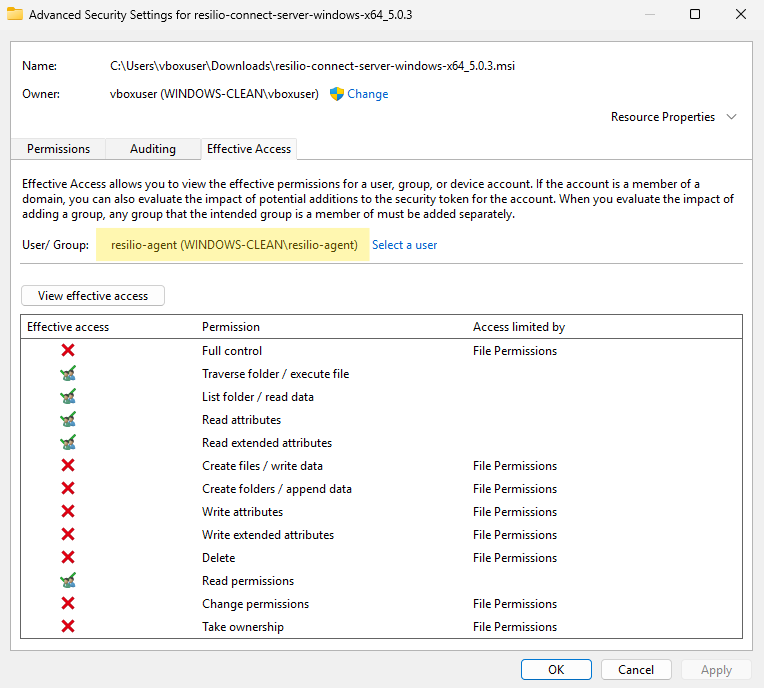
To determine effective access permissions:
- Locate and right-click the file which reports insufficient permissions, then select Properties.
- Select Security, then click Advanced.
- In the Effective Access tab, click Select a user.
- Enter user login, then click OK.
- Click View effective access and verify user access permissions.
Check the user who is running Resilio Agent
 and see if the user has enough permissions for the files in the job
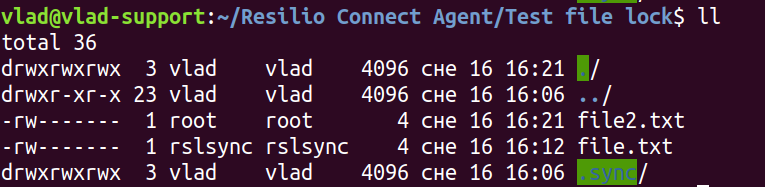
Also, it's possible to try and open the file in Terminal, most likely the same error will pop up:

Find the PID of Resilio Agent either in the Activity Monitor
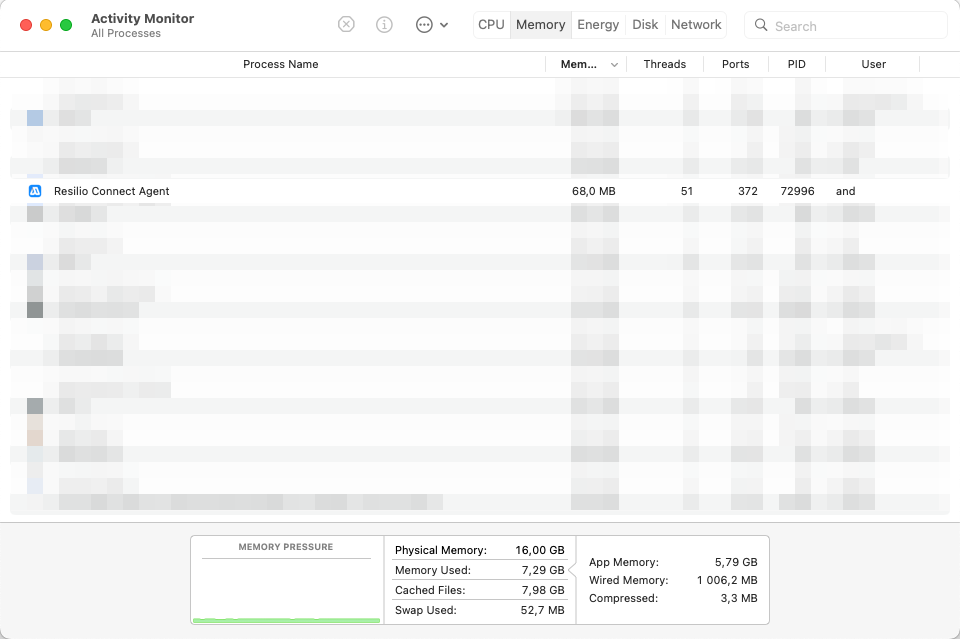
or the Terminal

Then you can check folder permissions in the Finder.
Extended file attributes
MacOS supports extended file attributes. They are not shown in Finder, but you can check them from the Terminal using xattr command.