Agent configuration file in detail
Overview
A Resilio Agent configuration file is a JSON formatted file containing essential parameters required to establish connection to the Management Console. It can also contain custom Agent settings that cannot be overwritten by the Management Console.
{
  "management_server": {
    "host": "192.168.0.27:8444",
    "cert_authority_fingerprint": "C1EAC1F20034B1EB280E255507482AFD8510C6D932DF406F7B791F1FF5FEF2B2",
    "bootstrap_token": "1234hAxx0rxIDDQDxIDKFAUG2KX3RTMJTF7JEG6GDH2T63X3KFI",
    "disable_cert_check": false
  },
  "mc_restricted_access": false,
  "use_gui": true
}
Generate configuration file
To generate a configuration file:
-
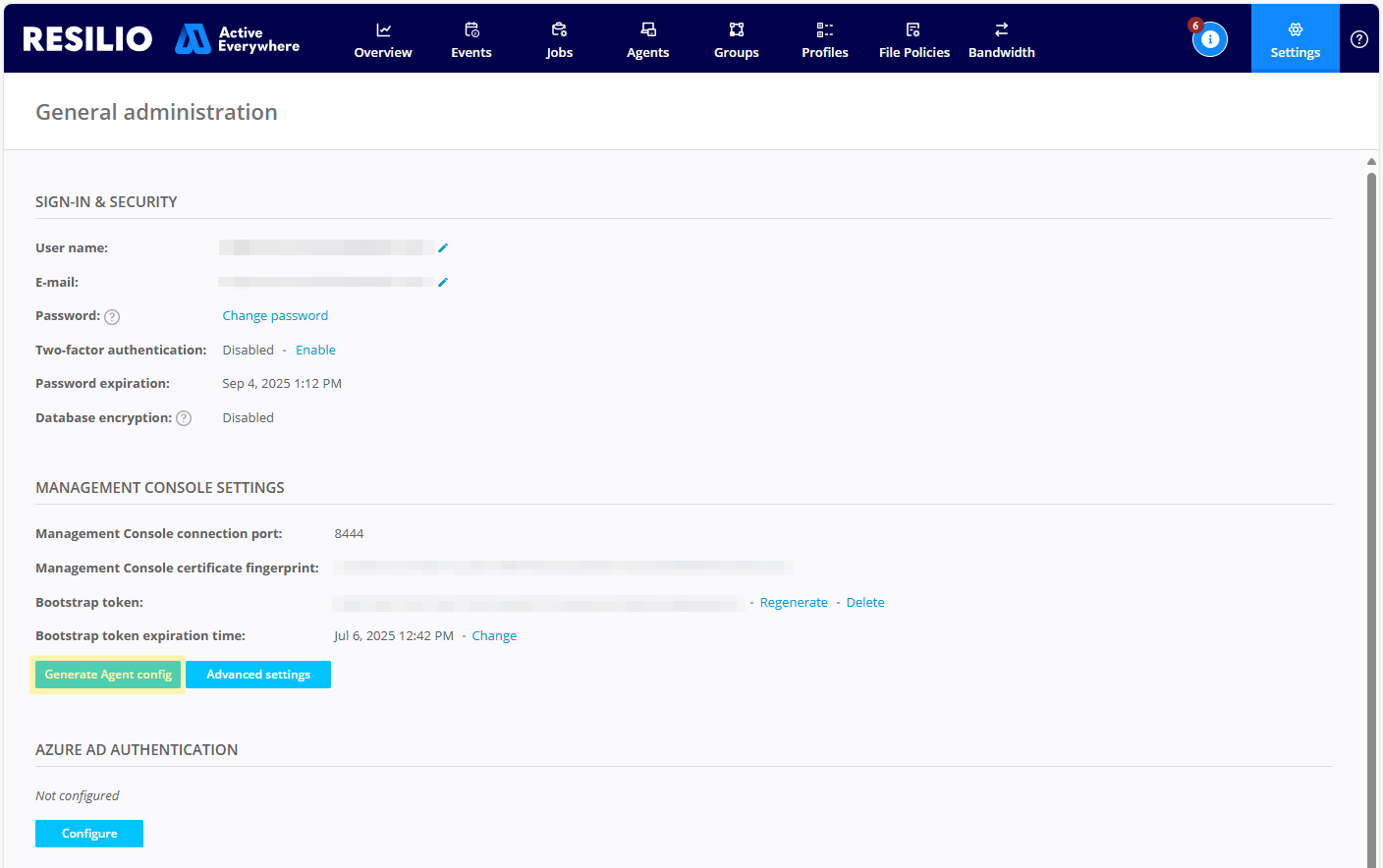
Select Settings > General, and in the MANAGEMENT CONSOLE SETTINGS section, click Generate Agent config.
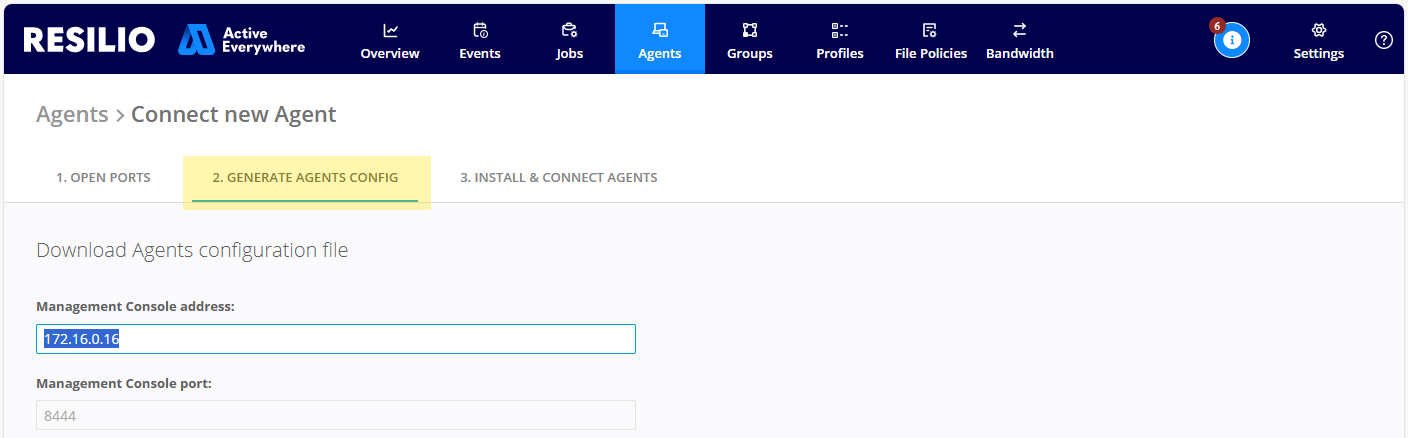
or navigate to Agents, then click + CONNECT NEW AGENT and select GENERATE AGENTS CONFIG.
-
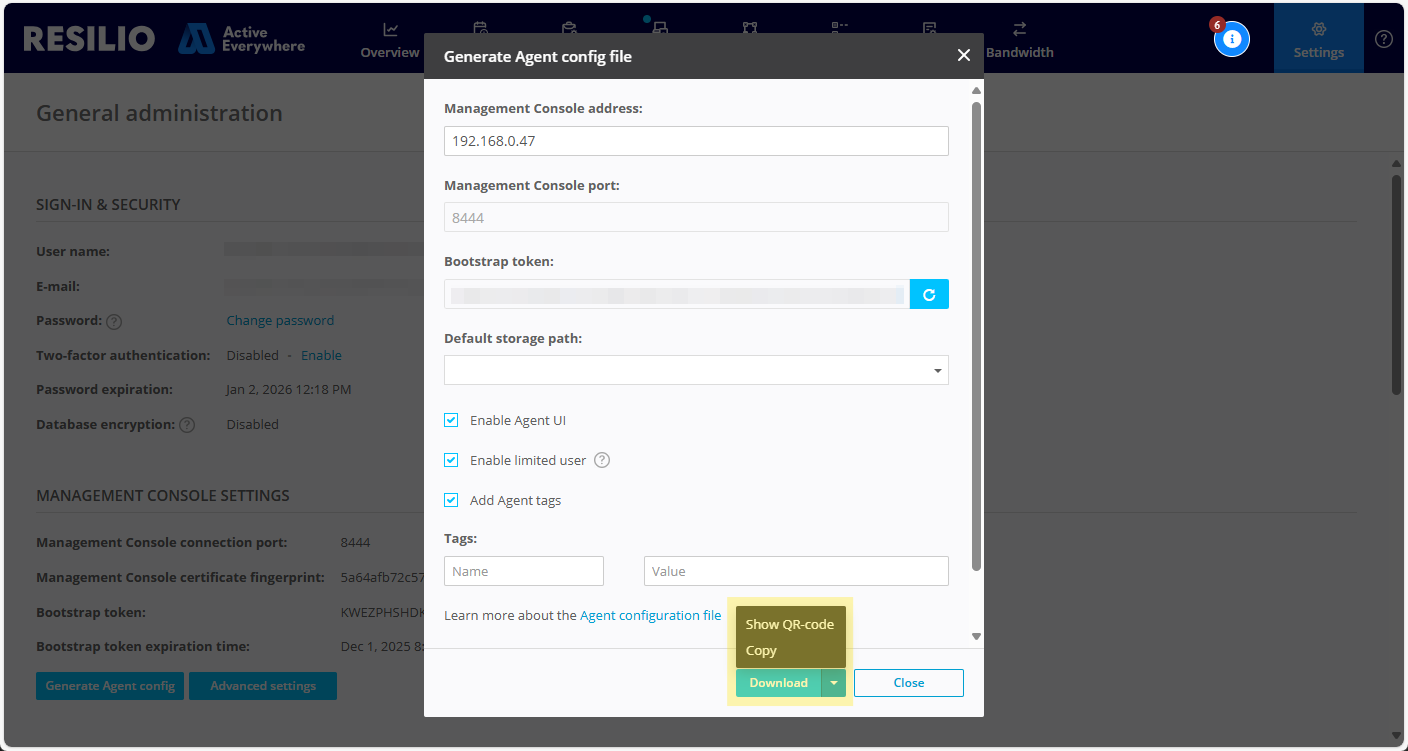
Provide the following:
- Management Console address - The Management Console's IP address or a hostname.
-
Management Console port - The port number on which the Management Console's listens for incoming connection.
Note: Management Console's incoming connections port number is read only. It can be changed by editing the configuration file. -
Bootstrap token - The bootstrap token authenticates the connection between Resilio Agents and the Management Console.
- Default storage path - The default storage path for the jobs.
- Enable Agent UI - Enables user interface for Resilio Agents running on Microsoft Windows.
- Enable limited user - The limited user mode restricts access to the operating system. It disables file system browsing, and scripts and triggers execution. For details, see Limiting admin's access to the Agent.
- Add Agent tags - Tags enable automated assignment of Agents to groups. They can also be used in job paths and in scripts. For details, see Using Agent tags.
-
Click Save, then choose one of the following option:
- Download - Download the configuration file.
- Copy - Copy the configuration file's content to system clipboard.
- Show QR-code - Show QR code to connect a mobile device Agent.
Configuration file parameters
Table below contains a list of configuration file parameters.
Warning
- When editing the configuration file, make sure to preserve JSON format.
- Note, that some rich-text editors can break the JSON formatting.
| Field | Purpose |
|---|---|
folders_storage_path |
Default value %DOWNLOADS%. You can use it to configure where Agent should create folders when they arrive from the Resilio Management Console. This variable points to a different location on different platforms. Fore more information, see Path macros. |
host |
IP:port pair where client will attempt to connect to Connect Management Console, supports DNS name. You can put IPv6 or IPv4 address there. The correct syntax for IPv6 is:"host":"[ip:v6:add:r]:8444". |
cert_authority_fingerprint |
Management Console certificate's SHA-256 fingerprint. |
bootstrap_token |
Pre-generated authentication token. Used by Management Console to authenticate initial Agent connection. |
disable_cert_check |
Setting to true will prevent client to check Management Console's certificate fingerprint. |
use_gui |
Default is true. If option " Enable Agent UI" is unchecked, value changes to false and agents will show an error when trying to open its UI. For more information, see Resilio Agent UI. |
tags |
JSON block appears if tags are set when generating config. |
cmd_pipe_name |
Default value "syncsvccmd_server". This is a pipe name for Management Console to communicate with Management Server Agent. Used only in this agent's config. |
Configuration file location
After Agent installation, the configuration file is moved to its destination folder. Its location depends on the operating system:
C:\Program Files\Resilio Connect Agent (by default, or another directory selected for Agent installation)
Management Console Agent
The Management Console's Agent creates a new sync.conf file on each Management Console start. To add permanent changes to its configuration file, edit the sync.conf.template: C:\ProgramData\Resilio\Connect Server\sync.conf.template
/Users/username/Library/Application Support/Resilio Connect Agent
- If installed manually, the selected dir.
- If installed from package, it'll be
/etc/resilio-agentor/home/username/.config/resilio-agent/depending on configuration.
Management Console Agent
Management Console Agent builds a new sync.conf file on each MC start. To add changes to config file, edit sync.conf.template instead: /MC_installation_path/sync.conf.template
Agent for NAS keeps its sync.conf inside storage folder. Therefore the path depends on your NAS vendor.
Custom Agent settings
The configuration file can contain custom Agent settings that cannot be overwritten by the Management Console.
Example: Give an Agent a custom name
To give an Agent a custom name, add device_name parameter at the top level, then restart the Agent service.
{
  "management_server": {
    "host": "192.168.0.27:8444",
    "cert_authority_fingerprint": "C1EAC1F20034B1EB280E255507482AFD8510C6D932DF406F7B791F1FF5FEF2B2",
    "bootstrap_token": "1234hAxx0rxIDDQDxIDKFAUG2KX3RTMJTF7JEG6GDH2T63X3KFI",
    "disable_cert_check": false
  },
  "mc_restricted_access": false,
  "use_gui": false,
  "device_name": "file-caching-agent-007"
}
Example: Overwrite the default path macros
To change the default path macros, add downloads_folder_path, user_profile_folder_path and home_folder_path, then restart the Agent service.
{
  "management_server": {
    "host": "192.168.0.27:8444",
    "cert_authority_fingerprint": "C1EAC1F20034B1EB280E255507482AFD8510C6D932DF406F7B791F1FF5FEF2B2",
    "bootstrap_token": "1234hAxx0rxIDDQDxIDKFAUG2KX3RTMJTF7JEG6GDH2T63X3KFI",
    "disable_cert_check": false
  },
  "mc_restricted_access": false,
  "use_gui": false,
  "downloads_folder_path" : "/volume1/Resilio Agent/Downloads",
  "user_profile_folder_path" : "/volume1/Resilio Agent",
  "home_folder_path" : "C:\\Temp\\Folder"
}